The higher the polling rate, the more often the computer receives information about the status of
your mouse, thus increasing the mouse pointer’s reaction time. You can switch between 125Hz (8ms),
500Hz (2ms) and 1000Hz (1ms) by selecting your desired polling rate on the dropdown menu.
(Recommended setting: 500Hz – 1000Hz)
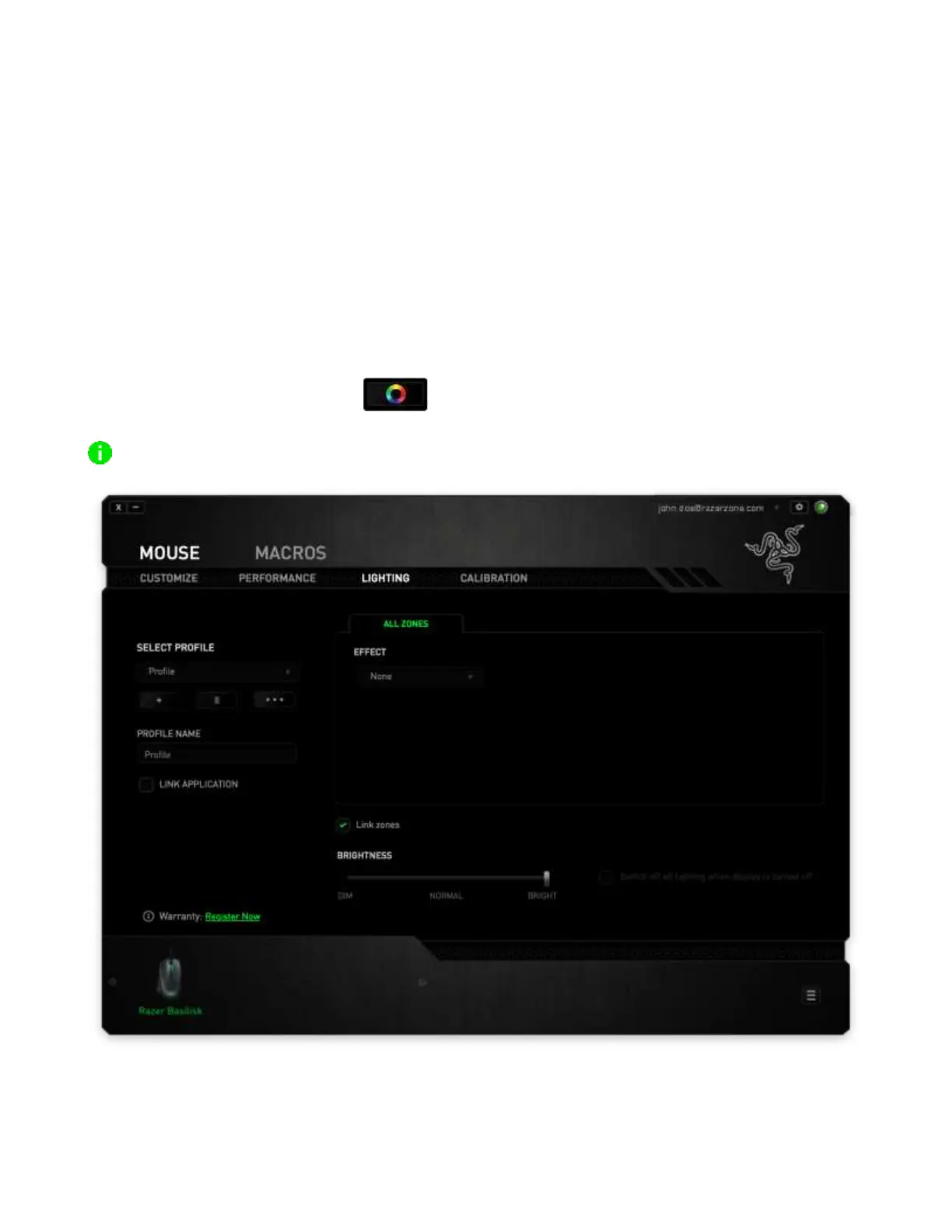
LIGHTING TAB
The Lighting tab enables you to modify your Razer device’s light settings.
Effect
The Effect function allows you to customize your Razer device by allowing you to choose from
different quick effects. If you have other Razer Chroma-enabled devices, you can synchronize their
basic lighting effects by clicking the button.
Note: Only devices that support the selected lighting effect will synchronize.



 To Next Page