Select from a set of modes that adjusts the system’s performance, fan speed, and power usage to optimize it for different tasks.
Screen Refresh Rate
Change the number of times per second an image is updated on the screen. The higher the value, the smoother a moving image will
look.
PROFILES TAB
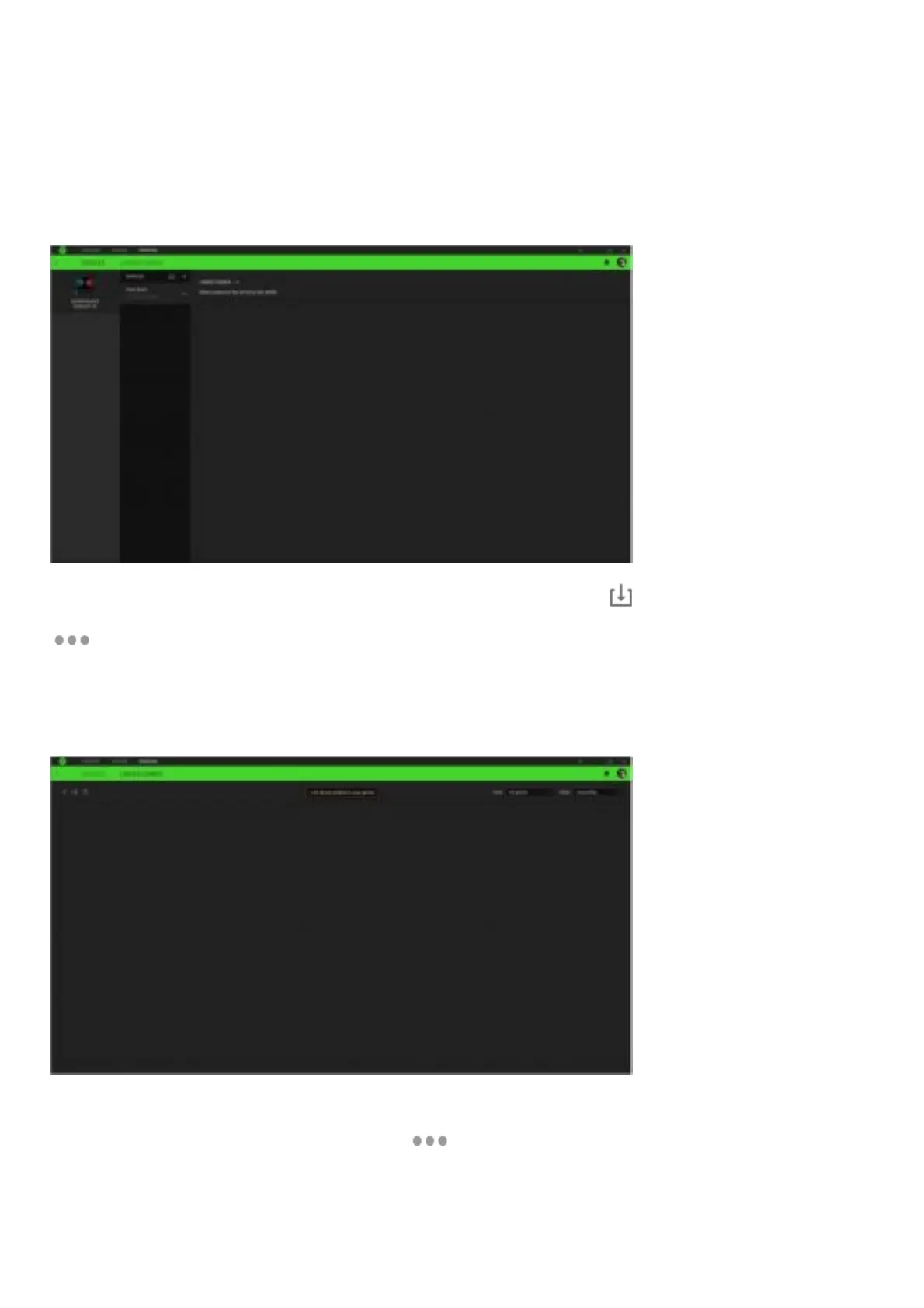
The Profiles tab is a convenient way of managing all your profiles and linking them to your games and applications.
Devices
View which games are linked to each device’s profi les or which Chroma Effect is linked to specific games using the Devices subtab.
You can import Profiles from your computer or from the cloud through the import button ( ) or create new profiles within the
selected device using the add button ( + ).To rename, duplicate, export, or delete a profile, simply press the Miscellaneous button (
). Each profi le can be set to automatically activate when you run an application using the Linked Games option.
Linked Games
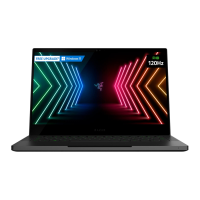
The Linked Games subtab gives you the flexibility to add games, view devices that are linked to games, or search for added games.
You can also sort games based on alphabetical order, last played, or most played. Added games will still be listed here even if it is
not linked to a Razer device.
To link games to connected Razer devices or Chroma Effects, simply click on any game from the list, and then click Select a
device and its profile to launch automatically during gameplay to select the Razer device or Chroma Effect it will link with.
Once linked, you may click on the Miscellaneous button ( ) of the corresponding Chroma Effect or device to select a specific
Chroma Effect or profile.
SETTINGS WINDOW
The Settings window, accessible by clicking the ( ◊ )button on Razer Synapse, enables you to configure the startup behavior and
display language of Razer Synapse, view the master guides of each connected Razer device, or perform factory reset on any
connected Razer device.



 To Next Page