General tab
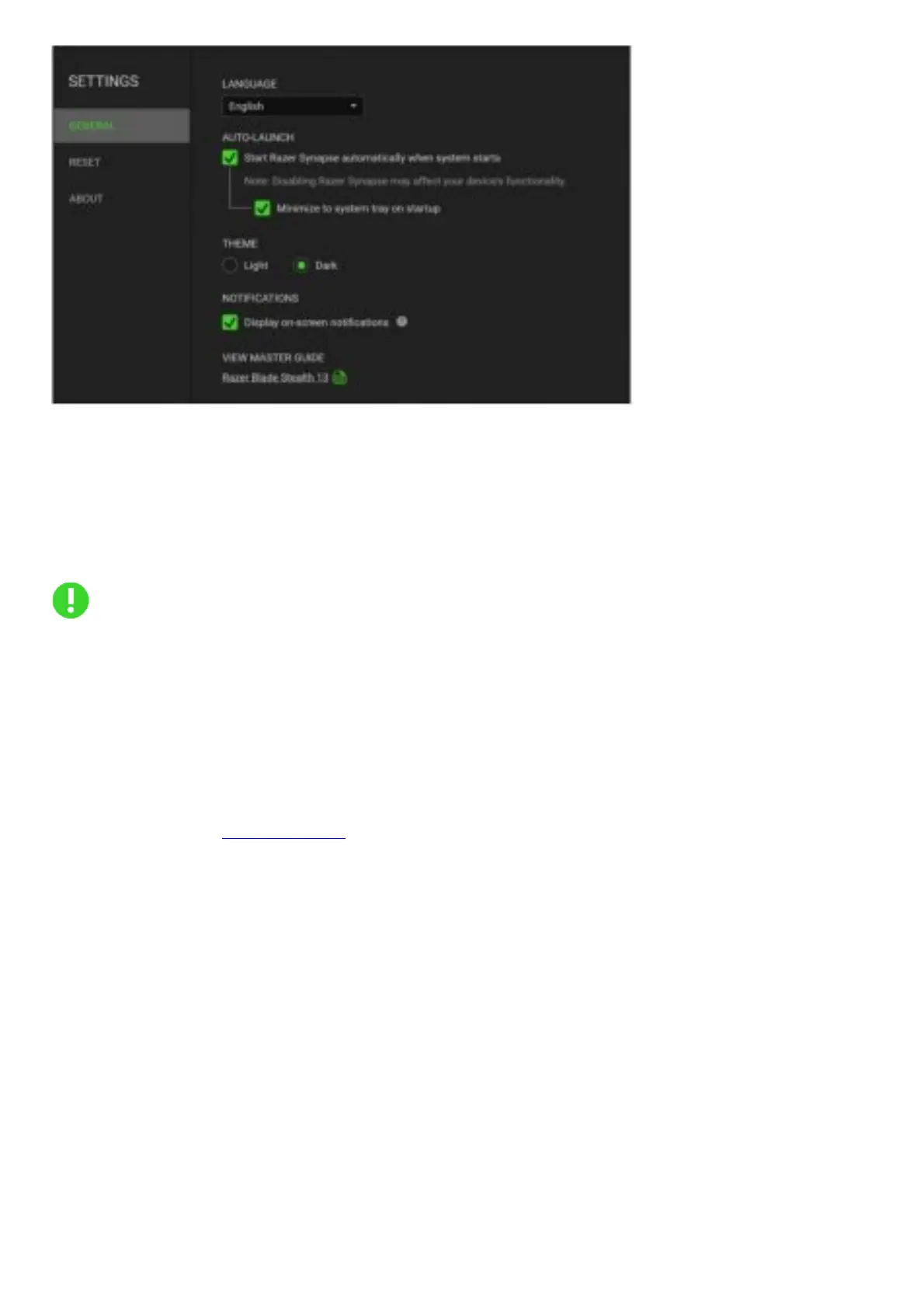
The default tab of the Settings window. The General tab enables you to change the software’s display language, start-up behavior,
display theme, and on-screen notifications display. You may also manually sync your profiles to the cloud (C ) or view the master
guide of all connected Razer devices and installed modules.
Reset tab
The Reset tab allows you to perform a factory reset on all connected Razer devices with on-board memory and/or reset Razer
Synapse tutorials to acquaint yourself again with Razer Synapse’s new features on its next launch.
By resetting a Razer device, all profiles stored on the selected device’s on-board memory will be erased
About tab
The About tab displays brief software information, copyright statement and provides relevant links for its terms of use. You may also
use this tab to check for software updates, or as a quick access to Razer’s social communities.
7. SAFETY AND MAINTENANCE
SAFETY GUIDELINES
In order to achieve maximum safety while using your Razer Blade Stealth 13, we suggest that you adopt the following guidelines:
1. Should you have trouble operating the device properly and troubleshooting does not work, unplug the device and contact the
Razer hotline or go to support.razer.com for assistance.
2. Do not take apart the device (doing so may void your warranty) and do not attempt to operate it under abnormal current loads.
3. Keep the device away from liquid, humidity or moisture. Operate the device only within the specific temperature range of o•c
(32° F} to 40°( (104 °F). Should the temperature exceed this range, unplug and/or switch off the device in order to let the
temperature stabilize to an optimal level.
COMFORT
Research has shown that long periods of repetitive motion, improper positioning of your computer periphera ls, incorrect body
position, and poor habits may be associated with physical discomfort and injury to nerves, tendons, and muscles. Below are some
guidelines to avoid injury and ensure optimum comfort while using your Razer Blade Stealth 13.
1. Position your laptop directly in front of you. If you have an external mouse, position it next to the laptop. Place your elbows
next to your side, not too far away and your mouse within easy reach.
2. Adjust the height of your chair and table so that the laptop is at or below elbow height.
3. Keep your feet well supported, posture straight and your shoulders relaxed.
4. During gameplay, relax your wrist and keep it straight. If you do the same tasks with your hands repeatedly, try not to bend,
extend or twist your hands for long periods.
5. Do not rest your wrists on hard surfaces for long periods. When using an external mouse, use a wrist rest to support your wrist
while gaming.
6. Do not sit in the same position all day. Get up, step away from your desk and do exercises to stretch your arms, shoulders,
neck and legs.
7. If you should experience any physical discomfort while using your laptop, such as pain, numbness, or tingling in your hands,
wrists, elbows, shoulders, neck or back, please consult a qualified medical doctor immediately.



 To Next Page