H. Power button
I. Multi-touch trackpad
J. Power indicator
K. Power port/Thunderbolt 4 port (USB Type-C)
L. USB Type-A ports
M. 3.5 mm combo port
N. Thunderbolt 4 port (USB Type-C)
Power adapter + regional power cord
Micro-fiber cleaning cloth
Important Product Information Guide
2. LET’S GET YOU COVERED
You’ve got a great laptop in your hands, complete with a 1-year limited manufacturer’s warranty* and a 1-year limited battery
warranty coverage. Now maximize its potential and score exclusive Razer benefits by registering at razerid.razer.com
Gallant may vary by region and is subject to applicable local law.
Got a question? Ask the Razer Support Team at support.razer.com
3. SETTING UP YOUR LAPTOP
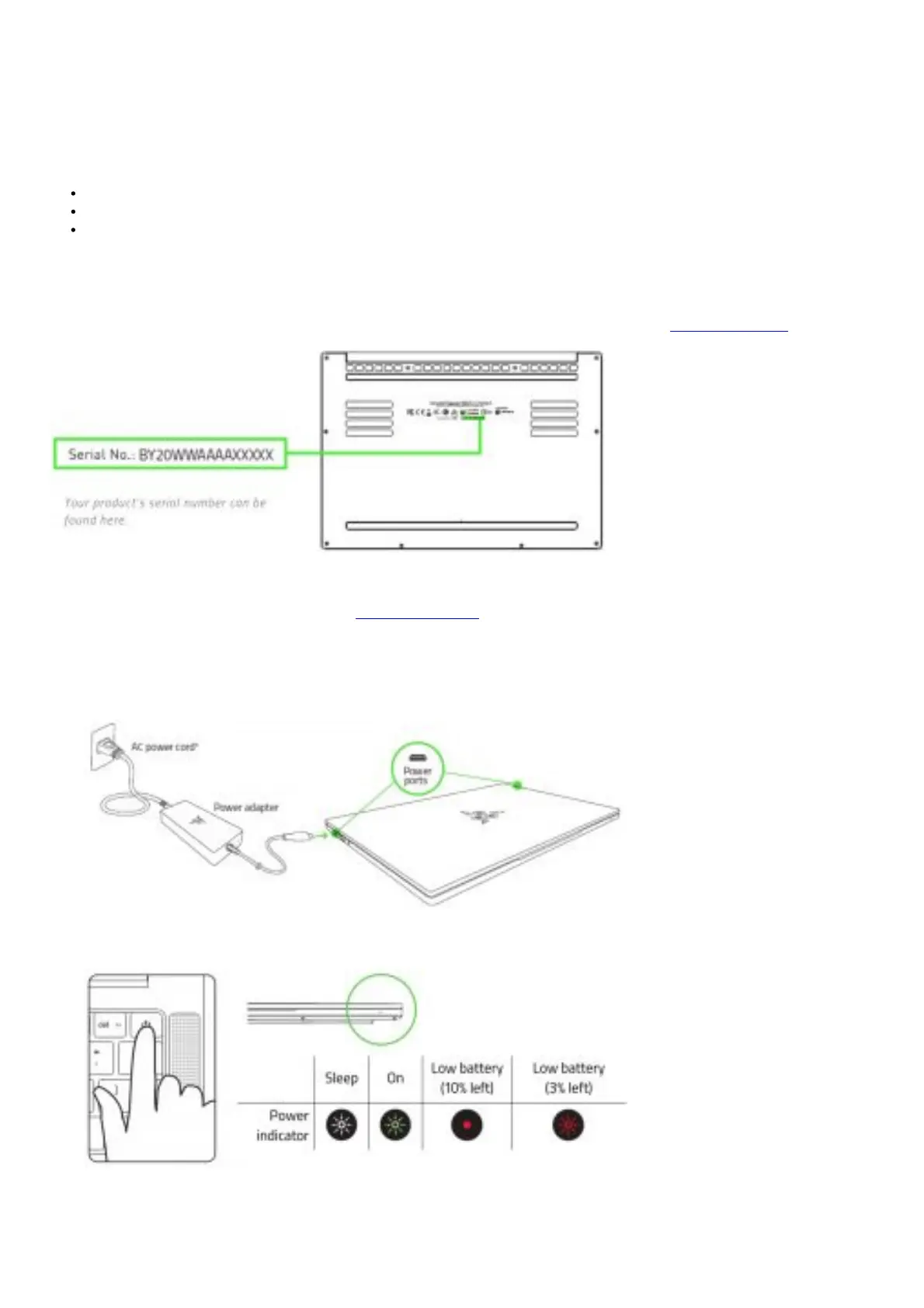
1. With the appropriate power cord connected to the power adapter, insert its AC plug into a power outlet, and then connect it to
any of the power ports of your Razer Blade Stealth
e Use the appropriate power cold[of tout legion. F-or[irst time use, please[ull change your laptop [irst of make sure to connect it
to a power outlet be[ore turning it on. lt takes at least
2. Power on your Razer Blade Stealth The power indicator will show the status of your laptop.
3. Follow the onscreen instructions to complete the Windows 10
e when prompted, it is recommended that you connect tout laptop to a Wireless netWotk With an active internet connection.
4. INSTALLING DRIVERS



 To Next Page