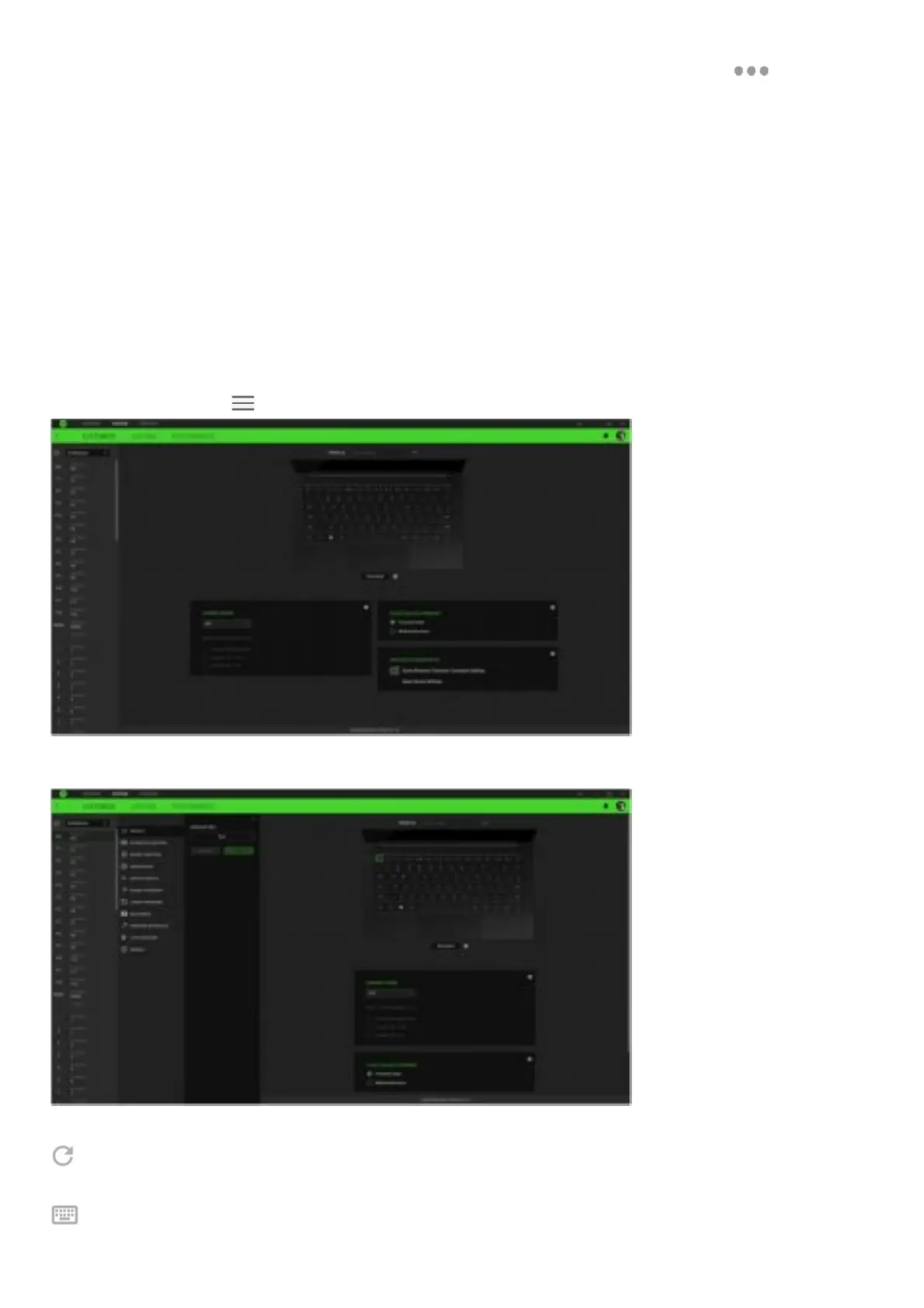
Profile is a data storage for keeping all your Razer devices’ settings. By default, the profile name is based on your system’s name.
To add, rename, duplicate, or delete a profile, simply press the profile’s corresponding Miscellaneous button ( ).
Gaming Mode
Gaming Mode enables you to customize which keys to disable when Gaming Mode is activated. Depending on your settings, you
may choose to disable the Windows key, Alt + Tab and Alt + FT.
Standard/ Hypershift
Hypershift mode is a secondary set of key assignments that is activated when the Hypershift key is held down. By default, the
Hypershift key is assigned to the fn key of your device, however, you can also assign any key as a Hypershift key.
Function Key Primary
Function Key Primary allows you to switch between the primary keys and secondary keys. Primary keys are activated with a single
key press while secondary keys require an additional step pressing the fn key.
Trackpad Properties
Use the links under this option to set the scroll behavior, change the touchpad delay, edit gestures, access cursor pointing options,
and other advanced features.
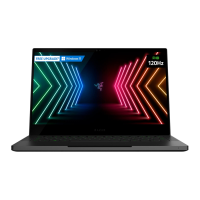
Sidebar
Clicking the Sidebar button ( ) will reveal all current key assignments for your Razer Blade Stealth 13.
Alternatively, you can skip to a specific key assignment by selecting it on the Customize tab.
Upon selecting a key assignment, you may then change it to one of the following functions;
Default
This option enables you to return the selected key to its original setting.
Keyboard Function
This option changes the key assignment into a keyboard function. You can also choose to enable Turbo mode which allows you to



 To Next Page