Polling Rate
The higher the polling rate, the more often the computer receives information about the status of
your mouse, thus increasing the mouse pointer's reaction time. You can switch between 125Hz
(8ms), 500Hz (2ms) and 1000Hz (lms) by selecting your desired polling rate on the dropdown
menu.
Mouse Properties
From here, you can access the Windows Mouse Properties where you modify operating system
settings that can directly affect your Razer Viper.
Lighting
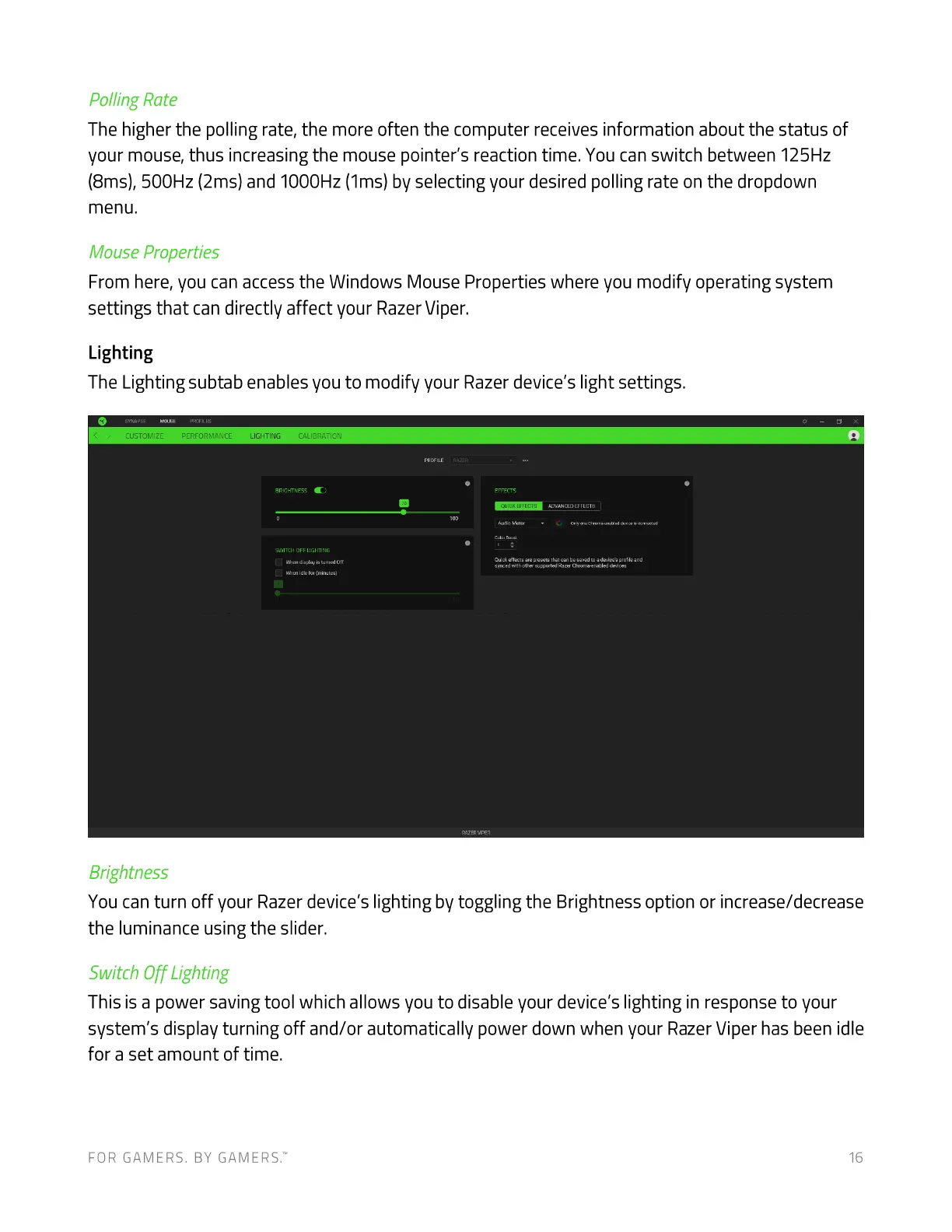
The Lighting subtab enables you to modify your Razer device's light settings.
CLISTOMIZE
Brightness
LIGHTING cnuaanr•ou
OFF
You can turn off your Razer device's lighting by toggling the Brightness option or increase/decrease
the luminance using the slider.
Switch Off Lighting
This is a power saving tool which allows you to disable your device's lighting in response to your
system's display turning off and/or automatically power down when your Razer Viper has been idle
for a set amount of time.
FOR GAMERS. BY GAMERS:
16




 To Next Page