25
FIRMWARE UPDATE
Firmware updates provide improved performance for the iBobber. Here’s how
to update the rmware in the iBobber:
1) Make sure you have the latest version of the iBobber App and that the
iBobber is fully charged. You may check which version you have by going to
the “Settings” page again; it will be at the top of the page.
2) Firmware updates require an internet connection; make sure you have an
active internet connection, either Wi-Fi or 3G/4G.
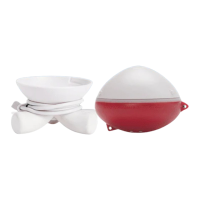
3) Wet the iBobber by placing it in the bowl of water and open Settings in the
app. Tap Bluetooth Sync. Tap the Back button. If there’s a green icon next
to Firmware Update it means that a rmwareupdate is available. To update
tap the icon. The rmware update should begin automatically. Please follow
instructions on the screen. The update should take less than 10 minutes for
Apple and most Android devices, however some Android devices will take as
much as 20 minutes. Once completed you will see a brief ash of green light
(means the iBobber rebooted itself) and the iBobber is ready to nd sh. If
after the update you still see the “Update to” icon, it means the install did not
happen. Please make sure the iBobber is still synced to the smart device and
try the update again. If you have any questions or issues please contact us at
844-IBOBBER or info@reelsonar.com


 To Next Page