05
ENSATURN MK3
CONNECTIVITY EXAMPLES
(1 x USB A-B / 2 x OPTICAL / 2 x CO-AXIAL)
This page oers suggested connectivity. With so many
products oering a number of options, it is important to
check the manual of the product you are connecting for
the optimum output connection and settings required to
operate properly.
Note: This unit only accepts two-channel PCM digital audio.
You cannot connect a Dolby Digital 5.1/7.1 or a DTS signal as
they will not be recognised. If you wish to connect a DVD or
similar device, please ensure that the sound output of your
player is set to two-channel PCM.
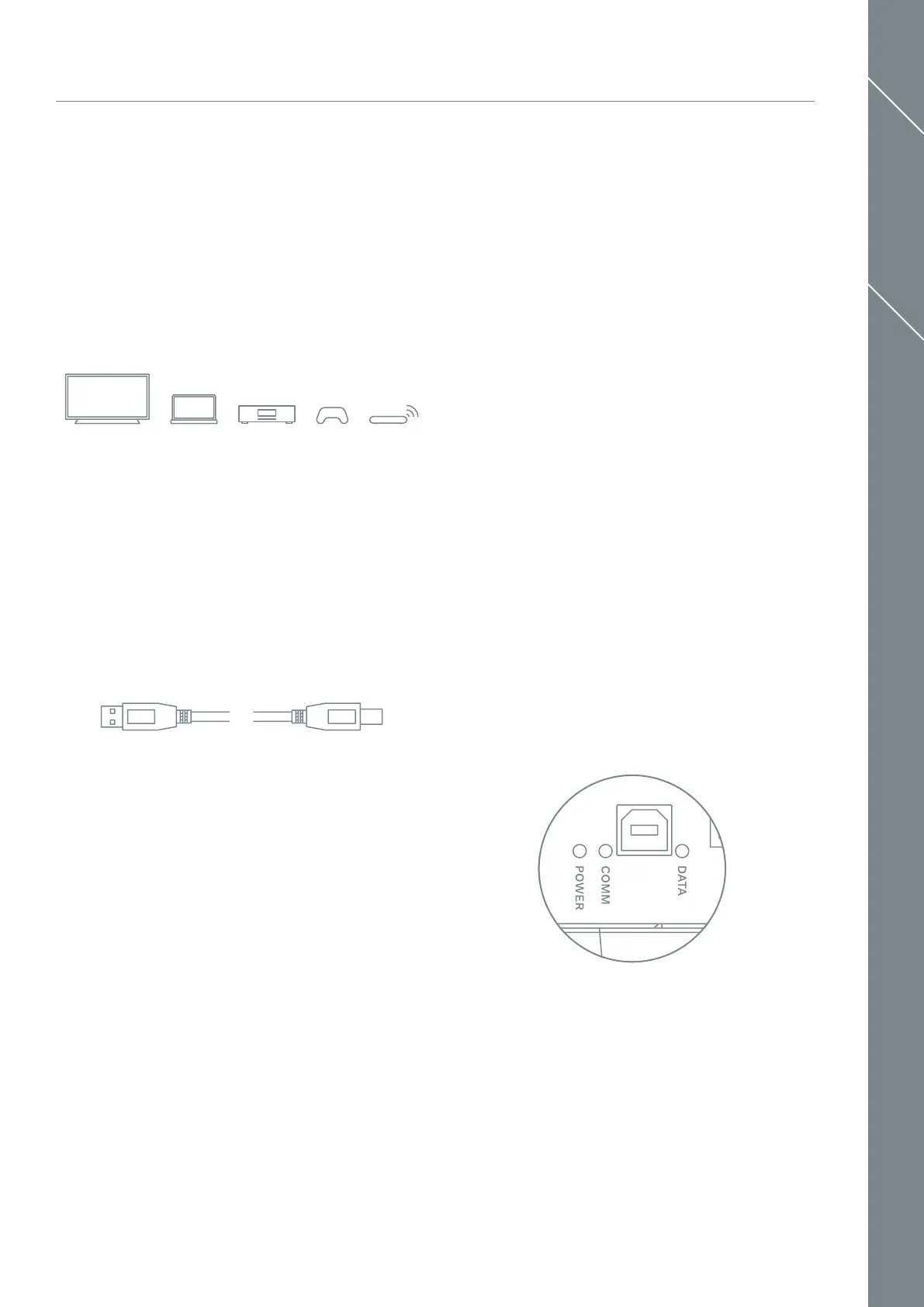
TV; PC/Mac/Laptop/Server Internet Radio; CD/Blu-Ray/DVD Player/Streamer;
Games Console; Satellite/Set-Top Box
USB A - B lead (not supplied)
USB SETUP & CONNECTIVITY
Connect a USB A-B type lead from the DAC USB to a USB
output on your PC.
IMPORTANT: Before you can use the USB function of the
Saturn you must rst download the Rega USB Windows
driver and install it on your PC. This driver is available for
download from the Rega website, www.rega.co.uk, then go
to Products, CD Players then Saturn. Follow the instruction
for installation. Once installed, USB will be ready to use. The
driver is not required for MacOS.
DAC FILTER SETTINGS
These settings are a matter of personal taste and oer
subtle changes. We suggest using Filter setting 1 and trying
dierent settings with various sources and sample rates.
Each lter is selectable via the FILTER button on the Solaris
remote handset. Filters will have a more prominent eect
the higher the sample rate.
Filter settings 1 – 5 (@ low sample rates 32/44.1/48k)
1. Linear phase half-band lter
2. Minimum phase soft-knee lter
3. Minimum phase half-band lter
4. Linear phase apodising lter
5. Minimum phase apodising lter
Filter settings 1 – 5 (@ medium & high sample rates 88.2/96
& 176.4/192k)
1. Linear phase soft-knee lter
2. Minimum phase soft-knee lter
3. Linear phase brickwall lter
4. Minimum phase apodising lter
5. Linear phase apodising lter
REAR LED INDICATOR FUNCTIONS
Three LEDs are located on the back panel.
POWER - The USB takes its power from the connected
computer. This will stay on whilst connected even if the
Saturn is o.
COMM - The USB input is active and communicating with
the connected computer.
DATA - This indicates data is owing through the USB input.
For example, it will light when a track is played using a
media player or when an Internet radio station is active.
DAC FUNCTIONS
It is recommended to switch o any other system sounds
emitted by the PC via the control panel. In some systems,
the DAC will automatically become the default for your
PC whilst connected. Once disconnected, the previous
default should be restored. If this does not happen you can
manually reset as follows:
Windows: Control Panel > Hardware and Sound > Manage
Audio Devices > select ‘Saturn’ from list.
MacOS: System Preferences > Sound Output > Select
‘Saturn’.


 To Next Page