2120
Serato DJ Pro djay Pro AI
PERFORMANCE SECTION:
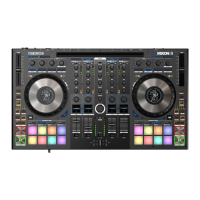
53. Performance Pad Modes
(1-4)
Activates the pad mode (1-4) marked on the pads.
Note! Pressing again activates the second level pad modes (5-8).
Activates the pad mode (1-4) marked on the pads.
Note! Pressing again activates the second level pad modes (5-8).
1: Hot Cue:
Triggers the 8 available cue points per deck. The hot cue colours can
be customised in the software and the pads are and the pads will light up in
the corresponding colours.
Note! Parameter knobs perform flip functions****:
Play, Record, Loop, On/Off
- SHIFT+PAD: Deletes the current cue point.
1: Hot Cue:
Triggers the 8 available cue points per deck. The hot cue colours can be
customised in the software and the pads are and the pads will light up in the
corresponding colours
- SHIFT+PAD: Deletes the current cue point.
2. Loop Roll:
Pads 1-4 (de)activate a Loop Roll when the pad is held. Each pad is assigned
to a specic loop length from 1/32 - 4/1. The Loop Roll range can be shifted
via the Parameter 1 buttons. Pads 5-8 control the Beat Jump function.
2. Loop Roll:
Each pad de-/activates a loop roll when the pad is held each pad is assigned a
specic loop length from 1/32 – 4/1.
3. Saved Loops:
Up to 8 loops can be saved. Each pad represents one loop slot. To save a loop,
Set an auto loop and press a pad. Press it again to delete the loop.
- SHIFT+PAD: Triggers the loop.
3. Saved Loops:
Up to 8 loops can be saved. Each pad represents one loop slot. To save a loop,
Set an auto loop and press a pad. Press it again to delete the loop.
- SHIFT+PAD: Triggers the loop.
4. Sampler:
Pads 1-8 trigger the 8 available sample slots. Using the parameter buttons,
you can switch back and forth through banks A, B, C, D. The volume can be
adjusted with the Sampler (6.).
- SHIFT+PAD: Stops the sample.
Pad modes in the second level:
4. Sampler:
Pads 1-8 trigger the 16 available sample slots. Sampler mode on the left deck
controls samples 1-8, sampler mode on the right deck controls samples 9-16. If
the sampler mode button is pressed for 2 seconds, PAD VELOCITY and AFTER-
TOUCH are activated. The samples can now be played back at different volumes.
Note! Sampler View is only available in 2-deck view.
- SHIFT+PAD stops the sample.
Pad Modes in the second layer:
5. Pitch Play*:
In combination with Pitch n Time DJ, you can play back your cues in different
tones. There are 3 keys available. To switch between them, press the left
or right PARAM 1 button. The pad with the basic tone is always white
illuminated; here the cue point is played with the regular pitch. When you are
in Pitch Play mode, pressing the pads will play back your cue point At different
pitches.
- SHIFT+PAD: Selects a different Hot Cue Point for Pitch Play.
5. Pitch Play:
You can play your cues in different keys. There are 3 keys available. To switch
between them, press the left or right PARAM 1 button. The pad with
the root key is always lit in white; here the cue point is played with the regular
pitch. When you are in pitch play mode, pressing the pads will play your cue
point in different Pitches.
- SHIFT+PAD: Select a different Hot Cue Point for Pitch Play.
6. Saved Flip****:
Up to 8 saved ips can be displayed, pads 1-8 start your previously saved ips.
- SHIFT+PAD: Jumps directly to the respective ip and starts it.
6. Touch FX Mode:
The drum pads have different instant effects that are activated by pressing the
respective pad.
7. Slicer:
If the slicer is activated, a dened section is divided into eight equal parts.
These eight sliced sections are distributed to the corresponding performance
pads. When the playhead reaches the end of the section, it moves beyond the
section and forms a new section.
7. Slicer:
If the slicer is activated, a dened section is divided into eight equal parts.
These eight sliced sections are distributed to the corresponding performance
pads. When the playhead reaches the end of the section, it moves beyond the
section and forms a new section.
8. Scratch Bank:
In scratch bank mode, you can assign an audio le from your Serato DJ
Pro Library to each of the 8 performance pads. When a pad is pressed, the
respective le is loaded onto the deck. The pads on the left are loaded on
deck 1 and the pads on the right are loaded on deck 2. To set up your scratch
bank les, click on the on the scratch bank icon in the top bar of Serato DJ
Pro. There you will see the Scratch Bank panel. In this panel, you can load or
eject the audio les you want and dene your personal settings. The settings
include the start point, repeat on/off and key lock on/off. By clicking on the
button in the upper left corner of the of the scratch bank panel, you can toggle
between the expanded and simple view.
- SHIFT+PAD: Hold down the SHIFT and click on any Scratch Bank pad to
delete the currently loaded le and and reload the last track
loaded on that deck.
8. Neural Mix™:
In Neural Mix™ mode you can control the Algoriddim Neural Mix™ functions
via the drum pads. The drum pads are assigned as follows:
- PAD 1: Drum Solo On/Off = Mute Harmonic & Vocal
- PAD 2: Harmonic Solo On/Off = Mute Drum & Vocal
- PAD 3: Vocal Solo On/Off = Mute Drum & Harmonic
- PAD 4: Drum Swap On/Off (deactivates the drum stem of the selected
channel and activates solo for the drum stem of the other channel)
- PAD 5: Drum Solo Hold = Mute Harmonic & Vocal
- PAD 6: Harmonic Solo Hold = Mute Drum & Vocal
- PAD 7: Vocal Solo Hold = Mute Drum & Harmonic
- PAD 8: Drum Swap Hold (deactivates the drum stem of the selected channel
and activates solo for the drum stem of the other channel)
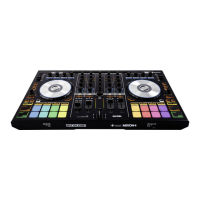
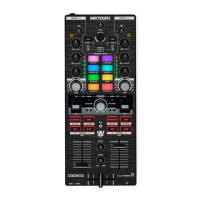
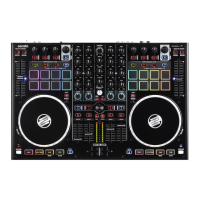
54. Performance Pads (1-8)
Colour-coded, velocity-sensitive drum pad section, to controll the different
performance modes.
Colour-coded, velocity-sensitive drum pad section, to controll the different
performance modes.
FRONT SECTION:
55. Mic 2-In (TRS) Microphone input 2 (6.3 mm jack) Microphone input 2 (6.3 mm jack)
56. Crossfader Curve-Adjust
Knob for adjusting the crossfader opening behaviour. Knob for adjusting the crossfader opening behaviour.
57. Headphone Connections
(3,5 mm / 6,3 mm)
Headphone output (3.5 mm / 6.3 mm jack connection) Headphone output (3.5 mm / 6.3 mm jack connection)
Serato DJ Pro djay Pro AI
REAR SECTION:
58. Mic 1-In (XLR/TRS) Microphone input 1 combi jack (XLR / 6.3 mm jack connector) Microphone input 1 combi jack (XLR / 6.3 mm jack connector)
59. PSU-Power Connection
Mains cable connection for external power supply. Mains cable connection for external power supply.
60. Power ON/OFF
Power On/Off Power On/Off
61. USB-C Port (iOS)
USB-C port for iOS USB-C port for iOS
62. USB-In-Switch
Selection switch for use of the USB-C or USB-B B port. Selection switch for use of the USB-C or USB-B B port.
63. USB-B A-Port USB port 1 for PC/Mac USB port 1 for PC/Mac
64. USB-B B-Port
USB port 2 for PC/Mac USB port 2 for PC/Mac
65. Line-In Channel 3 (RCA)
Line input Channel 3 (RCA) Line input Channel 3 (RCA)
66. Phono/Line-In Channel
1 (RCA)
Phono/Line input Channel 1 (RCA)
Note! You can control Serato DJ Pro using Noisemap™
Control tone CDs or Vinyl**.
Phono/Line input Channel 1 (RCA)
67. Phono/Line-Switch
Channel 1
Signal-In selection switch for Channel 1. Signal-In selection switch for Channel 1.
68. Grounding-Screw (GND) Grounding screw Grounding screw
69. Phono/Line-Switch
Channel 2
Signal-In selection switch for Channel 2. Signal-In selection switch for Channel 2.
70. Phono/Line-In Channel
2 (RCA)
Phono/Line input Channel 2 (RCA)
Note! You can control Serato DJ Pro using Noisemap™
Control tone CDs or Vinyl**.
Phono/Line input Channel 2 (RCA)
71. Line-In Channel 4 (RCA) Line input Channel 4 (RCA) Line input Channel 4 (RCA)
72. Booth-Out (TRS) Booth output (2 x 6.3 mm jack) Booth output (2 x 6.3 mm jack)
73. Master-Out 2 (RCA) Master output 2 (RCA unbalanced) Master output 2 (RCA unbalanced)
74. Master-Out 1 (XLR) Master output 1 (XLR balanced) Master output 1 (XLR balanced)
75. Kensington Lock Theft protection Theft protection
* Requires the Serato Pitch'n Time Expansion Pack
** Requires the Serato DVS Expansion Pack. Not available for djay.
*** Requires a subscription to the desired streaming service: Tidal,
Soundcloud Go+, Beatport Link and Beatsource Link
**** Requires the Serato Flip Expansion Pack
***** Only available fordjay Pro AI (Mac Edition).
ENGLISH
ENGLISH


 To Next Page
 Loading...