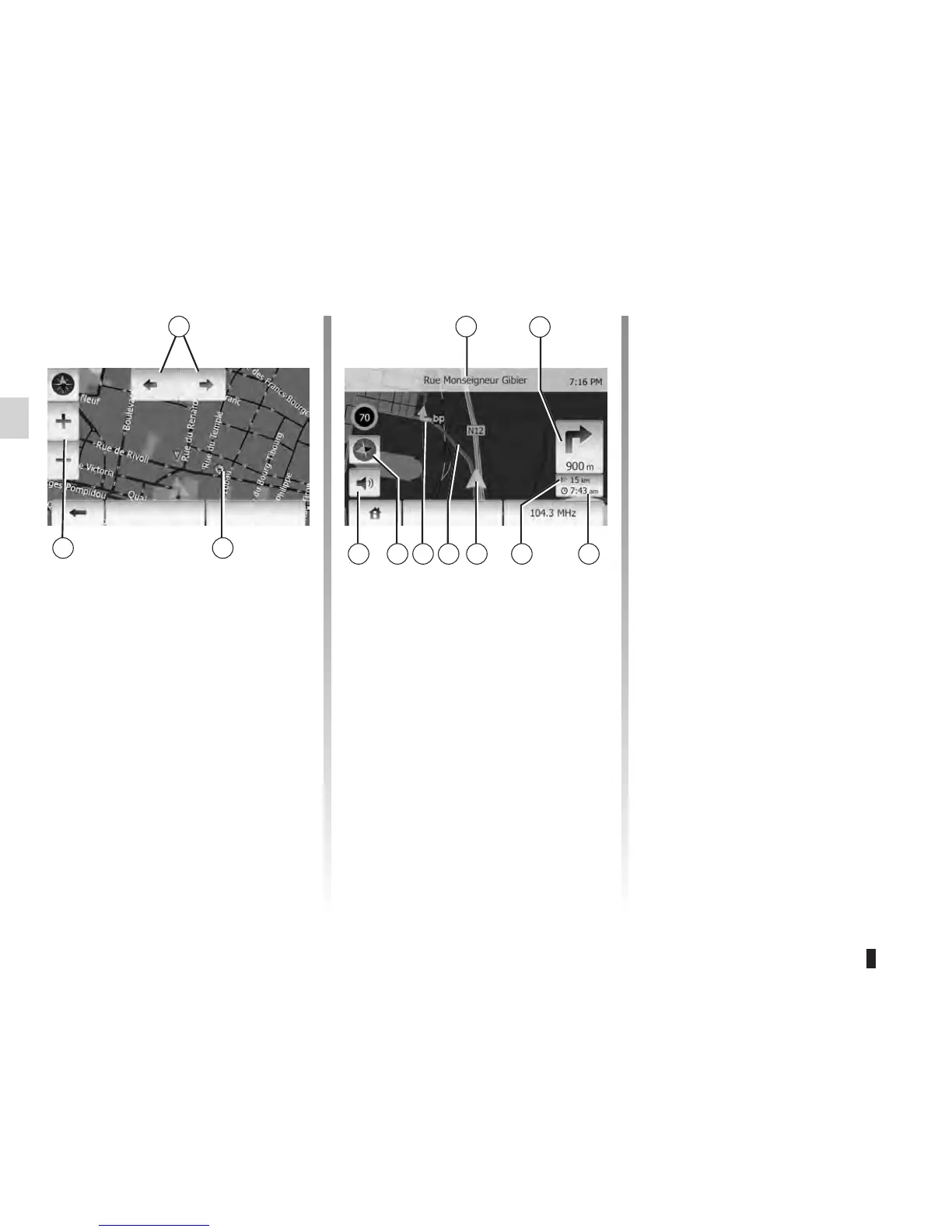
To display the map around the location
of the vehicle, tap “Home” > “MAP”.
Touch the map screen.
To move around the navigation map,
drag desired direction on the screen.
Tap 3 to change the scale.
Rotate the map by pressing 1.
4 Name of the next major road or road
sign information, if applicable.
5 Distance to and direction of next
change of direction.
6 Estimated time of arrival
7 Distance remaining to the destina-
tion
8 Location of the vehicle on the navi-
gation map
9 Route calculated by the navigation
system
10 Indicates the direction change
11 Compass
12 Mute voice guidance on/off
This function makes it possible to find
out the geographical location of the se-
lected position (Address/latitude/longi-
tude).
Touch desired position on the screen.
Press “Options” and then press “Info” to
find out exact location of the selected
position.
It indicates North whatever the position
of the map.
Press 11 to change the map view be-
tween 2D and 3D.
The navigation system uses icons 2 to
display points of interest (POI). Refer to
the information on “Display points of in-
terest” in the section on “Map settings”.
OKOptions Options





 To Next Page