7
MULTIMEDIA
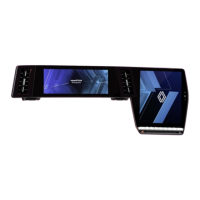
“Multimedia” applications
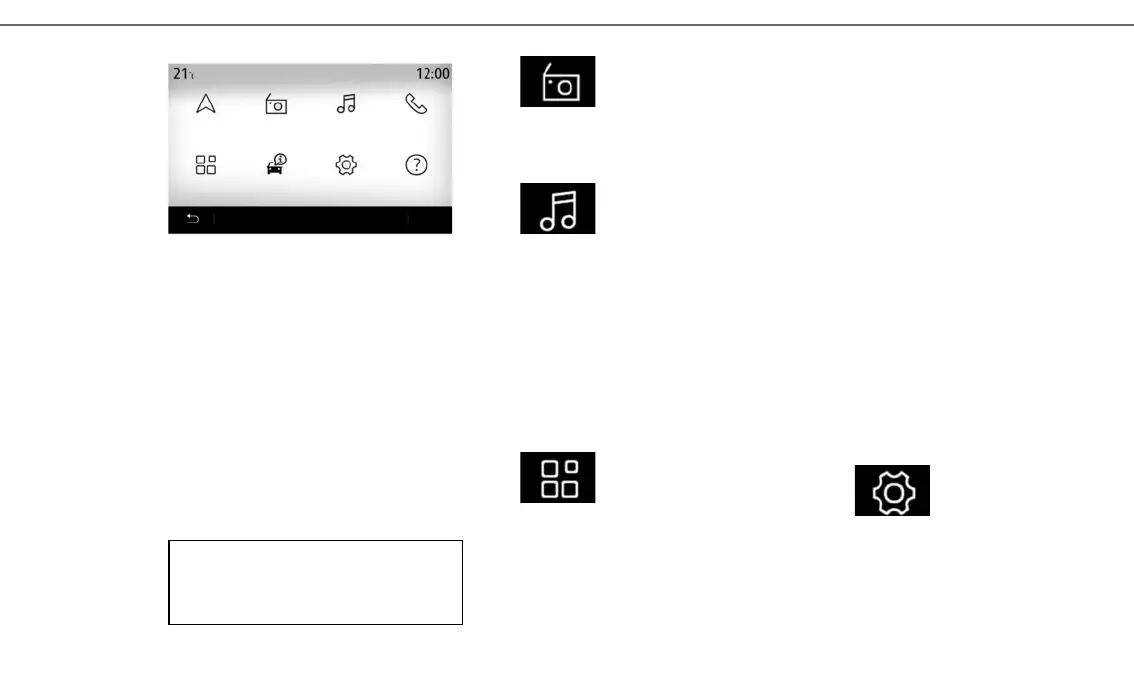
From the home screen, press “Menu” to access the
“Multimedia” applications:
– “Radio”;
– “Music”;
– “Applications”;
– “Settings”.
Note: several input sources are available.
Please refer to the system instructions for fur-
ther information.
Menu
Navigation
Applications
Radio
Car info
Music
Settings
Phone
Help
“RADIO”
Please see the “Radio” section in this document.
“MUSIC”
Press the “Music” button, then select an input
source to access the audio files.
Note: only available sources can be selected.
Unavailable sources will be greyed out.
Note: Some formats may not be readable by the
system.
“APPLICATIONS”
This menu can be used to access the following
applications:
– installed applications;
– “Video”;
– “Photo”.
“Video”
Press the “Video” button, then select a con-
nected source (USB port) to access the videos.
To start playing a video, select the video to view.
Note: Some formats may not be readable by the
system.
“Photo”
Press the “Photo” button, then select the con-
nected source (USB port) to access the photos.
The system offers you two options:
– to view a photo;
– to launch a slideshow.
“SETTINGS”
Use this menu to set the various functions of the
Multimedia system.



 To Next Page