7 8
Step 2 :
Launch the Reolink App, click “ ” at the top right, and scan the QR
code on your Home Hub Pro to add it.
Step 3 :
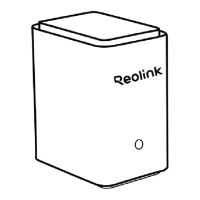
Once the setup is complete, the LED indicator light will turn blue.
Adding Devices to Home Hub Pro
There are two ways to add Reolink devices to your Home Hub Pro:
1. If your device is already set up, click the “ ” button at the top right
and choose to “add from device list” or “add from LAN.”
2. If your device is not yet set up, click the “ ” button in the top right
corner and scan the QR code. (If you are adding a plug-in camera, make
sure to power it up rst.)
Reolink Home Hub Pro


 To Next Page
 Loading...