EasyManua.ls Logo

ReSound Smart 3D - User Manual

ReSound Smart 3D
2 pages
Print Icon
To Next Page IconTo Next Page
Loading...
How to pair your hearing aids with your Android
TM
device
1. Turn your hearing aids o.
2. Go the Settings menu and check that Bluetooth is turned on.
3. Go to Google Play. In the Search field on top, enter the name of the app and download
the app.
4. Once downloaded, open the app and tap Get Started.
5. Follow the instructions on the screen to connect. You are now ready to go.
If you need to re-pair your iOS device
1. Start by removing the old pairing by going to the Settings menu.
2. Tap General, scroll down and select Accessibility.
3. Select MFi Hearing Devices and tap on Forget this device.
4. Turn your iOS device o and on again and re-pair the hearing aids to the device. If you
need more information, contact your hearing care professional.
© 2019 GN Hearing A/S. All rights reserved. ReSound is a trademark of GN Hearing A/S. Apple, the Apple logo, iPhone, iPad, iPod
touch
are trademarks of Apple Inc., registered in the U.S. and other countries. App Store is a service mark of Apple Inc., registered in
the U.S. and other countries. Android, Google Play and the Google Play logo are trademarks of Google LLC. The Bluetooth word mark
and logos are registered trademarks owned by the Bluetooth SIG, Inc.
Get connected
The ReSound Smart 3D
and Smart
apps
Worldwide Headquarters
GN Hearing A/S
Lautrupbjerg 7
DK-2750 Ballerup, Denmark
Tel.: +45 4575 1111
resound.com
United Kingdom
GN Hearing UK Ltd.
Kirtlington Business Centre
Portway, Kirtlington
Oxon OX5 3JA
Tel.: +44 1869 352 800
resound.com
Australia
GN Hearing Australia Pty Ltd.
Gate C, 19-25 Khartoum Road
Macquarie Technology Park
Macquarie Park NSW 2113
Tel.: (free) 1800 658 955
resound.com
New Zealand
GN Hearing New Zealand Limited
Ground Floor, North Entrance
4 Fred Thomas Drive
Takapuna, Auckland, 0622
Tel.: (free) 0800 900 126
resound.com
Singapore
GN Hearing Pte. Ltd.
2 Kallang Avenue
#07-19 CT HUB
Singapore - 339407
Tel: +65 6320 9388
resound.com
M201466GB-19.01-Rev.A
Question and Answer IconNeed help?

Do you have a question about the ReSound Smart 3D and is the answer not in the manual?

Summary

How to Pair Hearing Aids with Android Device

Introduction to ReSound Apps

How to Pair Hearing Aids with iOS Device

Overview

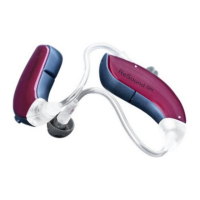
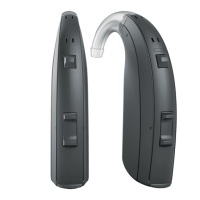
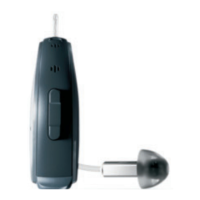
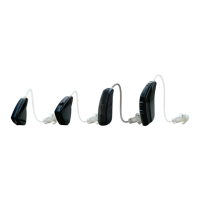
This document serves as a comprehensive guide for users to pair their ReSound hearing aids with both Android and iOS mobile devices, enabling them to control their hearing aids via the ReSound Smart 3D™ and Smart™ apps. The primary function of this device is to enhance hearing and provide users with a seamless, personalized audio experience.

Function Description

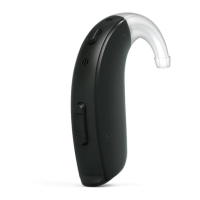
The ReSound hearing aids are designed to improve hearing by amplifying sounds and processing them to suit individual hearing needs. When paired with a compatible smartphone or mobile device, these hearing aids transform into smart, controllable devices. The accompanying ReSound Smart 3D™ and Smart™ apps act as remote controls, allowing users to adjust various settings of their hearing aids directly from their phone. This connectivity offers a discreet and convenient way to manage hearing aid functions without needing to physically interact with the aids themselves.

The core functionality revolves around sound enhancement and personalization. Users can expect improved clarity in various listening environments, thanks to advanced sound processing capabilities. The apps provide an intuitive interface to fine-tune these settings, ensuring that the hearing aids adapt to different situations, whether it's a quiet conversation, a noisy restaurant, or listening to music.

Usage Features

The usage features are primarily centered around the ease of pairing and the extensive control offered by the mobile applications.

Pairing with Android Devices:

  1. Initial Setup: Users begin by turning off their hearing aids.
  2. Bluetooth Activation: Ensure Bluetooth is enabled on the Android device by navigating to the Settings menu.
  3. App Download: Access Google Play, search for the ReSound app (Smart 3D™ or Smart™), and download it.
  4. App Launch and Connection: Open the downloaded app, tap "Get Started," and follow the on-screen instructions to establish the connection between the hearing aids and the Android device. Once connected, the hearing aids are ready for use with the app.

Pairing with iOS Devices:

  1. Initial Setup: Start by turning off the hearing aids.
  2. Bluetooth Activation: Enable Bluetooth on the iOS device via the Settings menu. The slider will turn green when Bluetooth is active.
  3. Accessing Accessibility Settings: Navigate back to the main Settings menu, tap "General," and then "Accessibility."
  4. MFi Hearing Devices: Scroll down and select "MFi Hearing Devices."
  5. Hearing Aid Detection: Turn on the hearing aids. The iOS device will then detect them.
  6. Pairing Confirmation: A "Bluetooth Pairing Request" will appear. Tap "Pair" to confirm the connection.
  7. App Download and Connection: Go to the App Store, search for the ReSound app, download it, open it, and tap "Get Started." Follow the prompts to connect the app to the paired hearing aids.

Re-pairing iOS Devices (Troubleshooting/Reset):

If an iOS device needs to be re-paired, the process involves removing the old pairing first:

  1. Remove Old Pairing: Go to the Settings menu.
  2. Navigate to MFi Hearing Devices: Tap "General," scroll down to "Accessibility," and then select "MFi Hearing Devices."
  3. Forget Device: Tap "Forget this device."
  4. Device Restart: Turn the iOS device off and then back on.
  5. Re-pair: Follow the standard iOS pairing instructions from step 6 onwards.

App-Controlled Adjustments:

Once paired, the ReSound apps unlock a range of control features:

  • Volume Control: Users can easily adjust the volume of their hearing aids, either together or individually for each ear.
  • Program Changes: The apps allow switching between different listening programs designed for various environments (e.g., quiet, noisy, music).
  • Sound Enhancer: Advanced users may find options to fine-tune specific sound parameters, such as bass, treble, or noise reduction, to suit their preferences.
  • Streaming: The devices are "Made for iPhone, iPad, iPod" and likely support direct audio streaming from these devices, allowing users to listen to calls, music, or other media directly through their hearing aids. While not explicitly detailed in the provided text, the "Stream to right hearing device" and "Stream to left hearing device" options in the iOS screenshots strongly suggest this capability.
  • Discreet Control: The ability to control hearing aids via a smartphone offers a discreet way to make adjustments without drawing attention.

Maintenance Features

While the document does not explicitly detail physical maintenance of the hearing aids (e.g., cleaning, battery replacement), it does provide crucial information regarding software and connectivity maintenance, which is vital for the optimal functioning of the smart features.

  • Troubleshooting Connectivity: The re-pairing instructions for iOS devices serve as a primary maintenance feature for resolving connectivity issues. By guiding users through forgetting and re-establishing a connection, it addresses common software glitches that might prevent the hearing aids from communicating with the mobile device.
  • Software Updates (Implied): Although not directly stated, modern hearing aid apps and devices often receive software updates to improve performance, add new features, and fix bugs. Users should regularly check for app updates through Google Play or the App Store to ensure their system is running the latest version.
  • Contacting Professionals: The document advises users to "contact your hearing care professional" for more information or if they encounter persistent issues. This highlights the importance of professional support for complex problems or when self-troubleshooting is insufficient. This is a key maintenance aspect, ensuring that users have access to expert help for device upkeep and repair.
  • Compatibility Information: The mention of "resound.com/compatibility" for information on compatible smartphones and mobile devices is a proactive maintenance measure. It ensures users can verify if their current or prospective phone will work seamlessly with their hearing aids, preventing potential compatibility issues.

In summary, the ReSound hearing aids, when paired with their respective mobile apps, offer a sophisticated and user-friendly solution for hearing enhancement. The detailed pairing instructions, extensive app-based controls, and clear guidance on troubleshooting and professional support ensure a comprehensive user experience. The emphasis on connectivity and app control transforms the hearing aids into smart, adaptable devices that integrate seamlessly into a user's daily life.

ReSound Smart 3D Specifications

General IconGeneral
BrandReSound
ModelSmart 3D
CategoryHearing Aid
LanguageEnglish

Related product manuals