Page 49 of 89
©Retrotec 2017
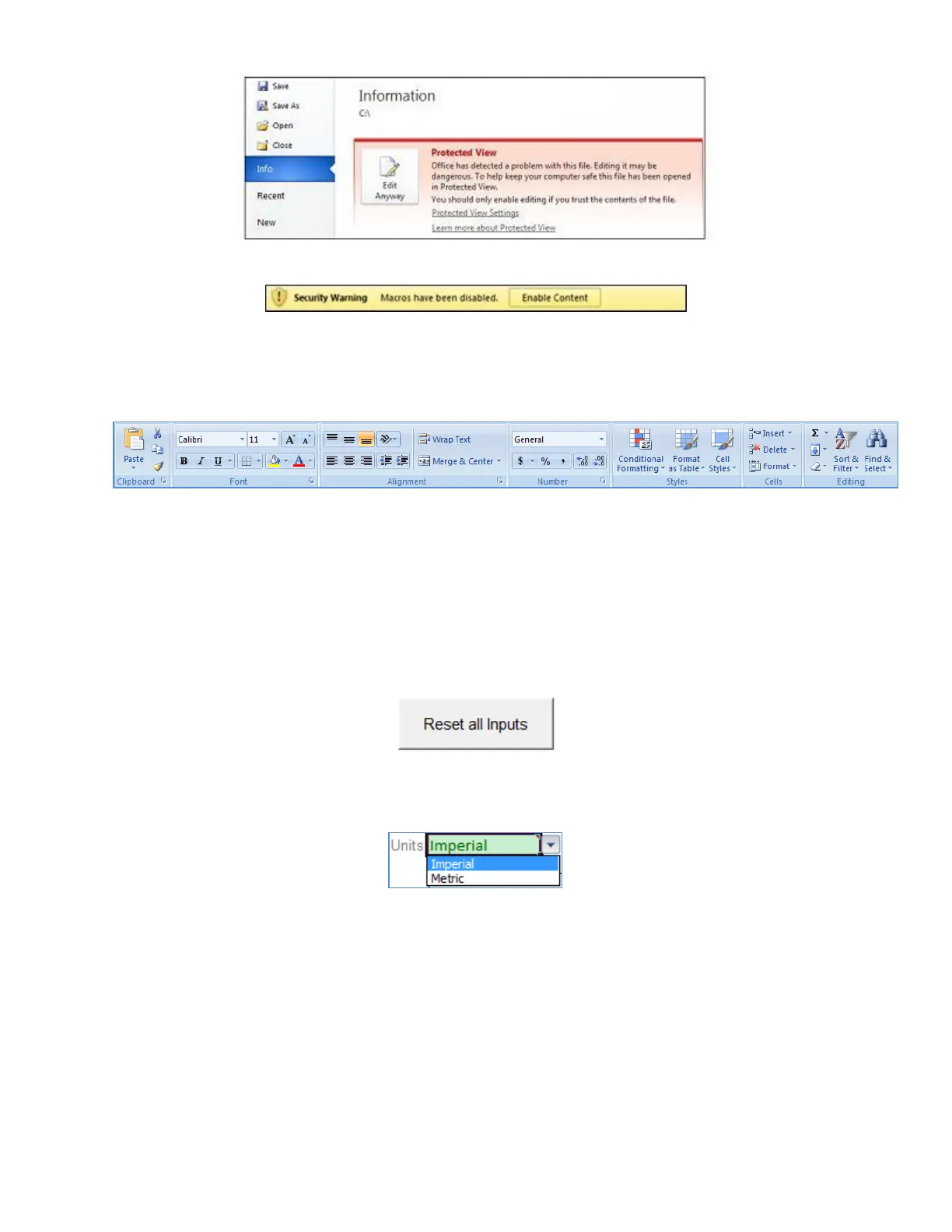
Click “Edit Anyway.” Now go back to the main screen and you will see the option to enable macros:
Click the “Enable Content” button.
10.1.3. Showing/Hiding the Ribbon
When Macros are enabled, the software automatically hides the MS Excel “Ribbon” since it is not used.
Figure 38: The MS Excel “Ribbon”
After closing the software however, the Ribbon remains hidden when a new Excel spreadsheet is
opened. If it’s desired to have the Ribbon shown again, press Ctrl + F1 at any time. Pressing Ctrl + F1
again will hide the Ribbon.
10.1.4. Enter test information and results into green cells
Only enter test data or details into the green cells.
To reset all inputs, click the “Reset all Inputs” button at any time:
10.2 Choose metric or imperial units for results
Use the dropdown menu to select the desired units for data entry and results.
10.2.1. Imperial units
“Flow” and “Duct Leakage”: cubic feet per minute, or CFM
“Conditioned Flow Area”: square feet, or sq ft
“Leakage Area”: square inches, or sq in
10.2.2. Metric units
“Flow” and “Duct Leakage”: cubic metres per hour, or m
3
/h
“Conditioned Flow Area”: square meters, or m
2


 To Next Page