- 30 -
Either a solid RED LED (charging) or solid GREEN LED (100% charged) will appear to confirm that
the microphone is inserted properly in the Charger Base. The microphones are not transmitting audio
to the Executive HD base station while in the Charger Base. In normal use, batteries should fully
charge in about 2 hours, but will ―quick-charge‖ to 80% capacity in approximately 1 hour and 20
minutes. Fully charged microphones left in the Charger Base remain solid GREEN.
Updating the Revolabs HD
TM
Firmware
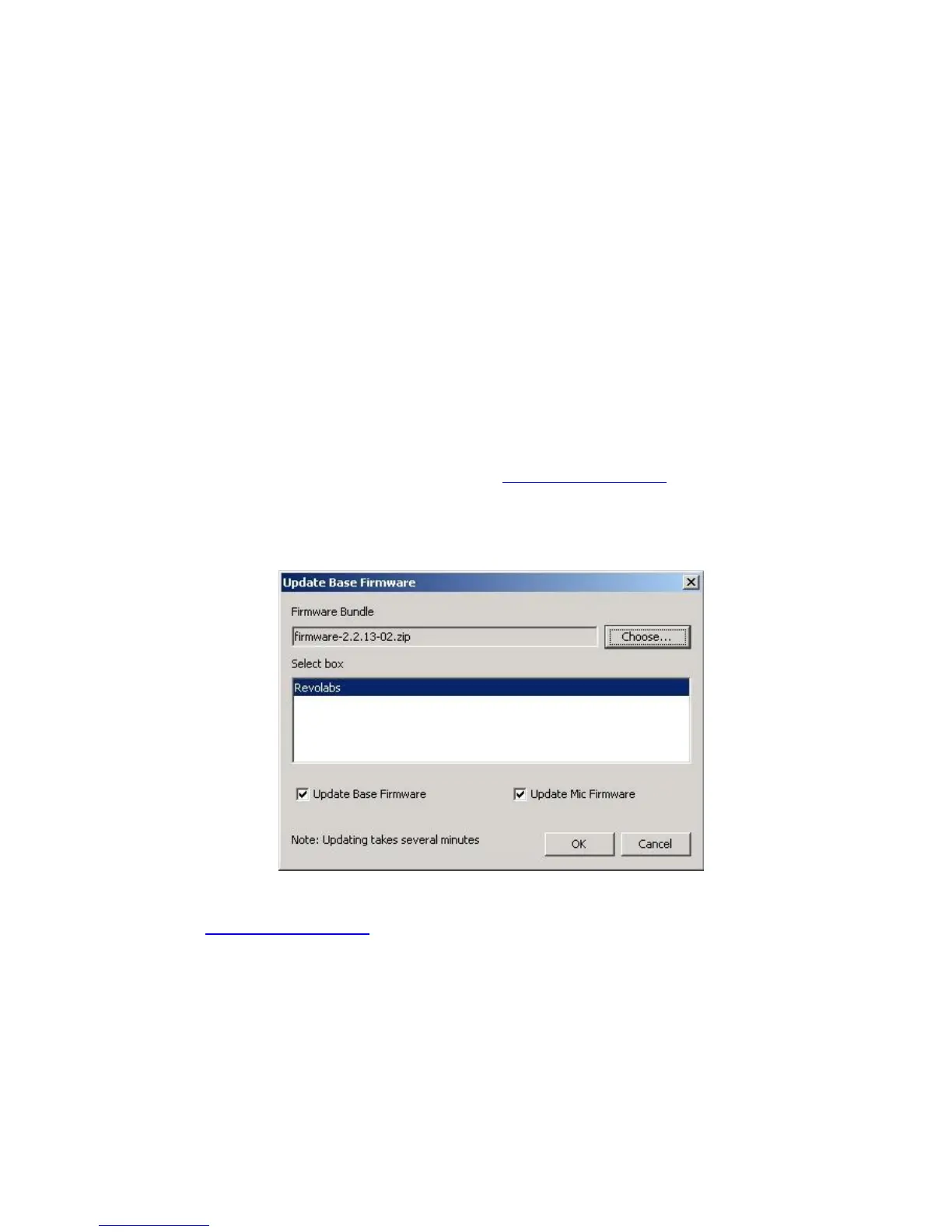
Executive HD Systems are field upgradable for the firmware portion of the Base Station and
microphones. The firmware must be sent to both the Base station and microphone using the HD
Control Panel program.
Note: If your Base Station and microphones have different firmware versions, they may not work
together. Confirm that your Base Station and microphones are updated before use.
Updating the Executive HD Base Station & Microphones
The Executive HD Base Station firmware can be changed using the Revolabs HD Control Panel
program. You can download the latest firmware at www.Revolabs.com. The same firmware file can
be used for all Revolabs HD
TM
Products. Communication to the Base Station is done over an
Ethernet connection, and communication to the microphones is done through the Charger Base via
Mini-USB cable.
1. Go to www.Revolabs.com, download the latest firmware file and save it to your PC. The
firmware file must remain in its .zip format in order to function correctly.
2. Connect the Charger Base to your computer using the Mini-USB cable provided. Make
sure that the charger is plugged in and powered on and that the microphones are in it.
3. Connect to the Base Station using an Ethernet cable. This can be done via a direct
connection to the PC or through a DHCP router or switch.
4. Set your PC IP address. The PC and Base station must be both set to a fixed IP address or
both connected to a DHCP router and have DHCP turned on. (See Using the Revolabs HD
Control Panel Software)
5. Start the Revolabs HD Control Panel software.
6. Select ‗Scan Network‘ from the ‗System‘ menu.


 To Next Page