EasyManua.ls Logo

Rice Lake Counterpart - User Manual

Rice Lake Counterpart
99 pages
Print Icon
To Next Page IconTo Next Page
Loading...
118677
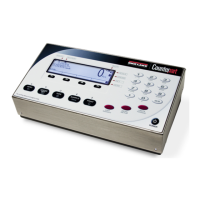
Counterpart
Counting Scale Indicator
Version 2.3
User Manual
®

Table of Contents

Question and Answer IconNeed help?

Do you have a question about the Rice Lake Counterpart and is the answer not in the manual?

Summary

2.0 Installation

2.1 Unpacking

Details components included in the Counterpart package and inspection.

2.2 Scale Base Assembly

2.2.1 Locking and Unlocking

Steps to unlock the scale base for use.

2.2.2 Leveling

Guides on selecting a location and leveling the scale base.

2.3 Enclosure Disassembly

2.4 Making Power Connections

2.5 Load Cell Wiring

2.7 Cable Grounding

2.10 CPU Board Battery Replacement

2.12 Installing Option Cards

2.12.1 USB Option Card Installation

2.13 Bracket Assembly Connecting Indicator to Scale Base

3.0 Configuration

3.1 Front Panel Configuration

Guides on using the front panel to set up and configure the scale.

3.3 Revolution Configuration

3.5 Menu Structures and Parameter Descriptions

3.6 Setup Menu

3.6.1 SCALE Submenu

Provides access to scale settings and calibration procedures.

3.6.2 SCALE 3 Submenu

3.6.3 FEATUR Submenu

3.6.4 FEATUR Menu, REGULA; INDUST Submenu

3.6.5 Serial, PFORMT, DIG I;O, VERS Submenus

3.7 Calibration Menu

3.8 Test Menu

4.0 Calibration

4.1 Front Panel Calibration

Step-by-step guide for calibrating the scale using the front panel controls.

4.2 Five-point linearization

4.3 Rezero

4.4 EDP Command Calibration

4.5 Revolution Calibration

5.0 Scale Operations

5.2 Entering Tare Weights

Procedures for entering tare weights using one-touch or digital methods.

5.4 Entering Unit Weights

5.4.1 Unit Weight Operation by Sampling

5.4.2 Unit Weight Operation by Key Entry

5.5 IDs

5.5.5 Adding an ID Through Revolution

5.6 WeighVault

5.6.2 Using Weighvault

5.7 Totalization Counts

5.8 Parts Reduction Counts

5.9 Accumulate Feature For Weight

5.10 Connecting a Barcode Scanner

6.0 Serial Commands

6.1.5 Parameter Setting Commands

7.0 Print Formatting

7.2 Customizing Print Formats

7.2.2 Using the Front Panel

7.2.3 Using Revolution

8.0 WLAN Installation Instructions

8.2 WLAN Card Installation

Guides for installing the WLAN card according to specific instructions.

9.2 Using the XE and XEH EDP Commands

9.5 Custom Stream Formatting

9.6 Digital Filtering

9.6.3 Setting the Digital Filter Parameters

Procedure to optimize digital filtering configuration for vibration environments.

9.7 USB Keyboard Interface

9.8 Serial Scale Interface

9.10 Regulatory Mode and Legal-for-Trade (LFT)

9.10.1 Legal-for-Trade and Normal Weight Mode

Examples of data display behavior in LFT normal weigh mode.

9.10.2 Legal-for-Trade and Totalization Mode

9.11 Updating Firmware

Summary

2.0 Installation

2.1 Unpacking

Details components included in the Counterpart package and inspection.

2.2 Scale Base Assembly

2.2.1 Locking and Unlocking

Steps to unlock the scale base for use.

2.2.2 Leveling

Guides on selecting a location and leveling the scale base.

2.3 Enclosure Disassembly

2.4 Making Power Connections

2.5 Load Cell Wiring

2.7 Cable Grounding

2.10 CPU Board Battery Replacement

2.12 Installing Option Cards

2.12.1 USB Option Card Installation

2.13 Bracket Assembly Connecting Indicator to Scale Base

3.0 Configuration

3.1 Front Panel Configuration

Guides on using the front panel to set up and configure the scale.

3.3 Revolution Configuration

3.5 Menu Structures and Parameter Descriptions

3.6 Setup Menu

3.6.1 SCALE Submenu

Provides access to scale settings and calibration procedures.

3.6.2 SCALE 3 Submenu

3.6.3 FEATUR Submenu

3.6.4 FEATUR Menu, REGULA; INDUST Submenu

3.6.5 Serial, PFORMT, DIG I;O, VERS Submenus

3.7 Calibration Menu

3.8 Test Menu

4.0 Calibration

4.1 Front Panel Calibration

Step-by-step guide for calibrating the scale using the front panel controls.

4.2 Five-point linearization

4.3 Rezero

4.4 EDP Command Calibration

4.5 Revolution Calibration

5.0 Scale Operations

5.2 Entering Tare Weights

Procedures for entering tare weights using one-touch or digital methods.

5.4 Entering Unit Weights

5.4.1 Unit Weight Operation by Sampling

5.4.2 Unit Weight Operation by Key Entry

5.5 IDs

5.5.5 Adding an ID Through Revolution

5.6 WeighVault

5.6.2 Using Weighvault

5.7 Totalization Counts

5.8 Parts Reduction Counts

5.9 Accumulate Feature For Weight

5.10 Connecting a Barcode Scanner

6.0 Serial Commands

6.1.5 Parameter Setting Commands

7.0 Print Formatting

7.2 Customizing Print Formats

7.2.2 Using the Front Panel

7.2.3 Using Revolution

8.0 WLAN Installation Instructions

8.2 WLAN Card Installation

Guides for installing the WLAN card according to specific instructions.

9.2 Using the XE and XEH EDP Commands

9.5 Custom Stream Formatting

9.6 Digital Filtering

9.6.3 Setting the Digital Filter Parameters

Procedure to optimize digital filtering configuration for vibration environments.

9.7 USB Keyboard Interface

9.8 Serial Scale Interface

9.10 Regulatory Mode and Legal-for-Trade (LFT)

9.10.1 Legal-for-Trade and Normal Weight Mode

Examples of data display behavior in LFT normal weigh mode.

9.10.2 Legal-for-Trade and Totalization Mode

9.11 Updating Firmware

Rice Lake Counterpart Specifications

General IconGeneral
CategoryAccessories
Display Digits6
Communication InterfaceRS-232, RS-485
Display TypeLED
CommunicationYes
Operating Temperature-10 °C to 40 °C (14 °F to 104 °F)
Enclosure RatingNEMA 4X

Related product manuals