EasyManua.ls Logo

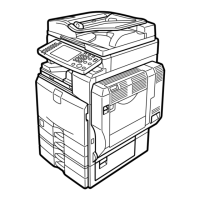
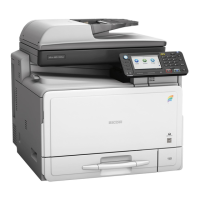
Ricoh Aficio MP C305 - User Manual

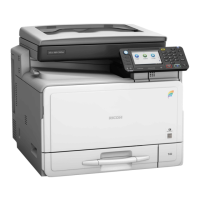
Ricoh Aficio MP C305
216 pages
Print Icon
To Next Page IconTo Next Page
Loading...
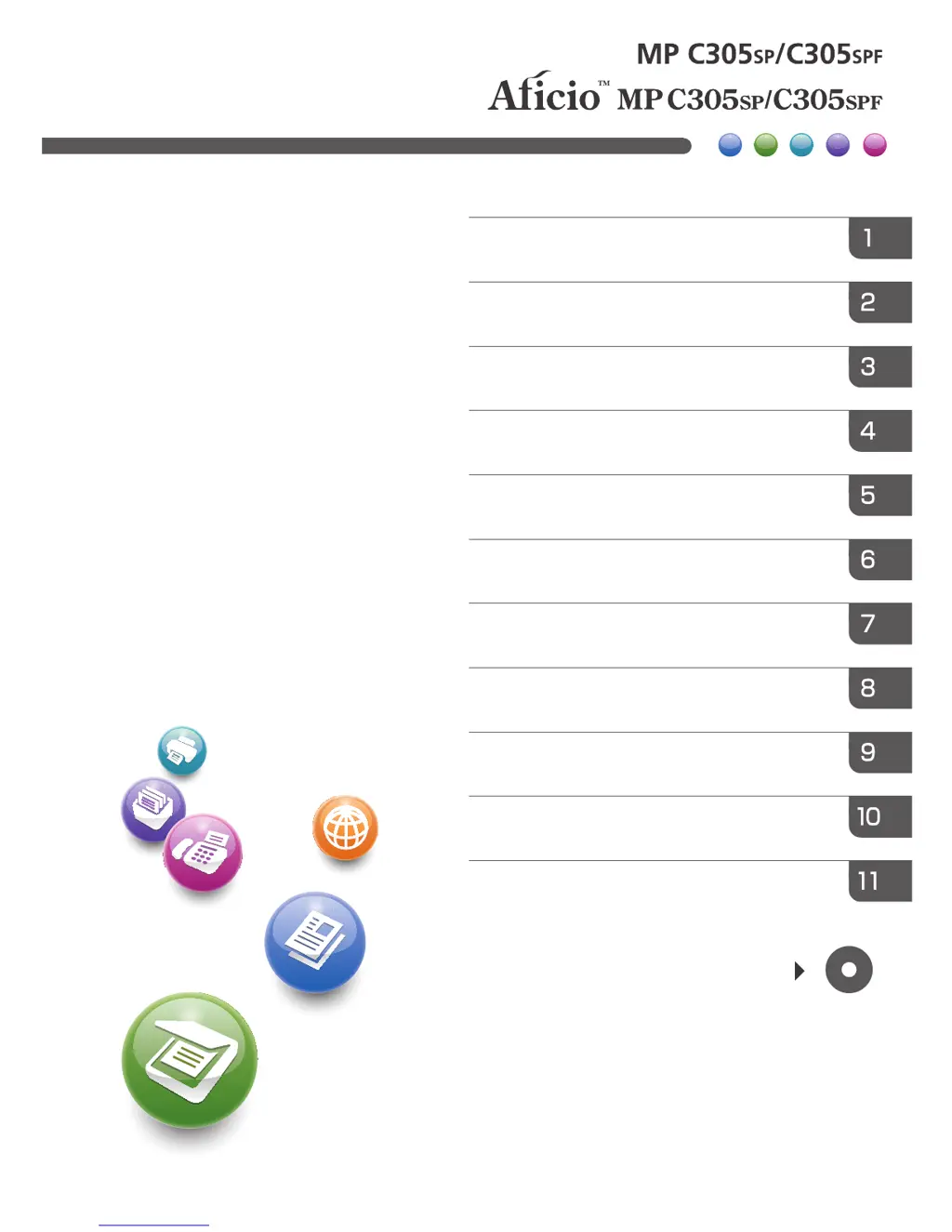
Read this manual carefully before you use this machine and keep
it handy for future reference. For safe and correct use, be sure to
read the Safety Information in "Read This First" before using the
machine.
For information not in this manual, refer to
the HTML/PDF files on the supplied
CD-ROM.
Appendix
Troubleshooting
Adding Paper and Toner
Web Image Monitor
Document Server
Scan
Print
Fax
Copy
Getting Started
What You Can Do with This Machine
User Guide

Table of Contents

Other manuals for Ricoh Aficio MP C305

Questions and Answers

  • M
    Melanie AbbottAug 20, 2025
    Why are documents not printing from my Ricoh All in One Printer?
    • J
      Joseph RichardsAug 20, 2025
      Documents may not print from your Ricoh All in One Printer if the paper output tray is full. Remove the printed papers from the tray to allow new print jobs to complete. Also, ensure that the printer has paper loaded. If the printer is out of paper, load paper into the printer.
  • S
    Sarah KleinAug 22, 2025
    Why does my Ricoh All in One Printer frequently misfeed?
    • A
      Autumn WrightAug 22, 2025
      If you are experiencing frequent misfeeds with your Ricoh All in One Printer, it might be because the tray's side or end fences are not set properly, or the copy paper size setting is not correct. Remove misfed paper. Check that the side or end fences are set properly and locked. Set the proper paper size.
  • S
    Samantha BaileyAug 25, 2025
    What to do if an error has occurred on my Ricoh All in One Printer?
    • G
      Grant RitterAug 25, 2025
      A function with the status "Error Occurred" in the [Check Status] screen is defective. Press [Check] in the function where the error occurred. Check the displayed message, and take appropriate action. You can use other functions normally.
  • L
    Lucas JohnsonAug 26, 2025
    What to do if my Ricoh All in One Printer says "Memory is full. Do you want to store scanned file?"?
    • L
      Louis ReevesAug 26, 2025
      This can happen on your Ricoh All in One Printer when the scanned originals exceed the number of sheets/pages that can be stored on the hard disk. Press [Yes] to store pages that have been scanned. Delete unnecessary files by pressing [Delete File]. Press [No] if you are not storing pages that have been scanned. Delete unnecessary files by pressing [Delete File].
  • M
    megan60Aug 28, 2025
    How to turn on the display on Ricoh All in One Printer?
    • M
      Michelle StanleyAug 28, 2025
      Your Ricoh All in One Printer display might be off because the machine is in Sleep Mode. To cancel Sleep Mode, press either the [Energy Saver] key or the [Check Status] key.
  • D
    Dr. Michele Malone MDAug 30, 2025
    What does "Please wait" mean on my Ricoh All in One Printer after changing the toner cartridge?
    • I
      Ian JacksonAug 30, 2025
      This message on your Ricoh All in One Printer appears when you change the toner cartridge. Wait until the message disappears. Do not turn off the main power switch while the message is displayed. If the message does not disappear in six minutes, contact your service representative.
  • J
    Julia SmithAug 31, 2025
    What does "Turn main Power Switch off" mean on my Ricoh All in One Printer?
    • J
      James GlennAug 31, 2025
      This message on your Ricoh All in One Printer appears when the machine does not shut down normally when the main power switch is turned off, and then immediately turned on. Turn off the main power switch. Wait for ten seconds or more after the machine shuts down, and then turn it on again.
  • C
    Courtney ChambersSep 2, 2025
    Why is my Ricoh All in One Printer unable to connect to the network?
    • A
      Ashley RobinsonSep 2, 2025
      Your Ricoh All in One Printer may be unable to connect to the network due to a network error. Press [Check] in the function where the error occurred, and then check the displayed message and take appropriate action. Check that the machine is correctly connected to the network, and that the machine is correctly set. If the indicator is still lit even after trying to solve the problem as described here, contact your service representative.
  • B
    brittanyburkeSep 4, 2025
    Why won't my Ricoh All in One Printer enter Sleep mode?
    • K
      Kevin ButlerSep 4, 2025
      Your Ricoh All in One Printer lamp might remain lit, and the machine might not enter Sleep mode, because the ADF is open, the machine is communicating with external equipment, or the hard disk is active. Close the ADF. Check if the machine is communicating with external equipment. Wait a little longer.
  • S
    sarahturnerSep 6, 2025
    What to do if nothing happens when pressing [Check Status] or [Energy Saver] on my Ricoh All in One Printer?
    • K
      kimberlydoyleSep 6, 2025
      Nothing happens when the [Check Status] key or the [Energy Saver] key is pressed on your Ricoh All in One Printer because the main power switch is turned off. Turn on the main power switch.

Summary

What You Can Do with This Machine

You Can Prevent Information Leakage (Security Functions)

Learn how to protect documents from unauthorized access and prevent information leaks.

You Can Prevent an Unauthorized Copy

Discover methods to embed patterns or text to deter unauthorized copying.

Getting Started

Guide to Names and Functions of Components

Identifies and explains the various parts and components of the machine.

Guide to the Names and Functions of the Machines Control Panel

Details the layout and purpose of each button and display on the control panel.

How to Use the [Home] Screen

Explains how to navigate and use the main [Home] screen interface.

Registering Functions in a Program

Learn to save frequently used settings for quick access and efficiency.

Turning On;Off the Power

When the Authentication Screen is Displayed

User Code Authentication Using the Control Panel

Procedure for logging in using a user code via the control panel.

Logging In Using the Control Panel

Steps to log in to the machine using various authentication methods.

Logging Out Using the Control Panel

Procedure for securely logging out of the machine after use.

Placing Originals

Placing Originals on the Exposure Glass (mainly Europe)

Instructions for placing originals on the exposure glass for European models.

Placing Originals in the Auto Document Feeder

Guide for properly loading originals into the automatic document feeder.

Copy

Basic Procedure

Step-by-step guide to performing basic copying operations.

Duplex Copying

Learn how to copy documents onto both sides of the paper.

Combined Copying

Instructions for combining multiple pages onto a single sheet.

Storing Data in the Document Server

How to store scanned documents for later retrieval and printing.

Fax

Basic Procedure for Transmissions (Memory Transmission)

Guide to sending faxes using memory transmission.

Canceling a Transmission

Procedures for canceling fax transmissions at various stages.

Storing a Document

How to store documents using the fax function for later use.

Print

Quick Install

Easy installation process for printer drivers from CD-ROM.

Locked Print

Feature to send print files securely with a user ID and password.

Hold Print

Function to temporarily store print jobs before printing.

Stored Print

How to send and print files that are stored on the machine.

Scan

Basic Procedure When Using Scan to Folder

Guide to scanning documents directly to a network folder.

Basic Procedure for Sending Scan Files by E-mail

Steps for scanning documents and sending them via email.

Basic Procedure for Storing Scan Files

How to store scanned files directly to the machine's storage.

Specifying the File Type

Options for selecting the file format for scanned documents.

Document Server

Storing Data

Procedure for storing documents on the machine's Document Server.

Printing Stored Documents

How to print documents that have been stored on the Document Server.

Web Image Monitor

Displaying Top Page

How to access and display the main page of Web Image Monitor.

Viewing Received Fax Documents Using Web Image Monitor

Guide to viewing received fax documents via Web Image Monitor.

Adding Paper and Toner

Loading Paper into Paper Trays

Instructions for loading paper into the machine's paper trays.

Loading Paper into the Bypass Tray

Guide for loading paper into the bypass tray for special media.

Recommended Paper Sizes and Types

Information on compatible paper sizes, types, and capacities.

Adding Toner

Precautions and steps for adding toner to the machine.

Troubleshooting

Indicators

Explanation of the machine's status indicators and their meanings.

When an Indicator for the [Check Status] Key Is Lit

How to interpret and respond to lit indicators on the [Check Status] key.

When You Have Problems Operating the Machine

Troubleshooting common operational issues and error messages.

Messages Displayed When Using the Copy;Document Server Function

List of error messages and solutions for Copy/Document Server functions.

Messages Displayed When Using the Facsimile Function

List of error messages and solutions for Facsimile functions.

Messages Displayed When Using the Printer Function

List of error messages and solutions for Printer functions.

Messages Displayed When Using the Scanner Function

List of error messages and solutions for Scanner functions.

Messages Displayed on Your Computer Screen

Error messages and solutions displayed on the client computer.

Appendix

Trademarks

List of registered trademarks and product names mentioned in the manual.

Ricoh Aficio MP C305 Specifications

General IconGeneral
Print TechnologyLaser
Print Resolution1200 x 1200 dpi
Scan Resolution600 x 600 dpi
Duplex PrintingYes
Paper Capacity350 sheets
Max Paper Capacity1350 sheets
FunctionsPrint, Copy, Scan, Fax
Copy Resolution600 x 600 dpi
Processor533 MHz
Dimensions498 x 532 x 505 mm
Print Speed30 ppm (mono) / 30 ppm (color)
Copy Speed30 ppm (mono) / 30 ppm (color)
Zoom Range25% - 400%
Paper SizeA4
Paper Weight60 – 163 g/m²
Memory1.5 GB
InterfaceUSB 2.0
Fax Resolution200 x 200 dpi
Operating System CompatibilityWindows, Mac, Linux
Display4.3-inch Color Touch Panel
Scan Speed30 ipm (images per minute)

Videos

How to install Ricoh Aficio MP C305 printer & scanner driver manually using basic driver

Related product manuals