1
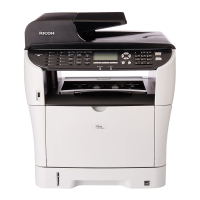
For Users of SP C242SF
Additional Information for Shortcut to Function
Thank you for purchasing this product.
Pre-registration of frequently used functions has resulted in provision of "Shortcut to
Function". This manual explains how to congure and operate this function.
You can congure settings for the following four function using the control panel or Web
Image Monitor.
• ID Card Copy Mode (Default)
• Fax Auto Print Setting
• Fax Immediate TX
• Select Scanner Destination
■ Conguring the Shortcut to Function setting using the control panel.
1. Press the [User Tools] key.
2. Press the [▲] [▼] keys to select [Admin. Tools], and then press the [OK] key.
3. If you are requested to enter a password, enter the password using the number keys,
and then press the [OK] key.
4. Press the [▲] [▼] keys to select [Shortcut to Function], and then press the [OK] key.
5. Press [▲] [▼] to select the function you want to congure, and then press [OK] key.
6. Press the [User Tools] key to return to the initial screen.
■ Conguring Shortcut to Function using Web Image Monitor.
[Shortcut to Function] appears only when a password is specified in [Administrator
Password].
1. Start the Web browser, and access the machine by entering its IP address.
2. Click [System Settings].
3. Click the [Shortcut to Function] tab.

 Need help?
 General


 To Next Page