6. How to Install Custom Firmware
Required Files and Utilities:
As of this document’s latest update:
UniSoft’s most recent RD60xx Firmware
as posted on EEVBlog.
Note: You will need to ensure you have the correct Firmware
for your RD60xx model.
Windows: UniSoft’s most recent ‘Flasher’ Utility.
Recommended to load the custom firmware when using Windows.
Windows 10 Driver for USB interface connection
Only needed if your computer doesn’t see the RD60xx
on a Windows 10 computer.
Any OS (MacOS, Linux, Windows): Timo Kokkonen's Riden flashtool.
Requires command line and Python 3.
6.1. Prepare the RD60xx
IF using the default RD60xx (Riden) Firmware:
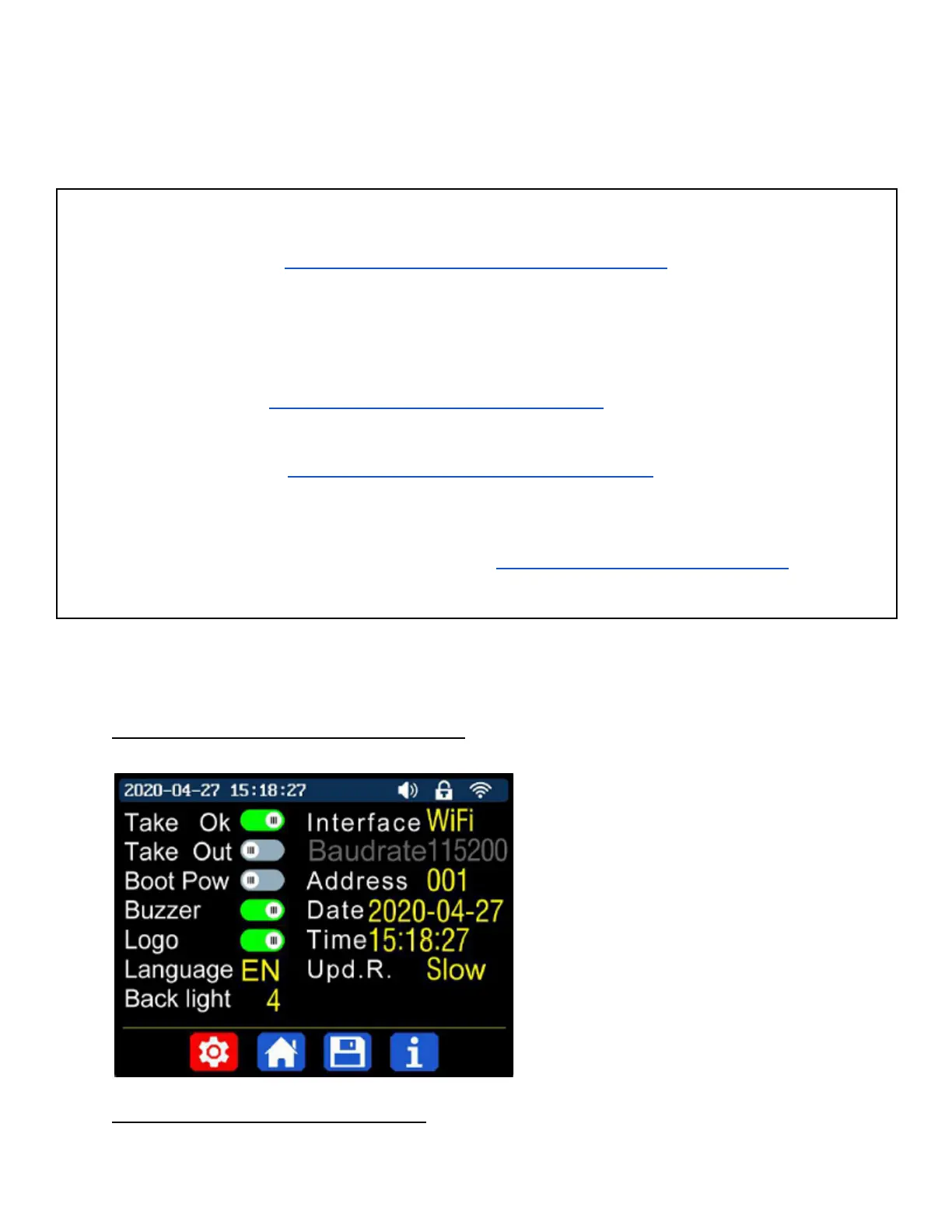
1. Press “SHIFT”+”MENU” to enter the
menu system.
2. Ensure ‘Interface’ is set to: USB,
(using the direction keys: ◄►▲▼)
Note:
This image may not perfectly represent the
current Riden firmware setting screen.
Screen changes may occur between
firmware versions.
IF updating an existing UniSoft Firmware:



 To Next Page