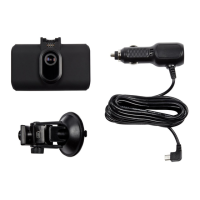
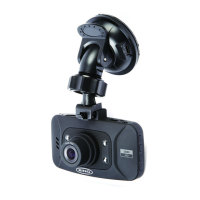
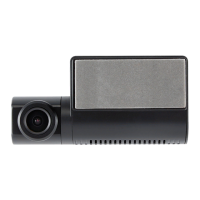
The provided manual describes a range of Ring Dash Cams (RDC10, RDC20, RDC30, RDC40, and RDC50/RDCR rear camera), designed to record video and photos while driving. These devices are intended to provide a visual record of events on the road, with features varying across models.
Function Description:
Ring Dash Cams are in-car cameras that continuously record video footage of the road ahead. Some models (RDC30, RDC40) also support a rear camera (RDC50/RDCR) for recording the view behind the vehicle. The primary function is to capture video and still images, which can be stored on a microSD card. The cameras are designed to automatically power on and begin recording when the vehicle's ignition is switched on. They feature loop recording, meaning older files are overwritten by new ones once the memory card is full, ensuring continuous recording. A G-Sensor is included to detect collisions and automatically protect the current recording from being overwritten. Some models offer Wi-Fi connectivity, allowing users to control the camera, view live footage, play back recordings, and download files via a dedicated mobile app. Parking Mode, available on RDC20, RDC30, and RDC40, allows the camera to be triggered by events when the vehicle is parked. GPS functionality (RDC30, RDC40) provides journey information such as time travelled, distance, and average speed, and includes a GPS location stamp on recordings.
Important Technical Specifications:
The Ring Dash Cam range offers various resolutions, frames per second, viewing angles, and still camera resolutions:
- Resolution: RDC10 (720p), RDC20/RDC30 (1080p), RDC40 (1440p), RDCR (720p).
- Frames per second: All models record at 30fps, except RDC40 which records at 30/30fps (likely referring to front/rear or a specific mode).
- Viewing angle: RDC10 (120°), RDC20 (140°), RDC30 (150°), RDC40 (180°), RDCR (140°).
- Still Camera Resolution: RDC10/RDC20 (3MP), RDC30 (8MP), RDC40 (12MP), RDCR (3MP).
- Max Memory Card Size: All models support up to 32GB microSD cards (N/A for RDCR as it connects to a main dash cam). A minimum Class 10 U1 16GB/32GB 30mbs (Class 10 U3 for Optimum Performance) microSD card is recommended.
- Screen Size: RDC10 (2"), RDC20 (2.7"), RDC30 (3"), RDC40/RDCR (N/A as RDC40 relies on app for viewing).
- Backup battery: All models feature a Lithium backup battery.
- Mounting: RDC10/RDC20/RDC30 use a magnetic mount with a suction cup. RDC40/RDCR use a direct-to-window adhesive mount.
- Connectivity: Wi-Fi is available on all models.
- Additional Features: Auto Stop/Start, Shock Sensor file protection, Audio recording (N/A for RDCR), Wide Dynamic Range (WDR) on RDC30/RDC40 (N/A for RDCR), GPS on RDC30/RDC40 (N/A for RDCR).
Usage Features:
- Controls: RDC10, RDC20, and RDC30 models have physical buttons for menu navigation, recording, mode switching, file locking, and power. RDC40 primarily relies on app control, with a snapshot/power button and a reset pinhole.
- Mounting: Dash cams should be securely mounted on the windscreen, ensuring they do not obstruct the driver's view or airbag deployment areas. Power cables should be concealed where possible and not interfere with driver controls.
- Memory Card: A microSD card is required for recording. It is recommended to format the card on first use and regularly (every 2-4 weeks) to maintain performance.
- Power: The dash cam connects to the vehicle's 12/24 volt accessory socket via a supplied power adapter. It powers on automatically with the ignition.
- Mobile App (RING DC): Available for Apple App Store and Google Play Store. It allows remote control, live view, playback, and downloading of content. The default Wi-Fi password is 66668888 for RDC10/20/30/40.
- Dash Cam Videos: View recordings stored on the dash cam, with options to download, pause, take snapshots, share, and delete files.
- Downloaded Recordings: Access files previously downloaded from the dash cam to the mobile device.
- Journey Info (RDC30 & RDC40 only): Displays driving time, mileage, and average speed using GPS data.
- Settings: Adjust video/image quality, loop recording length, date stamp, audio recording, parking monitor sensitivity, G-Sensor sensitivity, and restore default settings.
- Live View: See the live image from the dash cam, start/stop recording, view recordings, take snapshots, switch between front/rear cameras (RDC30/RDC40/RDCR only), and access settings.
- Playback:
- On-device (RDC10/RDC20/RDC30): Recordings can be viewed directly on the dash cam's display using the REC/OK and arrow buttons.
- Computer Playback: MicroSD cards can be inserted into a card reader and connected to a computer for viewing, transferring, or deleting files.
- Modes: The dash cams offer Video, Photo, and Playback modes.
- Video Mode: Continuous recording with selectable file sizes (OFF, 3 minutes, 5 minutes).
- Photo Mode: Captures still images.
- Settings (on-device for RDC10/RDC20/RDC30):
- Date/Time: Set date and time.
- G-Sensor: Adjust sensitivity (Low/Mid/High) for collision detection.
- Device Sounds: Turn device sounds ON/OFF.
- Language: Select English.
- Format SD Card: Erases all content on the microSD card.
- Default Settings: Restores factory default settings.
- Firmware Version: Displays current firmware.
- Wi-Fi: Enables Wi-Fi connection for app use.
- Parking Mode (RDC20/RDC30/RDC40 only): Sets sensitivity for motion-triggered recording when parked (adjustable via app).
- GPS (RDC30/RDC40 only): Always ON, provides location stamp.
- Screensaver Mode (RDC10/RDC20/RDC30 only): Turns off the screen when not required (short press of power button).
- Mode Change: Switches between dash cam modes (long press MENU for RDC10, press MODE for RDC20/RDC30).
Maintenance Features:
- Cleaning: Use a suitable lens cleaner and a soft cloth for the dash cam lens. Ensure mounting surfaces are clean and grease-free.
- MicroSD Card: Reformat the microSD card regularly (every 2-4 weeks) to keep it in good condition.
- Troubleshooting: The manual includes a troubleshooting guide for common issues such as "SD Card Error," "R40 Constant Beeping Noise," "Dash Cam Not Recording," "Dash Cam Not Powering Up," "Dash Cam Falling Down from Windscreen," and "Video Image is Blurred." Solutions include checking SD card specifications, replacing faulty cards, adjusting loop recording or G-Sensor settings, ensuring proper power supply connection, cleaning the 12V DC socket, cleaning glass, and removing protective film from the lens.
- Servicing: Users are advised not to perform servicing other than what is contained in the manual unless qualified.
- Waste Disposal: The product and batteries should be disposed of as Waste Electrical & Electronic Equipment (WEEE) and spent batteries, respectively, at designated civic waste sites or collection points to ensure proper treatment, recovery, and recycling.

 Need help?
 General

 To Next Page