EasyManua.ls Logo

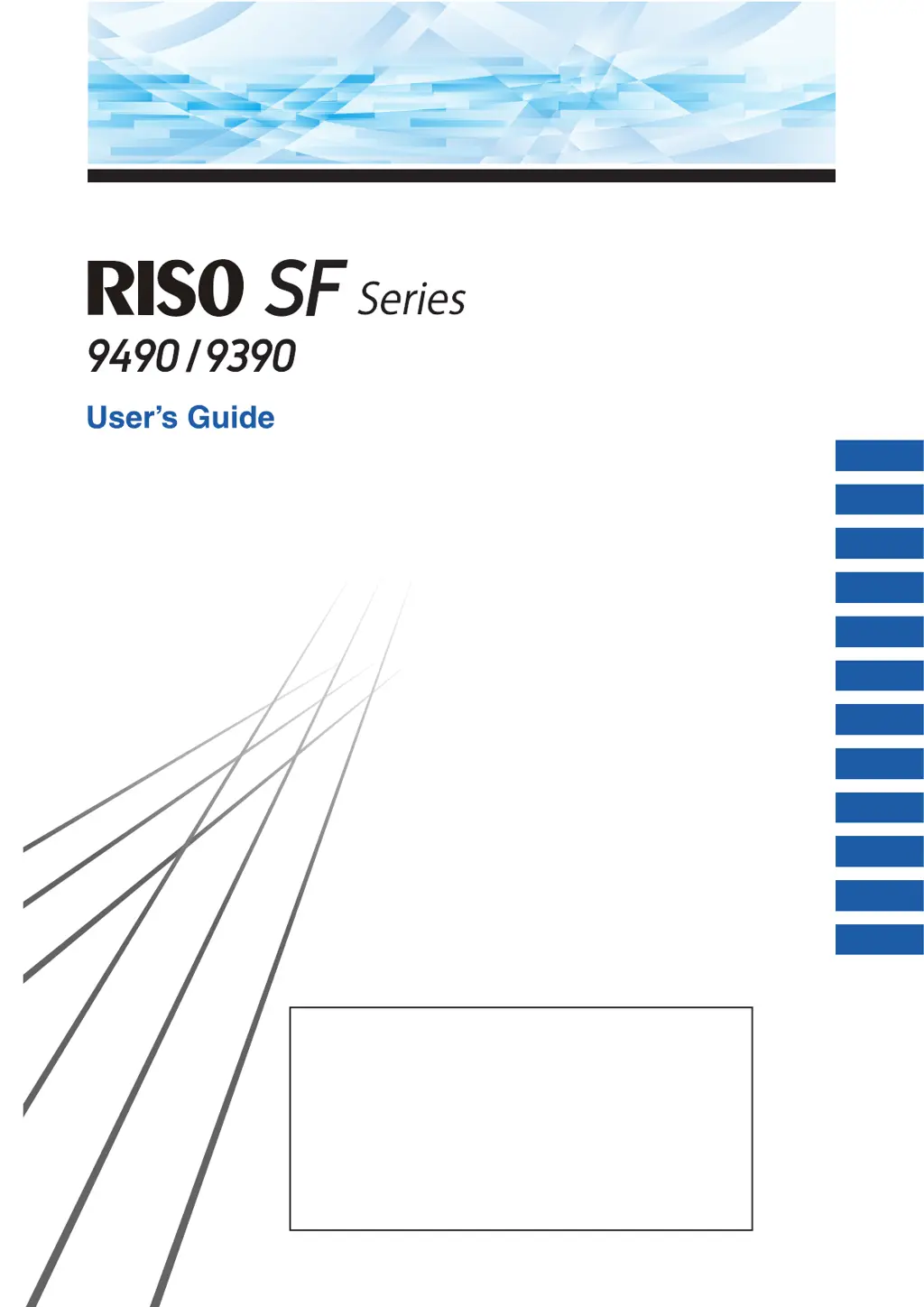
Riso SF Series - User Manual

Riso SF Series
194 pages
Print Icon
To Next Page IconTo Next Page
Loading...
Please contact the following for supplies and service:
2017/8
About This Machine
Basic Operations
Functions for Master Making
Functions for Printing
Useful Functions
Functions for Scanning
Setting the Operation Conditions
RISO Console
Replacing Consumables
Maintenance
Troubleshooting
Appendix
063-36003
1
2
3
4
5
6
7
8
9
10
11
12
The “RISO SF9490/9390 Basic Guide”, which supports the Read
Out Loud feature in Adobe Acrobat Reader, is stored in the
attached “RISO Printer Driver” DVD-ROM.
It contains excerpts from the User’s Guide (this guide) explaining
the basic operations for printing using paper originals.
Directory:
\Manual\SF9x9x_BasicGuide.pdf
Recommended operating environment for Read Out Loud:
– Windows 10
– Adobe Acrobat Reader DC

Table of Contents

Questions and Answers

  • J
    James RiveraJul 29, 2025
    How to fix a paper jam error on a Riso SF Printer?
    • K
      Kimberly AlvaradoJul 29, 2025
      To resolve a paper jam error on your Riso printer: * Open the ADF cover and remove any jammed originals. * Check the paper feeding side and lower the paper feed tray to remove any jammed papers. * Pull out the print drum (cylinder) and remove any jammed papers. * Check the paper receiving side and remove any jammed papers.
  • A
    aarongarciaAug 4, 2025
    What to do if my Riso SF Printer shows a consumables error?
    • M
      Matthew JohnsonAug 5, 2025
      If your Riso printer displays a consumables error, you may need to replace the ink cartridge, the master roll, or both with new ones.
  • A
    Alicia TurnerAug 10, 2025
    How to resolve a master jam error on a Riso SF Printer?
    • M
      melvingatesAug 11, 2025
      To resolve a master jam error on your Riso printer: 1. Pull out the master making unit, and then set a master roll in place correctly. 2. Pull out the print drum (cylinder), and then remove the master on the print drum (cylinder). 3. Take out the master disposal box, and then remove the jammed master. 4. Check for any obstacles under the paper feed tray or on the paper. 5. Insert the lead edge of the Master into the Master Entrance and close Master Making Unit.
  • A
    Andrea GuzmanAug 16, 2025
    Why does my Riso printer show an installation check error?
    • R
      Rhonda GrahamAug 17, 2025
      An installation check error on your Riso printer may occur due to: * An improperly set print drum (cylinder). Ensure it is correctly placed. * An incorrect type or color of ink cartridge. Verify you are using the appropriate cartridge. * An inappropriate type of master roll. Check that the master roll is correct for your printer. Also, try removing the ink cartridge and setting it again.
  • E
    Emily LopezAug 22, 2025
    What should I do if my Riso SF Printer displays a maintenance call error?
    • H
      Heather MurphyAug 22, 2025
      If your Riso printer shows a maintenance call error, consult your dealer or authorized service representative for battery replacement or periodic inspection.

Riso SF Series Specifications

General IconGeneral
BrandRiso
ModelSF Series
CategoryPrinter
LanguageEnglish

Related product manuals