Inserting an optical disc
1. While the Notebook PC’s power is ON, press the drive’s eject button and the tray will eject
out partially.
2. Gently pull on the drive’s front panel and slide the tray completely out. Be careful not to touch
the CD drive lens and other mechanisms. Make sure there are no obstructions that may get
jammed under the drive’s tray.
3. Hold the disc by the edge and face the disc’s printed side up. Push down on both sides of the
disc’s center until the disc snaps onto the hub. The hub should be higher than the disc when
correctly mounted.
4. Slowly push the drive’s tray back in. The drive will begin reading the table of contents (TOC)
on the disc. When the drive stops, the disc is ready to be used.
Removing an optical disc
Eject the tray and gently pry the edge of the disc upwards at an angle to remove the disc from the
hub.
Emergency eject
The emergency eject is located in a hole on the optical drive and is used to eject the optical drive
tray in case the electronic eject does not work. Do not use the emergency eject in place of the
electronic eject. Note: Make sure not to stab the activity indicator located in the same area.
RM Battery Management System
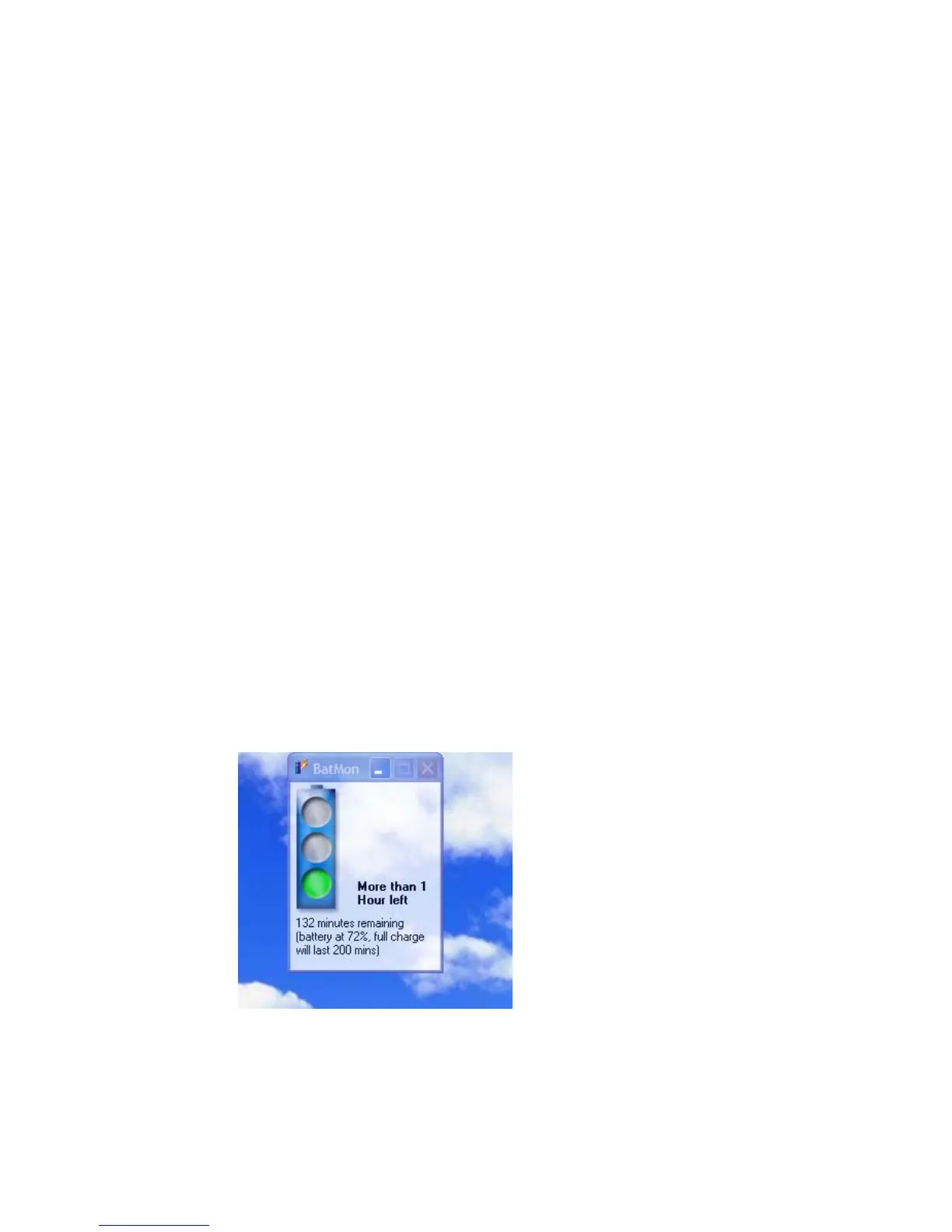
The BatMon utility is a Windows XP system tray applet that monitors and
predicts the remaining time available from the battery. It employs a simple
'traffic light' graphic pop-up window to show teachers and pupils if there is
enough remaining battery charge at the start of a lesson. BatMon also gives
an audible and visual warning when less than 15 minutes of battery charge
remains. Through the use of this utility, a teacher can quickly determine at
the start of a lesson if they need to change any of the pupils batteries or
notebooks, rather than disrupt a lesson once in progress.



 To Next Page