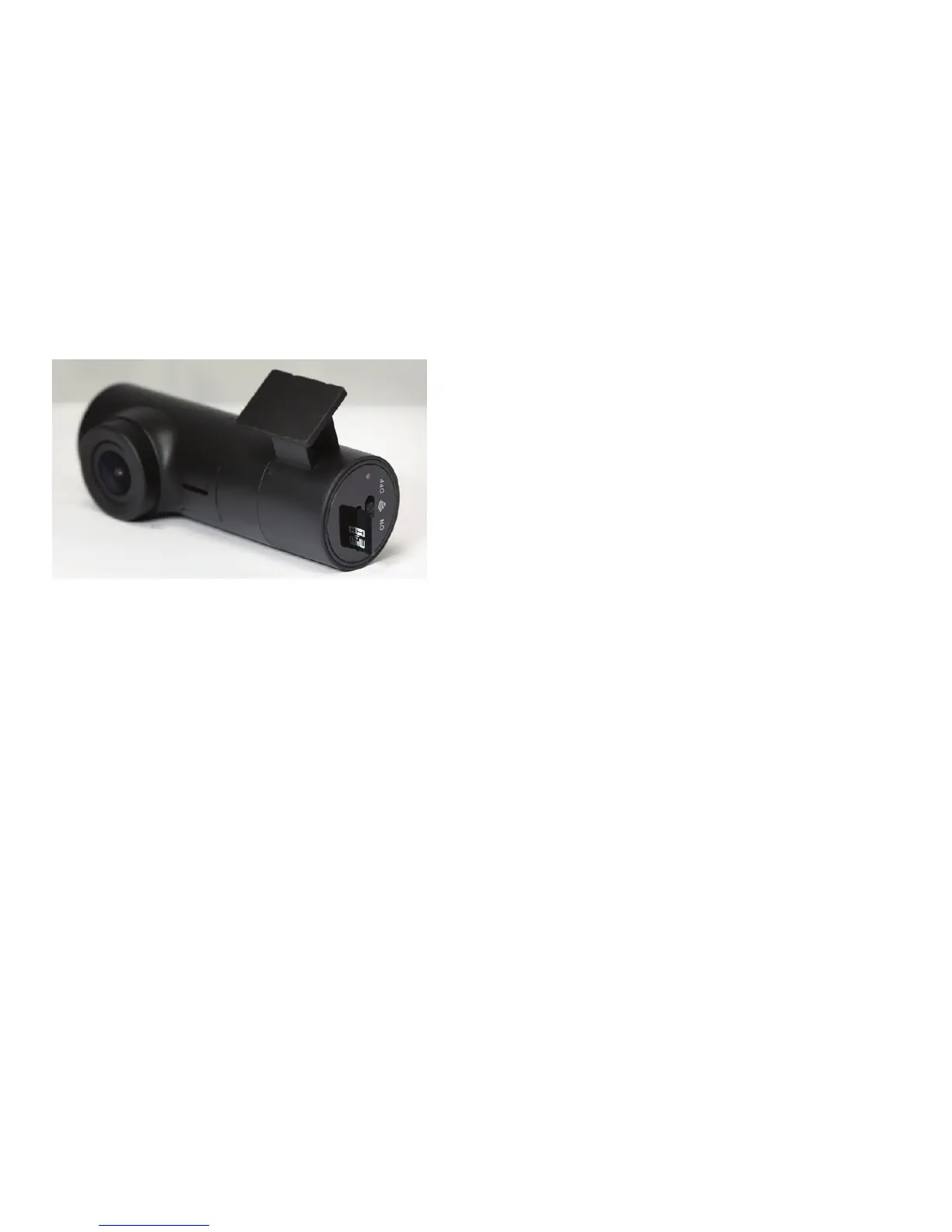
The RoadHawk Vision camera is supplied with an 8gb MicroSD card. You will nd this
card is already inserted into the side of the camera so it is ready to use out of the box.
You can remove the MicroSD card from the camera to view les on a computer using a
suitable card reader. It is also possible to connect the camera to your computer using
the supplied USB cable. The camera will then act as a memory card reader.
You can use MicroSD cards up to 128gb capacity if you want to store more video.
Always choose high quality MicroSD cards. Memory cards do not last forever and
eventually they will break down when in constant use. Remember to check your
MicroSD card on a regular basis. Formang the card every month will help to keep
the le structure on the card in good order. You can format the MicroSD card using the
RoadHawk Vision app from your mobile device.
When inserng the MicroSD card into the camera, make sure the “pins” on the card
are facing the back of the camera. Gently insert the card unl it clicks into posion.
Do not force the card into the camera.
NEVER remove or insert a card into the camera whilst it is powered on.
Inserng the MicroSD Memory Card:
The RoadHawk Vision makes standard .mp4 video les that can be viewed on most modern
computers without using any extra soware. Simply insert the MicroSD card into your
computer, locate the le you wish to play and double click to open it. You can also connect
the camera to your computer and the camera will behave like a card reader.
When the camera receives power from your vehicle it starts operang within a few seconds.
Video playback (computer)
How the system works:
The camera records unl the MicroSD card becomes full and then starts to overwrite the
earliest les on a constant loop. The total record me will depend on the capacity of the
MicroSD card used in the camera and the quality sengs of the video window.
The RoadHawk Vision camera can also hold 50 ‘event’ les. Aer 50 ‘event’ les have been
created, the camera will start to erase the earliest ‘event’ les to make room for more.
An ‘event’ is triggered when the camera detects a sudden change in G-Force. This may be
the result of a road trac accident or from driving on an uneven road surface. Depending
on the vehicle the camera is being used in.
An ‘event’ le will be a 30 second video clip, 10 seconds before and 20 seconds aer the
actual event occurs. These les will be stored on the MicroSD card in the ‘event’ folder for
easy access.
If your camera is creang a lot of ‘event’ les on normal journeys, please lower the G-Force
sensivity by using the RoadHawk Vision App.
9 10


 To Next Page