1: Download and install the RoadHawk Vision app by going to the App Store or
Google Play store on your device and searching for “RoadHawk Vision”.
2: Make sure the Wi-Fi switch on the side of the camera is in the ‘on’ posion.
(A green LED next to the switch will show you the status of the Wi-Fi).
3: Go to the Wi-Fi sengs on your mobile device and look for a network called
“RH_Vision”.
4: Connect to the network and enter the password (default password is 12345678).
5: Open the RoadHawk Vision App and wait for the camera to start communicang
with your mobile device.
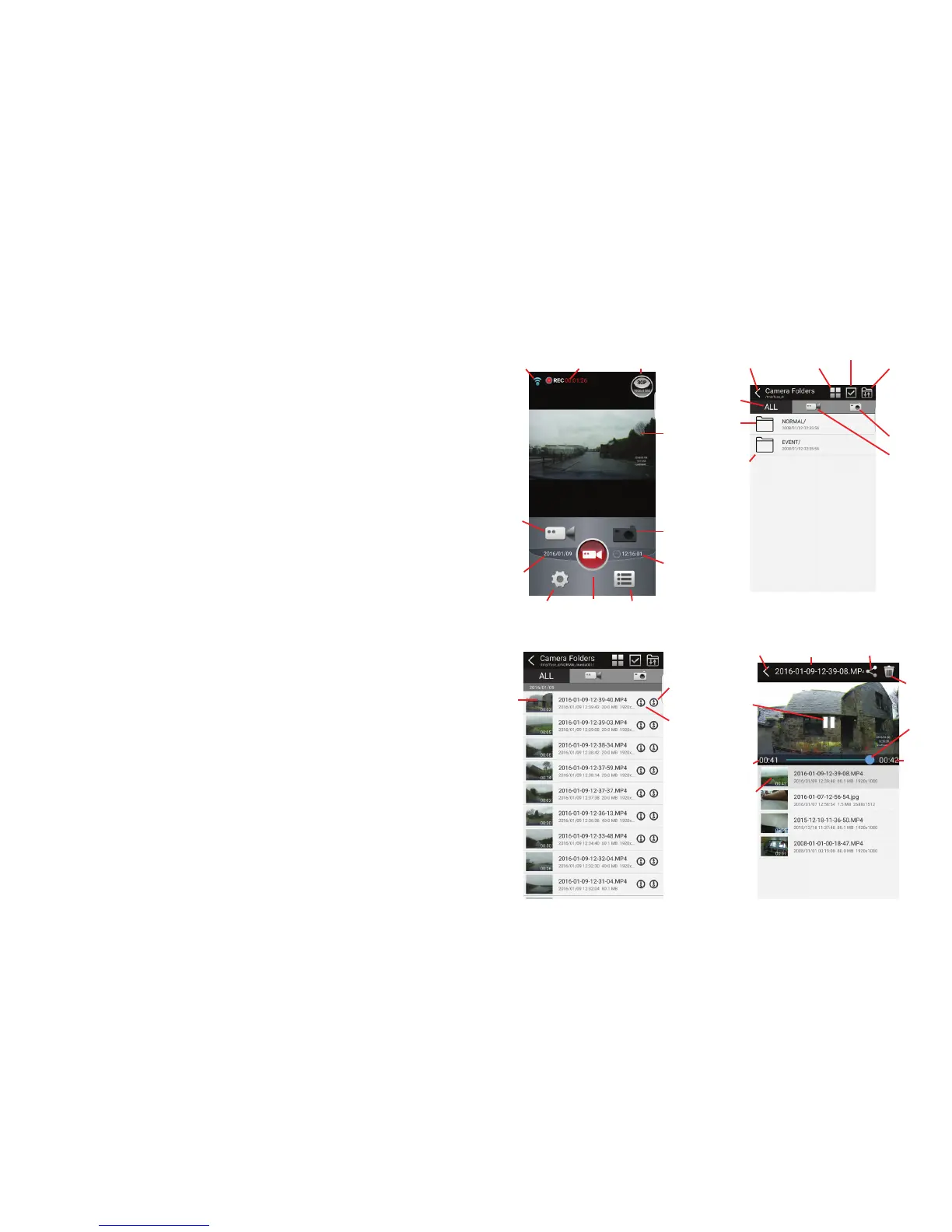
The RoadHawk Vision App has mulple funcons. You can use the app to stream a
live image from the camera to your mobile device. This is useful for seng up the
camera and ensuring you have the camera poinng in the right direcon.
You can also stream videos and photos previously recorded by the camera. If you
want to see a high quality version of the le then you can download it to your
device. Once the le is on your device, you can share it in the same way you can
share any video or photo from your phone or tablet.
The RoadHawk Vision App also allows you to change the sengs of the camera.
You can also stream videos and photos previously recorded by the camera. If you
want to see a high quality version of the le then you can download it to your
device. Once the le is on your device, you can share it in the same way you can
share any video or photo from your phone or tablet.
The RoadHawk Vision App also allows you to change the sengs of the camera.
How to use the RoadHawk Vision App
Main App Screen
Video Playback Screen
Playback Menu
Wi-Fi Signal
Strength
Current
Record Time
Change
Resoluon
Live
Video
Photo
Mode
Current
Time
Playback
Mode
Record
Start / Stop
Take Photo
Change Camera
Sengs
Current
Time
Video
Mode
View
‘event’
les
View
normal
les
View
all les
Back to
Main Menu
Change le list
view mode
Toggle les on
camera / device
Take photo les
Take video les
Select les
File Menu
Tap to
view le
Download
high quality
le to device
Download
low quality
le to device
File name Share videoBack
Delete
video
Video
transport bar
Remaining
me
Tap to play
video
Elapsed
me
Play / pause
video
11 12


 To Next Page