EasyManua.ls Logo

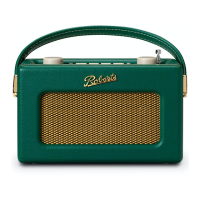
Roberts Revival iStream2 - User Manual

Roberts Revival iStream2
100 pages
Print Icon
To Next Page IconTo Next Page
Loading...
ROBER TS
DAB / FM and WiFi Internet Radio
with Music Player and Spotify Connect
Please read this manual before use
and remote control with the ConnectR app for iPhone and Android

Table of Contents

Question and Answer IconNeed help?

Do you have a question about the Roberts Revival iStream2 and is the answer not in the manual?

Summary

Introduction

iStream 2 Internet Radio Features

Highlights the key features and capabilities of the iStream 2 radio.

Before You Can Use This Product

Broadband Internet Connection Requirement

Details the essential requirement for a broadband internet connection.

Wireless Access Point (WiFi) Compatibility

Specifies the need for a WiFi access point and its compatibility.

Configuration

Plugging In and Language Selection

Guide to initial setup, connecting power, and selecting the display language.

Connecting to Your Computer Network

Instructions for connecting the radio to a wireless (WiFi) network.

Manual Network Configuration

Steps for manually configuring network parameters if DHCP is not used.

Network Remote Control Options

Describes setting up remote control via applications like ConnectR.

Internet Radio

Internet Radio - The Basics

Introduction to accessing internet radio stations and available search methods.

Selecting a Radio Station by Location

How to find stations by choosing a continent and country.

Selecting a Radio Station by Genre

Method for finding stations based on music genre preferences.

Searching for a Radio Station by Name

Procedure for searching for stations using keywords from their names.

Presetting Stations

Instructions on how to store and recall favorite internet radio stations.

Music Player

Use with Windows, Apple Mac, Linux, USB Memory

Overview of playing audio files from computers and USB devices.

Locating and Playing Media Files using UPnP

Steps for finding and playing music shared via UPnP servers.

Using USB Memory Devices

Guide on connecting and playing audio files from USB flash drives.

Playlists

How to create and manage custom playlists of music tracks.

Windows Play To Function (UPnP Renderer)

Using Windows' 'Play To' feature to stream music to the radio.

Spotify Connect

Spotify Connect - The Basics

Introduction to Spotify's music streaming service and its integration.

Playing Music using Spotify Connect

Step-by-step guide to playing Spotify music via the radio.

Controlling Spotify on Your Radio

How to use the radio's controls to manage Spotify playback.

Display Modes - Spotify Connect

Explains the different information displays available during Spotify playback.

DAB Radio

Using DAB Mode for the First Time

Initial setup and scanning for DAB radio stations.

Selecting a DAB Radio Station

How to tune into and select available DAB radio stations.

Display Modes

Information shown on the display while listening to DAB radio.

Manual Tuning

Method for directly tuning into specific DAB channels.

FM Radio

Operating Your Radio in FM Mode

Basic steps for tuning and listening to FM radio stations.

Manual Tuning

How to manually tune to specific FM frequencies.

Scan Setting

Options to configure FM scanning for strong or all signals.

Stereo; Mono Switching

Adjusting audio output to mono to reduce hiss on weak signals.

Clock and Alarms

Automatically Updating the Clock

How the radio sets its clock automatically via internet or broadcast.

Manually Setting the Clock

Steps for manually setting the time, date, and timezone.

Setting the Alarm Clock

Guide to setting up wake-up alarms with radio or buzzer.

Sleep Timer

How to set the radio to automatically turn off after a set time.

Display and Audio

Equaliser Function

Adjusting sound profiles using preset equaliser modes.

Setting Up Your My EQ Profile

Customizing treble and bass settings for personalized sound.

Brightness Control

Adjusting the display brightness for different usage scenarios.

Contrast; Viewing Angle Control

Modifying display contrast and viewing angle for legibility.

Headphone Socket

Information on using the 3.5mm headphone jack for private listening.

Auxiliary Input Socket

Connecting external audio sources via the 3.5mm auxiliary input.

Information

Factory Reset

Procedure for resetting the radio to its original factory settings.

Software Update

Instructions on how to update the radio's internal software.

Network Profiles

Managing stored WiFi network connection details.

Troubleshooting

Solutions for common problems and connection issues.

Audio Codecs

Technical details on supported audio formats and bit-rates.

Cautions

Safety warnings and precautions for product usage and care.

Specifications

Technical details and features of the radio.

Guarantee

Information regarding the product's warranty coverage and procedure.
Summary

Introduction

iStream 2 Internet Radio Features

Highlights the key features and capabilities of the iStream 2 radio.

Before You Can Use This Product

Broadband Internet Connection Requirement

Details the essential requirement for a broadband internet connection.

Wireless Access Point (WiFi) Compatibility

Specifies the need for a WiFi access point and its compatibility.

Configuration

Plugging In and Language Selection

Guide to initial setup, connecting power, and selecting the display language.

Connecting to Your Computer Network

Instructions for connecting the radio to a wireless (WiFi) network.

Manual Network Configuration

Steps for manually configuring network parameters if DHCP is not used.

Network Remote Control Options

Describes setting up remote control via applications like ConnectR.

Internet Radio

Internet Radio - The Basics

Introduction to accessing internet radio stations and available search methods.

Selecting a Radio Station by Location

How to find stations by choosing a continent and country.

Selecting a Radio Station by Genre

Method for finding stations based on music genre preferences.

Searching for a Radio Station by Name

Procedure for searching for stations using keywords from their names.

Presetting Stations

Instructions on how to store and recall favorite internet radio stations.

Music Player

Use with Windows, Apple Mac, Linux, USB Memory

Overview of playing audio files from computers and USB devices.

Locating and Playing Media Files using UPnP

Steps for finding and playing music shared via UPnP servers.

Using USB Memory Devices

Guide on connecting and playing audio files from USB flash drives.

Playlists

How to create and manage custom playlists of music tracks.

Windows Play To Function (UPnP Renderer)

Using Windows' 'Play To' feature to stream music to the radio.

Spotify Connect

Spotify Connect - The Basics

Introduction to Spotify's music streaming service and its integration.

Playing Music using Spotify Connect

Step-by-step guide to playing Spotify music via the radio.

Controlling Spotify on Your Radio

How to use the radio's controls to manage Spotify playback.

Display Modes - Spotify Connect

Explains the different information displays available during Spotify playback.

DAB Radio

Using DAB Mode for the First Time

Initial setup and scanning for DAB radio stations.

Selecting a DAB Radio Station

How to tune into and select available DAB radio stations.

Display Modes

Information shown on the display while listening to DAB radio.

Manual Tuning

Method for directly tuning into specific DAB channels.

FM Radio

Operating Your Radio in FM Mode

Basic steps for tuning and listening to FM radio stations.

Manual Tuning

How to manually tune to specific FM frequencies.

Scan Setting

Options to configure FM scanning for strong or all signals.

Stereo; Mono Switching

Adjusting audio output to mono to reduce hiss on weak signals.

Clock and Alarms

Automatically Updating the Clock

How the radio sets its clock automatically via internet or broadcast.

Manually Setting the Clock

Steps for manually setting the time, date, and timezone.

Setting the Alarm Clock

Guide to setting up wake-up alarms with radio or buzzer.

Sleep Timer

How to set the radio to automatically turn off after a set time.

Display and Audio

Equaliser Function

Adjusting sound profiles using preset equaliser modes.

Setting Up Your My EQ Profile

Customizing treble and bass settings for personalized sound.

Brightness Control

Adjusting the display brightness for different usage scenarios.

Contrast; Viewing Angle Control

Modifying display contrast and viewing angle for legibility.

Headphone Socket

Information on using the 3.5mm headphone jack for private listening.

Auxiliary Input Socket

Connecting external audio sources via the 3.5mm auxiliary input.

Information

Factory Reset

Procedure for resetting the radio to its original factory settings.

Software Update

Instructions on how to update the radio's internal software.

Network Profiles

Managing stored WiFi network connection details.

Troubleshooting

Solutions for common problems and connection issues.

Audio Codecs

Technical details on supported audio formats and bit-rates.

Cautions

Safety warnings and precautions for product usage and care.

Specifications

Technical details and features of the radio.

Guarantee

Information regarding the product's warranty coverage and procedure.

Roberts Revival iStream2 Specifications

General IconGeneral
BrandRoberts
ModelRevival iStream2
CategoryRadio
LanguageEnglish

Related product manuals