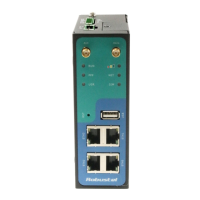
Robustel GoRugged R2000 Quick Guide
RT_QG_R2000 _v.1.0.0 07.09.2015 6/16
2.6 Power Supply
The power supply range is 6 to 26 VDC.
Note: Please take care about the polarity, and do not make reverse connection. There are two lines connecting to the
power supply adapter, as it illustrates on the power supply adapter label, the line printed with letters needs to be
connected with the positive polarity, and the striped line needs to be connected with the negative polarity.
Chapter 3 Initial Configuration
The router can be configured through your web browser that include IE 8.0 or above, Chrome and Firefox. A web
browser is included as a standard application in the following operating systems: Linux, Mac OS, Windows
98/NT/2000/XP/Me/Vista/7/8, etc. It provides an easy and user-friendly interface for configuration.
There are various ways to connect the router, either through an external repeater/hub or connect directly to your PC.
However, make sure that your PC has an Ethernet interface properly installed prior to connecting the router.
You must configure your PC to obtain an IP address through a DHCP server or a fixed IP address that must be in the
same subnet as the router. If you encounter any problems accessing the router web interface it is advisable to
uninstall your firewall program on your PC, as this tends to cause problems accessing the IP address of the router.
3.1 Configuring PC in Windows 7
There are two methods to obtain IP address for the PC, one is automatically obtain IP address from DHCP server, and
another is manually configured static IP address within the same subnet of R2000 router.


 To Next Page
 Loading...