W W W.ROCCAT.ORG / SUPPORT
mAiN CONTROL
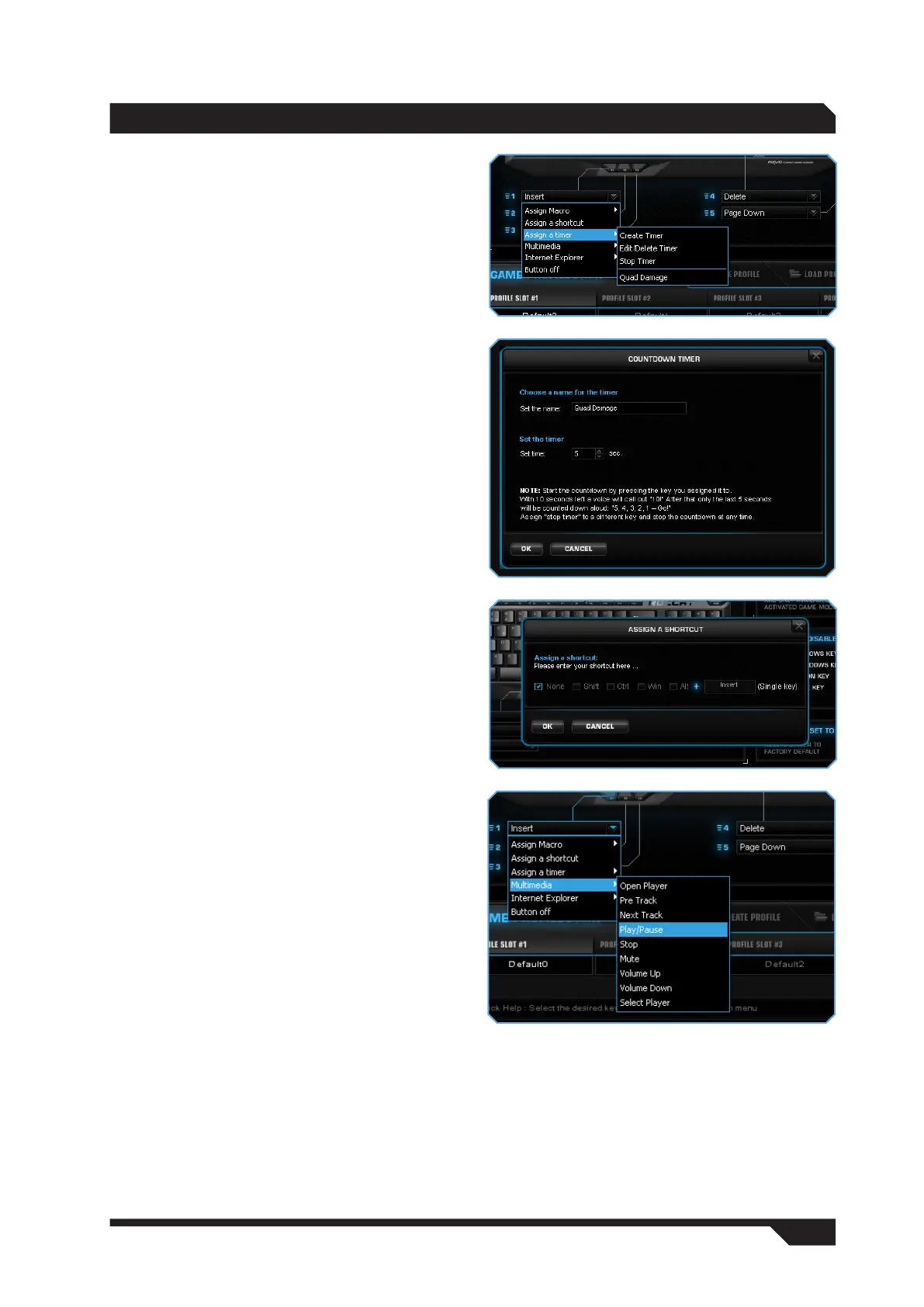
Assign a timer
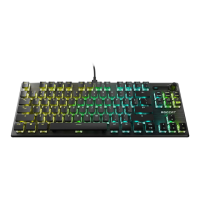
You can assign a countdown timer function to
a key using this option. This allows you not to
miss certain events in the game (such as quad
damage, spell effects etc). Name your countdown
and specify how many seconds it should last for.
Following that, save it by clicking ‘Apply’. As soon
as you press the relevant key, ‘Timer Activated’
will be displayed. A voice will inform you again
when there are just ten seconds to go until the
end of the countdown (you will hear ‘ten’). The final
five seconds are counted down loudly: ‘five – four
– three – two – one – go!’
You can assign the ‘Stop timer’ command to
another key. This will allow you to cancel the
countdown at any time at the press of a key.
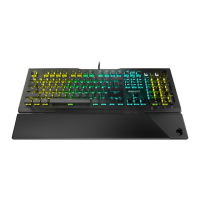
Assign a shortcut
You can assign a shortcut to the selected key
using the ‘Assign a shortcut’ option. You can
combine the Ctrl, Shift, Alt and Windows keys
with any other key and assign it to a single key.
For instance, this means you only need to press a
single key to call up the Task Manager instead of
pressing Ctrl+Alt+Delete.
‘Assign a shortcut’ also gives you the opportunity
to remap keys. To do that, select ‘None’ and press
the key whose function you’d like to remap. You
can, for example, assign a key which is out of
reach, but which you need during the game, to
one of the easily reachable macro keys.
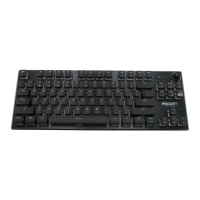
For multimedia functions
• Open player
• Pre track
• Next track
• Play/Pause
• Stop
• Mute
• Volume up
• Volume down
• Select player
Für den Internet Explorer
• Search
• Home
• Back
• Forward
• Stop
• Refresh
• Favorites


 To Next Page