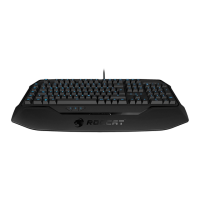
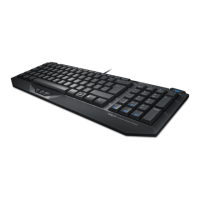
1. Til ergonomisk opstilling klappes fødderne på tastaturets
bund ud.
2. Sæt ROCCAT Vulcan TKL Pro’s USB-stik ind i en ledig USB-port
på din PC, og tilslut USB-C-stikket på bagsiden af din ROCCAT
Vulcan TKL Pro.
3. Start computeren op, og forbind den med internettet.
4. Navigér til www.roccat.org/roccat-swarm, og download den
nyeste version af Swarm.
5. Start software-installationen, og følg anvisningerne på
skærmen.
INSTRUKTIONER
DK
1. For a more ergonomic position, fold out the stands on the base
of the keyboard.
2. Plug the ROCCAT Vulcan TKL Pro’s USB connector into any
free USB port on your PC and the USB-C connector to the back
of the ROCCAT Vulcan TKL Pro.
3. Start your computer and connect to the internet.
4. Navigate to www.roccat.org/roccat-swarm and download the
latest version of Swarm.
5. Start the software installation process and follow the on-
screen instructions
INSTRUCTIONS
EN
1. Para un equilibrio más ergonómico, saca las patas que están
debajo del teclado.
2. Enchufa el conector USB del ROCCAT Vulcan TKL Pro a un
puerto USB libre en tu PC y el conector USB-C en la parte
posterior del ROCCAT Vulcan TKL Pro.
3. Inicie el ordenador y conéctese a internet.
4. Acceda a la página www.roccat.org/roccat-swarm y descár-
guese la última versión swarm.
5. Inicie el proceso de instalación de software y siga las instruc-
ciones de la pantalla.
INSTRUCCIONES
ES
تعليمات
ANLEITUNG
AR DE
1. للحصول على وضع أكثر راحة، قم بطي الحوامل الموجودة على قاعدة لوحة
المفاتيح.
2. قم بتوصيل موصل USB الخاص بـ ROCCAT Vulcan TKL Pro بأي
منفذ USB غير مشغول في جهاز الكمبيوتر الشخصي وموصل USB-C
بالجزء الخلفي من ROCCAT Vulcan TKL Pro
3. شغل جهازك وتأكد من توصيله بالأنترنت
4. افتح صفحة, وقم بتنزيل احداث اصدار من تطبيق سوارم الخاص
بروكات www.roccat.org/roccat-swarm
5. ابدأ بعملية تنزيل البرنامج واتبع التعليمات الظاهرة على الشاشة
1. Für einen ergonomischeren Stand klappe die Füße an der
Unterseite der Tastatur aus.
2. Schließe das USB-Kabel der ROCCAT Vulcan TKL Pro an
einen beliebigen freien USB-Port an deinem PC an und stecke
den USB-C-Stecker in den Anschluss auf der Rückseite des
ROCCAT Vulcan TKL Pro.
3. Starte deinen Computer und stelle eine Verbindung zum
Internet her.
4. Rufe www.roccat.org/roccat-swarm auf und lade dir die
neueste Swarm Version herunter.
5. Starte die Software-Installation und folge den Anweisungen.
1. Déplie les pieds sur la face inférieure du clavier pour une plus
grande ergonomie.
2. Branchez l’embout USB du ROCCAT Vulcan TKL Pro dans n’im-
porte quel port USB de votre PC et l’embout USB-C à l’arrière
du ROCCAT Vulcan TKL Pro.
3. Allumez votre PC et connectez-vous à internet.
4. Allez sur www.roccat.org/roccat-swarm et téléchargez la
dernière version de Swarm.
5. Débutez l’installation du programme et suivez les indications.
INSTRUCTIONS
FR
OHJEET
FI
1. Käännä näppäimistön alla olevat jalat ulos ergonomista
asentoa varten.
2. Yhdistä ROCCAT Vulcan TKL Pro:n USB-liitin mihin tahansa
tietokoneesi vapaista USB-porteista ja USB-C-liitin ROCCAT
Vulcan TKL Pro:n takaosaan.
3. Käynnistä tietokoneesi ja yhdistä internetiin.
4. Siirry osoitteeseen www.roccat.org/roccat-swarm ja lataa
Swarm-ohjelmiston uusin versio.
5. Käynnistä ohjelmiston asennusprosessi ja seuraa näyttöruud-
ulla näkyviä ohjeita.
1. キーボード底面のスタンドを立てると人間工学的によりよいポジショ
ンで使用できます。
2. ROCCAT Vulcan TKL Pro のUSBコ ネ ク タ を 、ご 利 用 中 の PCの空
いているUSBポートに接 続し 、USB-CコネクタをROCCAT Vulcan
TKL Pro の 背 部 に 接 続 してくだ さ い 。
3. コンピュータを起動し、インターネットに接続します。
4. www.roccat.org/roccat-swarm にナビゲート
し、Swarm の最新バージョンをダウンロードします。
5. ソフトウェアインストール 処 理を開始し、画面上の指 示に従います。
使用説明
JP


 To Next Page
 Loading...