EasyManua.ls Logo

rock space RSD0608 - User Manual

rock space RSD0608
4 pages
Print Icon
To Next Page IconTo Next Page
Loading...
LED Descriptions
O No connection.
Solid red Poor connection.
Solid blue Best connection
WPS LED
On
WiFi security is enabled (WPA or WPA2).
Blinking A WPS connection is in progress.
O WiFi security is not enabled.
Power LED
Solid on
The extender is powered on.
The extender is powered o.
O
The extender is booting.Blinking
Signal LED
This LED indicates
the connection
between the
extender and the
router.
AC750/AC1200 Dual Band WiFi Repeater
Model: RSD0607/RSD0608
Technical Phone Support: +1(833)816-6558
Service Time: EST: 9:00-17:00 / PDT: 06:00-14:00,from Monday to Friday
24hour Online After-sales Service: https: //rockspace. afterservice. vip
Quick Start Guide
WiFi router
Antennas upward and vertical to the ground
Blue: successfully connected
Red: connection failed
Signal
Method 1: Connect to an Existing WiFi Network with Web Browser Setup
1
Place the Extender and
Apply Power
Place your extender in the same room as your
WiFi router. Plug the extender into an electrical
outlet.
Wait for the Power LED to light blue.
3. Select a WiFi network to extend.
4. In the password eld, type the password for
the existing WiFi network you previously selected.
Select a WiFi network you want to
extend…
My_home_wi
Rescan Switch Mode
Your existing WiFi network
Enter the password of “My_home_wi
My_home_wi
Password of the extended network is
same as your existing WiFi network.
The extended WiFi network
SSID
Back Extend
Password (5-32 characters)
Conrm
Next Not Now
192.168.0.254
2
Extend Your WiFi Network
1. Use a WiFi network manager on your client device,
such as a computer or WiFi device, to nd and connect
to the "rockspace_EXT " (SSID) WiFi network.
Ensure that the Mobile Data is disabled.
WLAN
rockspace_EXT
2. After the connection with your client device is
established, the setup page will automatically pop up. If
the setup page doesn't pop up automatically, you will
need to launch web browser and enter 192.168.0.254 to
get started. In the Password eld, type the password
that you wish to use to log into the management
interface.
Note: The password you entered in this step is NOT the
password for your extended network, it is the password
for the extender's management interface.
The SSID of the extended network can be modied,
otherwise it will remain the same as that of the
existing network you chose to extend. Wait for the
page to display a list of WiFi networks, connect your
client device to the new extender WiFi network.
Note: The password for the extended network you
entered in step 4 should be the same as the
password for your existing WiFi network.
3
Relocate the WiFi Range Extender
1. Unplug the extender and move it to a new location about halfway
between your router and the area with a poor WiFi signal.
The location that you choose must be within the range of your existing
WiFi router network.
3.
Use a WiFi network manager on your client device, such as a computer
or WiFi device, to nd and connect to the extended WiFi network you've
set up in the previous step.
Note:
The password for the extended network is the same as the password
for your existing WiFi network.
4.
After connecting to the repeater wireless signal,enter domain name:re.rockspace.local in the address bar to login.
2. Plug the extender into an electrical outlet and wait for the Signal
LED to light blue. If not, plug the extender into an outlet closer to the
router and try again.
PWR
The website list above is the ONLY official after sales service website
that’s been authorized.
Please DO NOT trust the other websites for technical support.

Other manuals for rock space RSD0608

Question and Answer IconNeed help?

Do you have a question about the rock space RSD0608 and is the answer not in the manual?

Summary

LED Descriptions

Power LED Status

Status of the Power LED indicator.

WPS LED Status

Status of the WPS LED indicator.

Signal LED Status

Status of the Signal LED indicator.

Method 1: Connect to Existing WiFi via Web Browser

1. Place Extender and Apply Power

Position and power on the WiFi extender.

2. Extend Your WiFi Network

Connect to extender's WiFi and configure network.

3. Relocate WiFi Range Extender

Move extender to optimal location for coverage.

Method 2: Connect to Existing WiFi via WPS

1. Place Extender and Apply Power

Position and power on the WiFi extender.

2. Extend Your WiFi Network

Use WPS buttons on router and extender for connection.

3. Relocate WiFi Range Extender

Move extender to optimal location for coverage.

Connect Ethernet-Enabled Device

Reset the Repeater

Frequently Asked Questions (FAQ)

Login Issues

Troubleshooting steps for web UI and interface login problems.

Reset Button Functionality

Guidance on how to properly use the reset button.

Network Detection Problems

Solutions for repeater failing to detect the router's WiFi.

Extension Failure Troubleshooting

Resolving common scenarios where extension fails.

Indicator Light Interpretation

Understanding indicator lights for signal status and connection.

No Internet Access Post-Extension

Steps to resolve no internet connectivity after setup.

Post-Extension Performance Issues

Poor Extended Signal

Tips to improve poor signal strength after extension.

Intermittent Connection Loss

Troubleshooting intermittent connection drops.

Device Connection Drops

Resolving connection drops between devices and repeater.

Network Unavailability

Diagnosing and fixing network unavailability post-extension.

Slow Network Speed

Steps to improve slow network speeds after extension.

Low Speed Despite Strong Signal

Addressing low speeds despite a strong signal.

Single Frequency Extension

Resolving single-frequency extension issues.

Regulatory Information and Safety

FCC Statement

Compliance information and regulatory compliance details.

Cautionary Notes

Important warnings regarding device modifications and operation.

Contact and Support Information

Overview

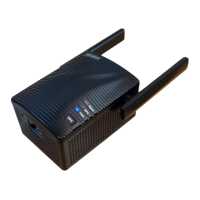
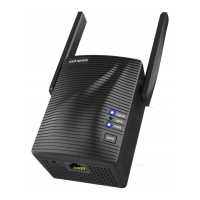
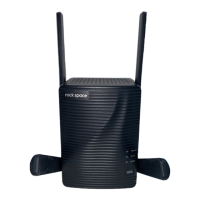
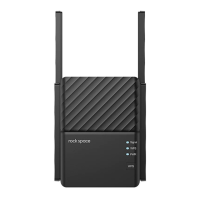
This document describes the rock space AC750/AC1200 Dual Band WiFi Repeater (Models: RSD0607/RSD0608), a device designed to extend an existing WiFi network.

Function Description

The rock space WiFi Repeater acts as a range extender, boosting the signal of an existing WiFi router to cover areas with poor or no WiFi signal. It supports dual-band operation (AC750/AC1200), allowing it to connect to both 2.4GHz and 5GHz networks. The device can be set up using two primary methods: a web browser setup or a WPS (Wi-Fi Protected Setup) button. Once configured, it creates an extended WiFi network, allowing client devices to connect to it for improved coverage. It also features an Ethernet port, enabling wired devices to connect to the extended network.

Important Technical Specifications

  • Model Numbers: RSD0607 / RSD0608
  • Type: Dual Band WiFi Repeater (AC750 / AC1200)
  • Connectivity: Wireless (2.4GHz and 5GHz), Ethernet port
  • Management Interface: Web browser (accessible via 192.168.0.254 or re.rockspace.local)
  • Security Support: WPA, WPA2, WPA-PSK, WPA2-PSK, mixed mode. WEP is not supported for extension.
  • Power: Plugs into a standard electrical outlet.
  • LED Indicators:
    • Power LED: Solid on (powered on), Blinking (booting), Off (powered off).
    • WPS LED: On (WiFi security enabled), Blinking (WPS connection in progress), Off (WiFi security not enabled).
    • Signal LED: Solid blue (best connection), Solid red (poor connection), Off (no connection). This LED indicates the connection quality between the extender and the router.
  • FCC Compliance: Class B digital device, Part 15 of FCC Rules.
  • Radiation Exposure: Minimum distance of 20cm between the radiator and body.
  • Operating Environment: Restricted to indoor use.

Usage Features

The repeater offers flexible setup and operation:

  • Two Setup Methods:
    • Method 1 (Web Browser Setup):
      1. Plug the extender into an electrical outlet near the router.
      2. Connect a client device (computer or WiFi device) to the extender's default SSID ("rockspace_EXT").
      3. Access the setup page via a web browser (192.168.0.254 or re.rockspace.local).
      4. Set a management password for the extender.
      5. Select the existing WiFi network to extend and enter its password.
      6. Optionally, modify the extended network's SSID.
      7. Relocate the extender to an optimal position (halfway between the router and the poor signal area).
      8. Connect client devices to the new extended WiFi network.
    • Method 2 (WPS Setup):
      1. Plug the extender into an electrical outlet near the router.
      2. Press the WPS button on the router, then within two minutes, press the WPS button on the extender.
      3. Wait for the Signal LED on the repeater to turn solid blue, indicating a successful connection.
      4. Relocate the extender to an optimal position.
  • Optimal Placement Guidance:
    • Initially place the extender in the same room as the WiFi router for setup.
    • For relocation, choose a spot about halfway between the router and the area with poor WiFi signal, ensuring it's within the existing WiFi router's range.
    • The Signal LED provides visual feedback on connection quality: solid blue for best connection, solid red for poor connection. If red, move the extender closer to the router.
    • Antennas should be positioned upward and vertical to the ground, parallel to the router's antennas for optimal signal. For duplex houses, both repeater and router antennas should be tilted and remain parallel.
    • Recommended signal strength for repeater placement is between 40%-50% of the router's signal strength (or 2 bars on the interface, corresponding to -60db to -79db).
  • Ethernet Connectivity: Allows a wired device to connect to the extender via an Ethernet cable, accessing the extended network.
  • Troubleshooting Support: The FAQ section addresses common issues such as login failures, inability to find WiFi networks, extension failures, weak signals, and slow network speeds, offering detailed solutions.

Maintenance Features

  • Reset Functionality:
    • To restore factory settings, plug the extender into a power outlet, then press and hold the reset pinhole (located on the bottom) for 8 seconds using a paperclip. The device will reboot to default settings.
    • This is useful for resolving persistent issues or reconfiguring the device.
  • Firmware Updates: While not explicitly detailed in the provided text, typically, such devices support firmware updates to improve performance, add features, and address security vulnerabilities.
  • Technical Support:
    • Phone Support: +1(833)816-6588 (EST: 9:00-17:00 / PDT: 06:00-14:00, Monday to Friday).
    • Online After-sales Service: https://rockspace.afterservice.vip (24-hour online).
    • Email Support: techsupport@rockspace.cc.
  • Troubleshooting Guidance: The comprehensive FAQ section serves as a self-maintenance guide, helping users diagnose and resolve common problems without needing to contact support. It covers:
    • Login issues (checking WiFi connection, IP settings, browser cache).
    • Repeater reset procedures.
    • Inability to find router's WiFi (checking encryption type).
    • Extension failures (checking indicator color, SSID/password, MAC filter, signal strength, router settings).
    • Weak or no signal after extension (checking indicator, antenna angle, placement).
    • No internet access after extension (confirming successful extension, signal strength).
    • Slow network speed after extension (checking indicator, placement, antenna parallelism).
  • Security Best Practices: Recommends setting the extended network's SSID to an alphanumeric combination to avoid issues with special characters or Chinese characters. Advises against WEP encryption for the superior router.

rock space RSD0608 Specifications

General IconGeneral
Brandrock space
ModelRSD0608
CategoryExtender
LanguageEnglish

Related product manuals