EasyManua.ls Logo

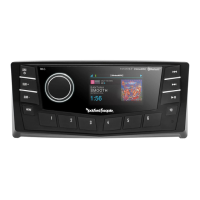
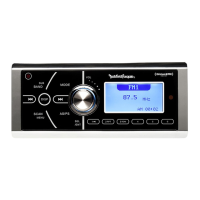
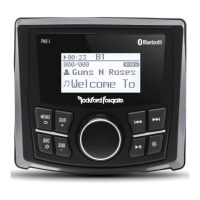
Rockford Fosgate PUNCH PMX-1 - User Manual

Rockford Fosgate PUNCH PMX-1
31 pages
Print Icon
To Next Page IconTo Next Page
Loading...
Installation & Operation
PMX-1
DIGITAL MEDIA
RECEIVER
Serial Number: Date of Purchase:
Installation assistance available at:
www.rockfordfosgate.com/rftech
ROCKFORDFOSGATE.COM
600 South Rockford Drive • Tempe, Arizona 85281 United States
Direct: (480) 967-3565 • Toll Free: (800) 669-9899
Printed in China
081517
1230-61292-01-A
IC warning
- English:
This device complies with Industry Canada’s licence-exempt RSSs.
Operation is subject to the following two conditions:
(1) Thfis devfice may not cause finterference, and
(2) This device must accept any interference, including interference that may
cause undesired operation of the device.
- French:
Le présent appareil est conforme aux CNR d'Industrie Canada applicables aux
apparefifls radfio exempts de flficence. L'expflofitatfion est autorfisée aux deux
(1) l'appareil ne doit pas produire de brouillage, et
(2) l'utilisateur de l'appareil doit accepter tout brouillage radioélectrique subi,
même si le brouillage est susceptible d'en compromettre le fonctionnement.
conditions suivantes :

Questions and Answers

  • J
    Joseph KirbyJul 28, 2025
    Why Rockford Fosgate PUNCH PMX-1 source unit does not turn on?
    • M
      Michael PhillipsJul 28, 2025
      Several factors can prevent your Rockford Fosgate Receiver from turning on. First, check the unit's fuse and replace it if necessary with the correct rating. Second, ensure the wiring is properly grounded. Third, verify that the voltage applied to the red wire is between 10.5 and 16 volts. Inspect the battery, connections, and fuses, and repair or replace them as needed. If the voltage exceeds +16 volts, have the electrical system inspected by an authorized service center. Lastly, if connected according to the instructions, remember that the unit will not operate with the ignition off.
  • D
    Dawn SellersAug 2, 2025
    What to do if USB device is not recognized by Rockford Fosgate Receiver?
    • B
      Benjamin ObrienAug 2, 2025
      If your Rockford Fosgate Receiver isn't recognizing the USB device, first, disconnect and reconnect the USB device. If it's still not recognized, try a different USB device. Keep in mind that USB does not work with Android devices. Also, check for loose connectors.
  • D
    Debra CarrAug 7, 2025
    What to do if Rockford Fosgate Receiver tuner fails to tune any stations?
    • H
      hernandezjacobAug 7, 2025
      If your Rockford Fosgate Receiver's tuner isn't picking up any stations, the issue might be with the antenna connection. Check all connections and repair as necessary.
  • K
    Kevin WashingtonAug 12, 2025
    What to do if I can't insert USB device into Rockford Fosgate Receiver?
    • P
      Paul FergusonAug 12, 2025
      If you are unable to insert the USB device into your Rockford Fosgate Receiver, it might be inserted in the wrong direction. Try reversing the connection direction and reinserting it. If it still doesn't fit, the USB device connector might be broken, and you should replace it with a new USB device.
  • M
    Michelle NguyenAug 16, 2025
    What to do if Rockford Fosgate PUNCH PMX-1 unable to tune stations in seek mode?
    • N
      Nichole PerkinsAug 17, 2025
      If your Rockford Fosgate Receiver is unable to tune stations in seek mode, you might be in a weak signal area. Ensure that the tuner LOC mode is off.
  • M
    Mrs. Stephanie WilliamsAug 21, 2025
    What to do if no sound heard with the display 'No File' shown on Rockford Fosgate Receiver?
    • B
      Brandon VazquezAug 21, 2025
      If you see 'No File' on your Rockford Fosgate Receiver and hear no sound, it means there are no MP3/WMA files stored on the USB device. Store these files properly on the USB device. Note that USB does not work with Android devices.

Summary

IC Warning

Introduction

Safety Precautions

FCC Compliance Statement

Product Specifications

Design Features Overview

Rotary Encoder Control

Controls volume, menu navigation, and setting adjustments.

Menu and Source Buttons

Accesses main settings via long press and active source settings via short press.

Track Navigation Buttons

Skip tracks/channels with short press; activate manual seek with long press.

Subwoofer Level Adjustment

Adjusts subwoofer output or rear line out level.

Dimmer and Play;Pause Controls

Adjusts display brightness and controls playback or mutes audio.

Wiring Diagram

Installation and Mounting Guide

Installation Considerations and Tools

Lists necessary tools and provides essential pre-installation tips for safe and effective setup.

Mounting with Mounting Plate

Step-by-step instructions for securing the unit using the provided mounting plate.

Mounting with U Bracket

Instructions for attaching the unit using the U bracket and nuts.

System Settings Configuration

Source Unit Settings

Configure balance, fader, audio settings like EQ, crossover, and rear RCA output.

Auxiliary Input Setup

Option to rename the AUX input for easier identification.

Source Gain Adjustment

Adjusts input gain levels for various audio sources like FM, AM, USB, and Bluetooth.

Internal Amplifier Control

Enable or disable the internal amplifier for powering speakers.

Voltage Gauge Display

View the vehicle's current voltage.

Bluetooth Device Pairing

Configure Bluetooth discoverability and manage paired devices.

System Beep and Tuner Region

Toggle audible system beeps and select the preferred radio tuner region.

Contrast and Software Settings

Adjust display contrast and check/update unit software.

Factory Default Reset

Option to restore the unit to its original factory default settings.

Basic Operation Controls

Powering Unit On;Off

Instructions for turning the unit on and off using the SRC button.

Volume and Subwoofer Adjustment

How to adjust the main volume and subwoofer output levels.

Screen Brightness and Source Selection

Adjust display brightness and cycle through available audio sources.

Tuner Operation and Settings

FM Band Settings

Manage FM presets, auto-store stations, and select local tuning.

AM Band Settings

Manage AM presets, auto-store stations, and select local tuning.

WB Band Settings

Manage Weather Band presets and auto-store functionality.

USB Media Playback

USB Controls and Settings

Play, pause, skip tracks, and access browser, repeat, and shuffle options.

Bluetooth Audio Playback

Bluetooth Controls and Options

Play, pause, skip tracks, and browse media via Bluetooth connection.

Troubleshooting Common Issues

Product Warranty Information

Warranty Coverage Details

Explains warranty length, what is covered, and what is excluded.

Obtaining Service and Support

Instructions on how to get service, including obtaining an RA number.

Rockford Fosgate PUNCH PMX-1 Specifications

General IconGeneral
BrandRockford Fosgate
ModelPUNCH PMX-1
CategoryReceiver
LanguageEnglish

Related product manuals