EasyManua.ls Logo

RockJam RJ541 - User Manual

RockJam RJ541
29 pages
Print Icon
To Next Page IconTo Next Page
Loading...
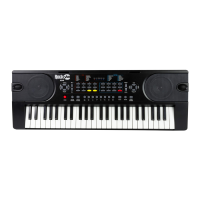
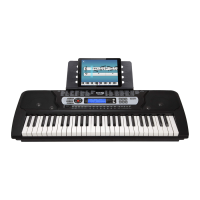
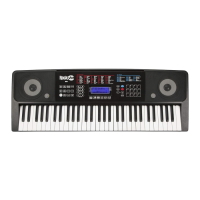
RJ540 / RJ540-SK
RJ541 / RJ541-SK
RJ640 / RJ640-SK
RJ641 / RJ641-SK
Multi-function Keyboard
User Guide

Questions and Answers

  • A
    Alexis FlemingAug 10, 2025
    How to fix no sound on my RockJam RJ541?
    • H
      Hannah BrownAug 10, 2025
      If you're not getting any sound from your RockJam Keyboard when you press the keys, here are a few things to check: * Make sure the master volume is turned up to a suitable level. * Ensure that headphones or other external equipment aren't plugged in, as they'll automatically disable the built-in speakers. * Verify that fingered chord mode isn't active, as incorrect key presses in this mode won't produce sound. * Confirm that the volume isn't set to the lowest level (muted).
  • M
    Michael MurphyAug 16, 2025
    What to do if my RockJam RJ541 Keyboard sound is distorted?
    • K
      Kristina RichardsAug 16, 2025
      If the sound from your RockJam Keyboard is distorted or interrupted, and the keyboard isn't working as expected, it might be due to the power adapter. Try using the power adapter that came with your keyboard. Alternatively, the batteries may need replacing.
  • K
    Karen NewtonAug 21, 2025
    What to do if auto accompaniment does not work on RockJam Keyboard?
    • E
      enelsonAug 21, 2025
      If the auto accompaniment isn't working in SYNC status on your RockJam Keyboard, ensure that Chord mode is selected. Then, play a note using the first 19 keys on the left side of the keyboard.
  • M
    mitchell32Aug 27, 2025
    Why is the pitch of the note not correct on RockJam RJ541?
    • M
      Micheal MercerAug 27, 2025
      If the pitch of the note on your RockJam Keyboard sounds incorrect, verify that the transpose setting is set to 00.
  • V
    Victoria FergusonSep 3, 2025
    Why is there noise when turning RockJam Keyboard on?
    • J
      Jacqueline ThompsonSep 3, 2025
      This faint noise when turning your RockJam Keyboard on or off is normal, so there's no need to worry.

Summary

Important Information

Safety and Usage Guidelines

General warnings and precautions for operating the keyboard and its accessories safely.

Controls and Connections

Front Panel Overview

Identification of buttons, indicators, and controls on the keyboard's front interface.

External Connection Ports

Details on audio input/output, microphone, and power jacks.

Display Screen Information

Explanation of the LCD and LED screen displays and their functions.

Preparation Before First Use

Powering the Device

Instructions for using the DC power adapter or batteries.

Connecting Accessories

Guidance on connecting headphones and other peripherals.

Keyboard Operation

Power and Volume Controls

How to turn the keyboard on/off and adjust master and accompaniment volumes.

Tone, Effects, and Split Keyboard

Selecting tones, applying sustain, vibrato, transpose, and using split keyboard mode.

Rhythm and Accompaniment

Selecting rhythms, sync, fill-in, tempo, and accompaniment volume.

Chord Accompaniment

Using single finger, fingered, and bass chord accompaniment modes.

Advanced Features

Recording and Rhythm Programming

Functionality for recording notes and programming rhythm patterns.

Demo Songs and Teaching Modes

Playing demo songs and utilizing interactive beginner, intermediate, and advanced lessons.

Appendices and Specifications

Reference Appendices

Tables for percussion, rhythms, tones, demo songs, chords, and troubleshooting.

Technical Specifications

Detailed specs for models, including weight, power adapter, and accessories.

RockJam RJ541 Specifications

General IconGeneral
BrandRockJam
ModelRJ541
CategoryKeyboard
LanguageEnglish

Related product manuals