EasyManua.ls Logo

Rockville TM80 - User Manual

Rockville TM80
16 pages
Print Icon
To Next Page IconTo Next Page
Loading...
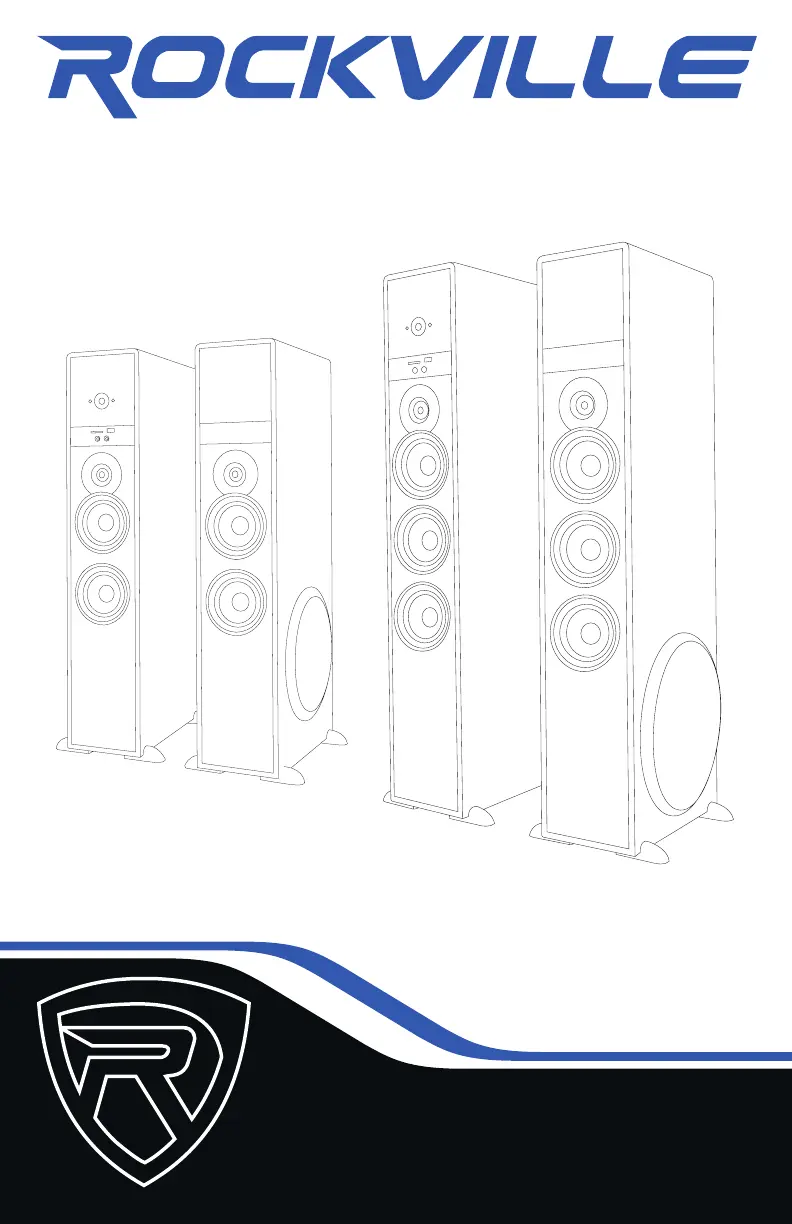
OWNER’S MANUAL
TM150
TM80
COMPLETE POWERED HOME THEATER
SPEAKER SYSTEM
TMTM
SERIESSERIES

Questions and Answers

  • S
    shawjoseAug 7, 2025
    Why is there no sound or distorted sound from my Rockville Home Cinema speakers?
    • N
      Nathaniel FlynnAug 7, 2025
      If you are experiencing no sound or distorted sound with your Rockville Home Cinema speakers, verify that all cables are correctly plugged in. Check the volume settings on both the unit and the input source. Ensure you've selected external speakers in your TV's sound output settings and deactivated Dolby Pro-Logic, Dolby ATMOS, etc., selecting PCM in your TV's sound format settings. If using a microphone, confirm it is on and the proper source is selected. If the unit or source volume is maxed out, reduce one to avoid overdriving the unit.
  • R
    Robert ChangAug 12, 2025
    How to fix Bluetooth pairing issues with Rockville Home Cinema speakers?
    • M
      Martha CobbAug 12, 2025
      If Bluetooth pairing fails on your Rockville Home Cinema speakers, ensure both devices are on and your Bluetooth device is discoverable. Try turning both devices off and on again. Confirm the proper source is selected. Keep the Bluetooth device within 5 feet of the unit during pairing and move both devices away from other electronics like microwaves and wireless routers. Also, verify the unit isn't paired with a previously connected device.
  • L
    Lisa ChapmanAug 17, 2025
    What to do if my Rockville TM80 Home Cinema speakers have no power?
    • D
      Diana ClarkAug 17, 2025
      If your Rockville Home Cinema speakers have no power, first, ensure the unit is plugged in and the power switch is in the ON position. Next, check that the power cable is not damaged.
  • D
    David ClayAug 22, 2025
    How to stop mic feedback on Rockville TM80?
    • E
      Eric GonzalesAug 22, 2025
      To address mic feedback with your Rockville Home Cinema speakers, point the microphone away from the speaker. Also, make sure the microphone is positioned behind the speaker, not in front of it.
  • J
    Jennifer MillerAug 27, 2025
    Why won't my Rockville TM80 play SD or USB files?
    • A
      Adrian HarrisAug 28, 2025
      If your Rockville Home Cinema speakers aren't playing back from SD or USB, ensure you've selected the correct source. Also, verify that the audio files are in one of the specified formats: MP3, WMA, WAV, FLAC, APE, F1A, SBC, or AAC.
  • B
    Brandon ChapmanSep 1, 2025
    What causes poor mic sound quality on Rockville Home Cinema speakers?
    • P
      Phillip WilsonSep 1, 2025
      If you are experiencing poor mic sound with your Rockville Home Cinema speakers, ensure you are using a proper cable. Use TRS cables when connecting microphones to this unit.

Summary

Important Safety Instructions

Electrical Shock Precautions

Warns against opening the unit and advises qualified technicians for repairs, emphasizing shock risk.

General Usage Precautions

Covers placement, water avoidance, heat sources, power cord protection, and cleaning methods.

How to Avoid Irritating Feedback

Microphone Placement for Feedback Prevention

Explains optimal microphone setup relative to speakers to prevent audio feedback.

Front Panel Controls

Rear Panel Connections

Remote Control Functions

Initial Setup

Bluetooth Connectivity

USB;SD Playback

Connecting Audio Sources

Microphone and Output Connections

Troubleshooting Common Issues

Power and Sound Problems

Solutions for no power, no sound, or distorted audio output.

Microphone and Feedback Solutions

Addresses mic feedback, poor sound, and cable compatibility.

Connectivity and Playback Errors

Fixes for Bluetooth pairing and SD/USB file playback issues.

Rockville TM80 Specifications

General IconGeneral
Bluetooth Range33 Feet
Remote ControlYes
Sensitivity85dB
Frequency Response20Hz - 20KHz
InputsRCA
ConnectivityBluetooth

Related product manuals