Why can I not find Spotify in the Roku
Channel Store?
Background
On a supported Roku
®
streaming player or Roku TV
™
, Spotify lets you discover, manage and
share over 35 million songs for free, or upgrade to Spotify Premium to access exclusive features
including improved sound quality and ad-free listening. Once Spotify is installed on your Roku
device, you can control music playback using your Roku remote, or via Spotify Connect on a
smartphone, tablet, or computer.
This article lists the Roku devices that support Spotify and tells you how to find and install the
channel.
What Roku devices support Spotify?
The most likely reason you cannot see Spotify in the Roku Channel Store is that your Roku
device does not support Spotify. To help determine if your Roku device supports Spotify, you
need to know the software version and device model. To find this information, go to the home
screen on your Roku device and select Settings > System > About.
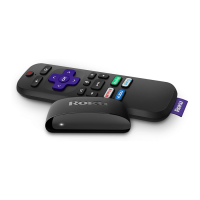
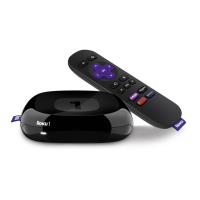
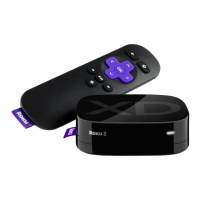
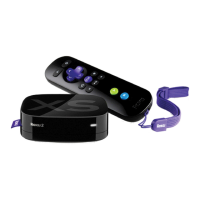
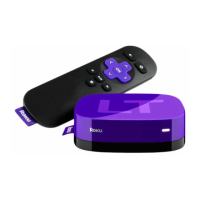
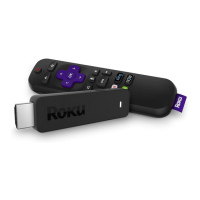
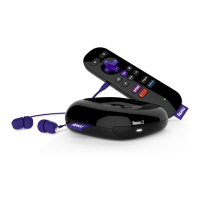
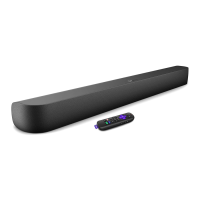
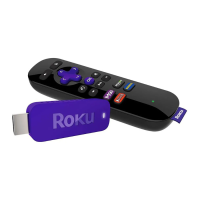
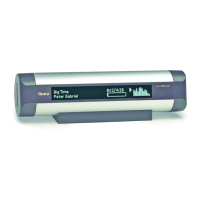
Spotify is supported on all Roku TV models and select Roku streaming players (models 3600
and above). The minimum required software version is Roku OS 8.2. Your Roku device checks
for an update every 24-36 hours or you can manually check for a software update if necessary.
Where do I find Spotify?
To find and install Spotify on your supported Roku device, open the Roku Channel Store by
selecting Streaming Channels from your home screen, and then browse the Music genre or
select Search Channels and search for 'Spotify'. When you add the channel, it will appear at the
bottom of the list of channels under Home on the main screen of your Roku device. If you
prefer, the channel can be moved higher in the list.
You can also add Spotify from the Roku Channel Store on the web. Once added, the channel will
not immediately appear on your supported Roku device. Your Roku device checks every 24
hours for any new channels, themes or screensavers you have added from the web and
automatically installs them. If you would like to download and install the channel immediately,
go to your Roku device and select Settings > System > System update > Check now.
Note: If you add Spotify to your Roku account from the web, it will only be installed on
supported Roku devices. It will not be added to any unsupported devices linked to your
Roku account.


 To Next Page