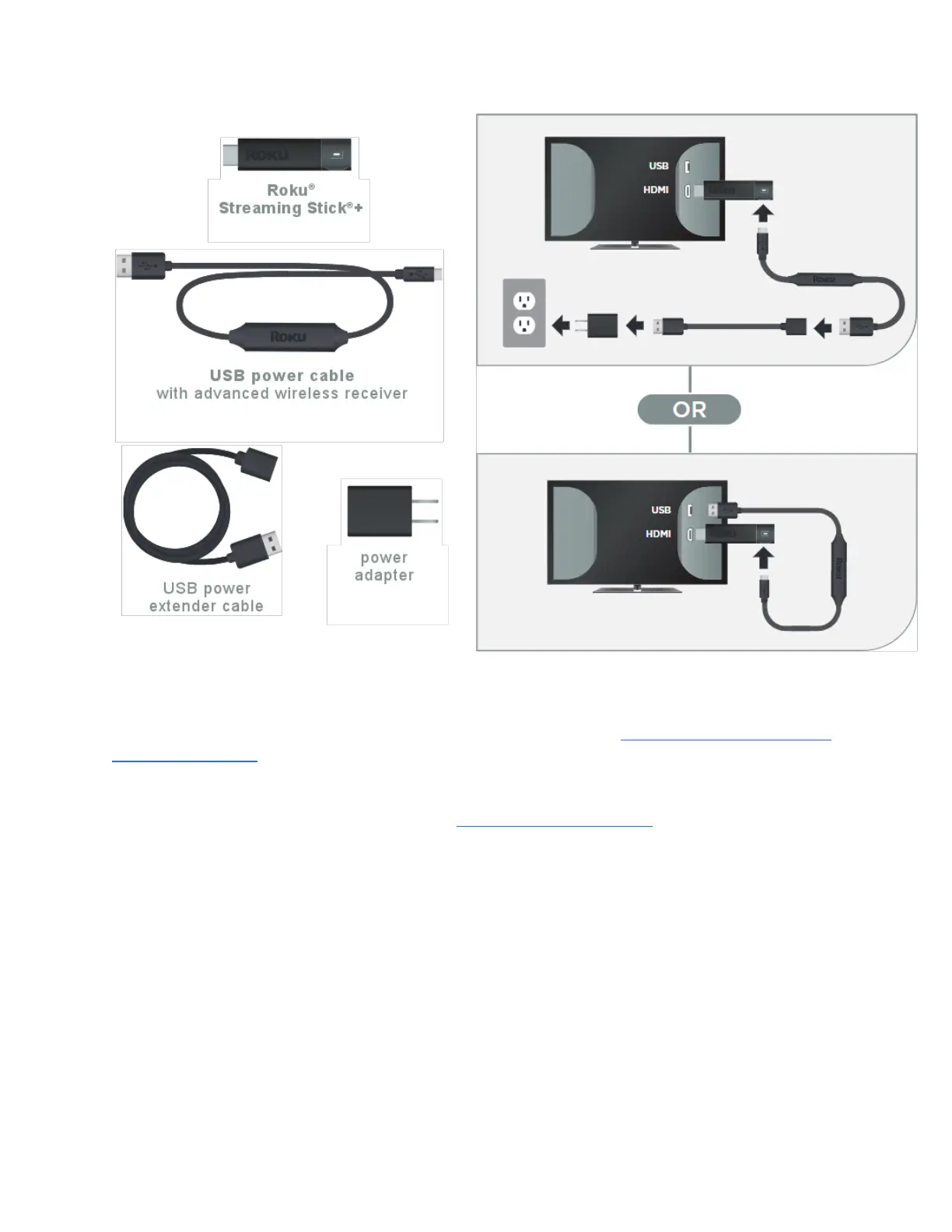
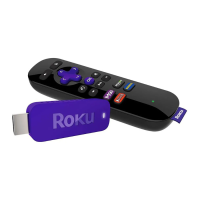
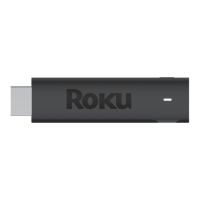
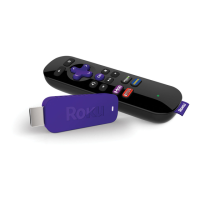
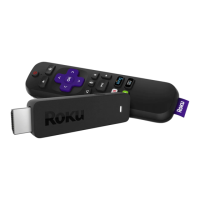
To get started, connect your Roku Streaming Stick+ to an available HDMI port on your TV. If
you plan to stream movies and TV shows in 4K or 4K HDR, remember to select an HDMI 2.0
port that supports HDCP 2.2. Learn what to look for when trying to identify an HDMI input that
supports HDCP 2.2.
If your Roku Streaming Stick+ will not easily connect to the HDMI port on your TV due to
space restrictions, then you may wish to get a free HDMI extender cable.
Next, plug the USB power cable with advanced wireless receiver into a suitable power source –
either the USB port on your TV, or preferably, a wall outlet (when used with the USB power
extender cable and power adapter).
Note: The USB port on some TV’s may be unable to power a Streaming Stick+. If you
see the on-screen warning message that appears in these cases, use a wall outlet.
Finally, attach the advanced wireless receiver firmly to the Roku Streaming Stick+. A poor
connection will prevent your Streaming Stick+ from connecting to your wireless network and
ultimately the internet.


 To Next Page