EasyManua.ls Logo

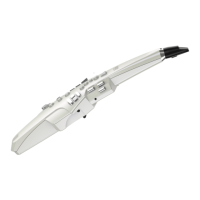
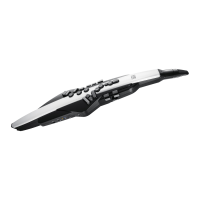
Roland AEROPHONE AE-20 - User Manual

Roland AEROPHONE AE-20
31 pages
Print Icon
To Next Page IconTo Next Page
Loading...
Owners Manual
Contents
USING THE UNIT SAFELY
........................ 2
IMPORTANT NOTES
............................. 2
Introduction
..................................... 3
Checking the Accessories
.............................. 3
Panel Descriptions
.............................. 4
Getting Ready to Play
........................... 6
Holding the AE-20 (Your Posture When Holding the
Instrument)
.......................................... 6
Attaching the Band
................................... 7
Selecting the Power Source
............................ 7
Connecting Headphones or External Speakers
............ 7
Turning the Power On/O
.............................. 8
Adjusting the Volume
................................. 8
Playing the Internal Sounds
............................ 9
Playing the Instrument
......................... 10
How to Make Sound
................................... 10
Playing Songs
........................................ 10
Caring for the Mouthpiece
..................... 12
Other Settings
................................... 13
Editing the Settings of the AE-20 (Menu Screen)
.......... 13
Using the AE-20 with a Smartphone
..................... 15
Connecting to Your Computer
.......................... 17
Restoring the Factory Settings
.......................... 17
Storing a User Scene
.................................. 17
Selecting a User Scene
................................. 18
Clearing All User Scenes
............................... 18
Arranging and Recalling Scenes in Order (Favorite Scene)
. . 18
Backing Up/Restoring the Settings
. . . . . . . . . . . . . . . . . . . . . . 18
Troubleshooting
................................. 19
Main Specications
.............................. 20
To obtain the PDF manual
In addition to the Owners Manual (this document), the
following PDF manuals are available for this product.
Scene List
This is detailed information regarding the Aerophones scene
list.
Parameter Guide
This explains all parameters of the AE-20.
MIDI Implementation
This is detailed information about MIDI implementation
messages you can use when connecting this instrument to
other MIDI devices.
1. Visit the following website on your computer.
https://www.roland.com/manuals/
á
2. Choose AE-20” as the product
name.
Before using this unit, carefully read “USING THE UNIT SAFELY” and
“IMPORTANT NOTES” (the leaet “USING THE UNIT SAFELY and the
Owners Manual (p. 2)). After reading, keep the document(s) where it
will be available for immediate reference.
© 2021 Roland Corporation

Questions and Answers

  • K
    Kayla MartinAug 16, 2025
    What to do if my Roland Musical Instrument AE-20 has no sound or insufficient volume?
    • B
      burkejeanAug 16, 2025
      If you're experiencing no sound or low volume with your Roland AE-20, consider these potential causes and solutions: * Ensure batteries are correctly installed. * Verify the AE-20 is properly connected to amplified speakers (OUTPUT jack) or headphones (PHONES jack). * Test different audio cables to rule out a broken cable. * Adjust the volume on the AE-20, connected amplified speaker, and any smartphone connected via Bluetooth.
  • N
    Nicholas CoffeyAug 19, 2025
    What to do if there is no sound from an external MIDI device connected to my Roland Musical Instrument?
    • M
      medinaerikaAug 19, 2025
      If you're not getting any sound from an external MIDI device connected to your Roland Musical Instrument, make sure the MIDI channels of both the AE-20 and the external MIDI device are set to the same setting.
  • L
    Lauren RodriguezAug 22, 2025
    Why my Roland Musical Instrument can’t connect to Bluetooth audio?
    • T
      taylorpachecoAug 22, 2025
      If your Roland Musical Instrument can’t connect to Bluetooth audio, there are a couple of things you can try: * If “AE-20 AUDIO” is in your smartphone’s Bluetooth list, remove it, turn Bluetooth off and on, and pair again. * If “AE-20 AUDIO” isn’t in the list, turn Bluetooth off and on, then initiate pairing from the AE-20.
  • C
    Crystal StrongAug 26, 2025
    Why my Roland Musical Instrument “AE-20” is not shown on my smartphone?
    • D
      davidmooreAug 26, 2025
      If your Roland Musical Instrument AE-20 is not showing up on your smartphone, check if the unit’s Bluetooth function is turned off. If it is, turn it on by going to [MENU] Ó [?] [+] “Bluetooth” Ó [MENU] Ó [?] [+] “On”.
  • D
    donna53Aug 28, 2025
    What to do if my paired smartphone does not connect to Roland Musical Instrument?
    • W
      William RogersAug 28, 2025
      If your paired smartphone isn't connecting to your Roland Musical Instrument, try turning your smartphone’s Bluetooth off and then on again. This might help establish the connection.
  • M
    Mrs. Amy Serrano MDAug 31, 2025
    Why Roland Musical Instrument can’t connect to Bluetooth MIDI?
    • L
      lauraphillipsAug 31, 2025
      For the Bluetooth MIDI function, you’ll execute pairing not via the Bluetooth settings of your smartphone, but by using the settings within the app “Aerophone Pro Editor.” Even if your smartphone’s Bluetooth device list shows “AE-20,” do not tap it. If you tapped it by mistake, cancel “AE-20,” turn the Bluetooth function off and then on again, and make the connection again.
  • L
    Linda JonesSep 3, 2025
    What to do if I can’t use bite control successfully on my Roland Musical Instrument?
    • G
      Gabriel ShermanSep 3, 2025
      If you're having trouble with bite control on your Roland Musical Instrument, make sure the mouthpiece is fully inserted. There should be no gap between the mouthpiece and the main unit's body.
  • P
    paul84Sep 6, 2025
    Why I can't charge the batteries of my Roland Musical Instrument?
    • M
      Michael WatsonSep 6, 2025
      The Roland Musical Instrument AE-20 cannot charge rechargeable batteries. Use a commercially available charger to charge the batteries.
  • S
    saracamposSep 9, 2025
    What to do if I can’t use breath control successfully on my Roland Musical Instrument?
    • A
      Angela AdamsSep 9, 2025
      If you're having trouble with breath control on your Roland Musical Instrument, it's possible that water droplets have accumulated inside the unit. To resolve this, lean the unit against a wall so that any internal moisture can drain out.
  • T
    Timothy LeonSep 12, 2025
    What to do if my Roland Musical Instrument can’t communicate with a computer?
    • A
      Anna ThorntonSep 12, 2025
      If your Roland Musical Instrument isn’t communicating with a computer, check the USB cable connections to ensure they are correct.

Summary

Safety and Important Notes

Unit Safety Guidelines

Covers essential safety precautions, including automatic power-off, correct AC adaptor usage, and child safety measures.

Key Operational Precautions

Provides important notes on battery usage, data handling, external memories, RF emissions, and intellectual property rights.

Panel Descriptions and Controls

Getting Ready to Play

Playing Posture and Embouchure

Guides on correct instrument holding, posture, and embouchure technique for sound production.

Power Management and Volume

Turning the Unit On and Off

Step-by-step instructions for operating the power switch and managing auto-off settings.

Playing Internal Sounds

Selecting and Playing Instrument Scenes

Guide on choosing and playing the AE-20's built-in sounds, known as 'scenes'.

Mouthpiece Maintenance

Advanced Settings and Configuration

Smartphone Connectivity and App Usage

Bluetooth Pairing and Audio Playback

Guides on pairing and connecting to a smartphone for audio playback.

Connectivity and Data Management

Troubleshooting Common Issues

Sound, Volume, and Control Problems

Addresses common issues related to sound output, volume, and control input functionality.

Connectivity and Bluetooth Problems

Solves problems with USB, MIDI, and Bluetooth pairing/connection functionality.

Roland AEROPHONE AE-20 Specifications

General IconGeneral
FinishingOpaque
Product colorBlack, White
Construction type-
Carrying caseYes
Quantity per set1
Weight and Dimensions IconWeight and Dimensions
Depth84 mm
Width133 mm
Height632 mm
Length- mm
Weight1100 g

Related product manuals