EasyManua.ls Logo

Roland E-X50 - User Manual

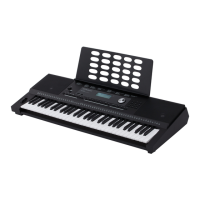
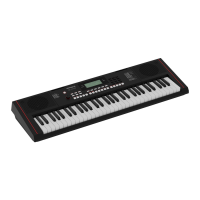
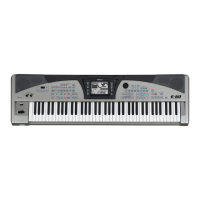
Roland E-X50
55 pages
Print Icon
To Next Page IconTo Next Page
Loading...
- 1 -
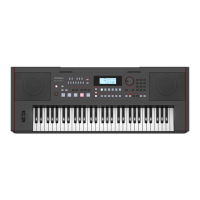
E-X50
Arranger Keyboard
Owner’s Manual
Version: V06

Table of Contents

Questions and Answers

  • D
    Daniel PageAug 15, 2025
    What to do if my Roland Musical Instrument doesn't produce sound from the speakers?
    • S
      Steven ParkAug 15, 2025
      If your Roland Musical Instrument speakers aren't producing sound, check that the master volume isn't too low. Also, verify that the R1/R2/L1 sound volume is not set too low in the mixer within the function menu. Finally, ensure that headphones are not plugged into the PHONES jack.
  • D
    Daniel BowenAug 18, 2025
    Why do my Roland Musical Instrument speakers produce noise when near a mobile phone?
    • C
      Christina RobertsAug 19, 2025
      If you are using a mobile phone in close proximity to the instrument, it may produce interference. To prevent this, either turn off the mobile phone or use it farther away from the instrument.
  • F
    flynnjayAug 21, 2025
    Why does my Roland E-X50 Musical Instrument shut down after a period of time?
    • D
      Dawn MartinAug 22, 2025
      The Auto Off function will turn off the instrument after a preset period of time when the instrument is not in use. You can disable this function in the function menu.
  • J
    Jill GreenAug 25, 2025
    What to do if my Roland Musical Instrument pedal does not respond?
    • A
      Anthony WeberAug 26, 2025
      Check if the pedal cable is firmly connected.
  • J
    Jessica RyanAug 28, 2025
    How to fix wrong pitch on my Roland Musical Instrument?
    • C
      Cory CarneyAug 28, 2025
      Ensure that the tune value is set to 0. If the issue persists, restore the factory settings by holding down the [EXIT] and [ENTER] buttons while turning on the power.
  • A
    Andrew StephensonSep 1, 2025
    What to do if my Roland Musical Instrument cannot read/save to the USB flash drive?
    • J
      Jodi SmithSep 1, 2025
      Make sure your USB flash drive is in FAT32 format and not multi-partitioned.
  • P
    paulcervantesSep 4, 2025
    What to do if my Roland Musical Instrument is not recognized when connecting to computer?
    • K
      Kathryn SilvaSep 4, 2025
      First, check if the USB cable is firmly connected. If the issue continues, try connecting to another USB port on your computer. This instrument uses plug and play, so it should work without needing a driver installation.
  • J
    justin67Sep 7, 2025
    Why doesn't my Roland E-X50 Musical Instrument sustain notes correctly with a sustain pedal?
    • W
      William MeyerSep 7, 2025
      If the connected sustain pedal works in reversed behavior, it may be due to the polarity of the pedal. Try plugging the pedal into the PEDAL jack before turning the power on.
  • A
    Autumn HartSep 12, 2025
    Why the auto accompaniment does not play back on my Roland E-X50?
    • M
      Michael Davis DDSSep 12, 2025
      If the auto accompaniment does not play back even when sync start is engaged and a key is pressed, you may be playing keys in the right hand range of the keyboard. To start the accompaniment with sync start, make sure to play keys in the left-hand range.

Summary

Panel & Display Description

Front Panel

Details the layout and functions of the E-X50's front panel controls.

Setup

Power Supply

Instructions for connecting and using the power adapter to supply power to the instrument.

Connections

Connecting a USB Flash Drive

Steps for connecting a USB flash drive for saving, loading, or playing data.

Connecting a Computer

Guide on connecting the instrument to a computer via USB for MIDI data transfer.

Power; Master Volume

Turning the Power On; Off

Procedure for powering the instrument on and off using the power switch.

Adjusting the Master Volume

Typical Modes

Function Menu

Auto Accompaniment

Playing Auto Accompaniment (Rhythm Track)

Steps to start playing rhythm tracks using the style selection and Start/Stop buttons.

Playing Auto Accompaniment (All Tracks)

Chord Fingering

Tempo

Registration Memory

Registering the Panel Settings

Steps to save current panel settings into registration memory buttons.

Recalling the Registered Settings

One Touch Setting

Recording

Prepare Recording

Steps to prepare for recording by selecting a user song and entering standby mode.

Start Recording

How to start recording the performance in real-time.

Stop Recording

Bluetooth

Bluetooth paring and playback

Steps for pairing a mobile device and playing audio via Bluetooth.

Scale Tune

Audio Pad

Connecting USB Flash Drive

Playing a Style;Song from USB Flash Drive

Saving User Song to USB Flash Drive

Loading User Song from USB Flash Drive

Saving User Style to USB Flash Drive

Loading User Style from USB Flash Drive

Saving User Setting to USB Flash Drive

Loading User Setting from USB Flash Drive

Function Menu

Factory Reset

MIDI

Troubleshooting

Specifications

Tone List

Style List

MIDI Implementation Chart

Roland E-X50 Specifications

General IconGeneral
MIDI-keyboard number of keys61 keys
MIDI inYes
InterfaceUSB/Bluetooth
USB version2.0
Headphone outputs1
Power source typeDC
Power consumption (typical)30 W
Display typeLCD
Product colorBlack
Sound effectsChorus, Delay, Equalization, Reverberation
Sound effects quantity689
Maximum polyphony (notes)256
Music memory capacity (songs)10
Weight and Dimensions IconWeight and Dimensions
Depth461 mm
Width1048 mm
Height319 mm
Weight9600 g

Related product manuals