Need help?
Do you have a question about the Roland GO:KEYS 3 and is the answer not in the manual?
Explains buttons for song playback, recording new songs, chord sequencing, and key transposition.
Details Wi-Fi, USB memory, USB computer, and DC IN ports for the GO:KEYS 5 model.
Details USB memory/WC-1, USB computer, and DC IN ports for the GO:KEYS 3 model.
Procedures for turning the instrument on and off, including the Auto Off function.
Important safety information regarding Auto Off, recommended stands, and placement stability.
Precautions for handling the unit, using the AC adaptor, power cord, and avoiding electrical hazards.
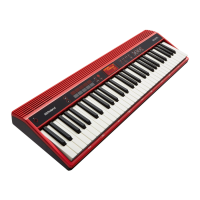
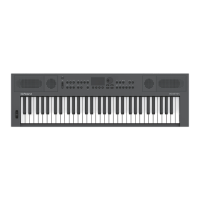
The Roland GO:KEYS 5 and GO:KEYS 3 are portable electronic keyboards designed for beginners and experienced musicians alike, offering a blend of intuitive features, high-quality sounds, and connectivity options to enhance the musical experience. These instruments are built to inspire creativity and make music production accessible and enjoyable.
At their core, both GO:KEYS models function as versatile musical instruments capable of producing a wide range of sounds and accompaniments. They feature a 61-key keyboard, allowing for expressive playing across a broad musical range. The sound generation is powered by ZEN-Core technology, providing rich and authentic tones.
The instruments offer a comprehensive set of controls for sound manipulation and performance. The [song] button allows users to select and play back pre-recorded songs, with a long-press initiating a demo function to showcase the instrument's capabilities. For those looking to create their own music, the [record] button enables direct recording of new songs, capturing spontaneous musical ideas.
A key feature is the [chord seq] button, which displays the chord sequencer view screen. This function allows the playback of chords as an auto-accompaniment based on a chosen chord pattern, even without directly playing chords on the keyboard, making it easier for users to build musical foundations. The [transpose] button facilitates changing the key in semitones. This is achieved by holding down the transpose button and pressing the octave [-] or [+] buttons, which also serve to raise or lower the pitch in octaves. A useful memo notes that the keyboard transpose value can also be changed by pressing the root on the keyboard for the desired key.
For dynamic accompaniment, the [style] button presents a selection screen for choosing auto-accompaniment styles, while the [mute] button brings up mute settings, allowing users to turn drums, bass, and other accompaniment parts on or off, effectively stopping them from playing. The [effects] button opens a screen for configuring effects that apply to the entire performance, adding depth and character to the sound. The [arpeggio] button displays arpeggio settings, enabling the creation of intricate melodic patterns.
The [arranger] button is designed to change the mood of the accompaniment, allowing users to play intros, endings, or variations with the auto-accompaniment. The [▷] button serves as a play/stop control for the auto-accompaniment, and the [tempo] button adjusts the metronome and auto-accompaniment tempo, with a long-press turning the metronome on or off.
Navigation and detailed settings are managed through the [menu] button, which displays a menu for selecting parameters and making detailed adjustments. A long-press of the menu button also initiates pairing with a Bluetooth® device. The [scene] button shows the scene selection screen, and a long-press displays the save screen, allowing users to store and recall their preferred settings.
The [split/dual] button offers versatile playing modes: "Single" for playing with a single tone, "Split" for dividing the keyboard into left and right parts with different tones (e.g., bass for the left hand and piano for the right), and "Dual" for playing two different tones simultaneously with each key press.
Basic power control is handled by the [] (Power) button, which turns the instrument on or off, with a long-press required for powering down. The [volume] slider] adjusts the speaker volume or headphone volume. A Wheel provides control over pitch bend and modulation depth, adding expressive capabilities to performances.
For the GO:KEYS 5, dedicated [mic effects] and [mic] buttons provide access to mic effects editing and mixer screens, respectively, indicating advanced vocal processing capabilities. The GO:KEYS 3, on the other hand, features an [A] (Metronome) button to turn the metronome on/off and access its settings, and a [*] (Bluetooth) button to display the Bluetooth screen and initiate pairing with a long-press.
The central Display shows various information, including mode/category, tone name, time signature, and tempo. Function buttons [f1]-[f4] located below the display allow users to select parameters or execute functions. A Dial is used for navigating parameters and changing values, while the [exit] button] cancels operations or exits screens. The [enter] button] confirms selections. The [<][▷] buttons are used to select parameters, change values (with continuous change when held down, and quick change when pressed with the other button), change tone categories on the home screen, and switch between pages on list screens.
Dedicated tone buttons like [piano], [e.piano], [strings], and [synth] allow for quick selection of tones within each category, and an [other] button provides access to tones not listed in these primary categories. The [] (Home) button returns the user to the home screen.
The GO:KEYS models are designed for ease of use, making them ideal for learning and creative expression. Turning On/Off the Power: To turn on, users simply move the [volume] slider all the way down and press the [] (power) switch. To turn off, the [volume] slider is again minimized, and the [] (power) button is held until "POWER OFF" appears on the display. It's crucial not to turn off the power during playback, recording, or data loading/saving to prevent data loss. Auto Off Function: The instruments feature an Auto Off function that automatically powers down after a period of inactivity. This can be disengaged if desired, but users are reminded to save unsaved data before the power turns off. Selecting the Tone: Tones are organized into categories accessible via dedicated tone buttons. Users can press these buttons to select a category, use the [<<] [▷] buttons to switch between categories, and then turn the dial to select a specific tone. In dual or split mode, function buttons are used to select a part before choosing the tone. Connectivity: Both models offer various ports for external connections. The GO:KEYS 5 includes a Wi-Fi adaptor port for connecting the Wireless Adapter (included with Roland Cloud Connect, sold separately) to import Sound Packs and Style Packs via a smartphone. It also has a USB memory port for USB flash drives to play audio files or save settings, and a USB computer port for MIDI and audio data transmission with a computer. The GO:KEYS 3 combines the Wi-Fi adaptor and USB memory functions into a single USB memory/Roland WC-1 port. Both models feature a DC in jack for the included AC adaptor. Pedal Connections: The GO:KEYS 5 includes a pedal hold jack for a pedal switch or damper pedal, a pedal ctrl jack for a pedal switch, damper pedal, or expression pedal (with a warning to use only specified expression pedals to avoid malfunction), and a mic input jack for a dynamic mic. The GO:KEYS 3 simplifies this with a single pedal hold jack. Audio Output: The GO:KEYS 5 has output R, L/mono jacks for amplified speakers or recording equipment, and a phones jack for headphones or earphones with a four-conductor mic input. The GO:KEYS 3 combines these into phones/output jacks. Roland Cloud Connect: Both instruments support Roland Cloud Connect (sold separately), allowing users to import Sound Pack and Style Pack contents via their smartphone. This feature operates on a membership basis, and availability may vary by region.
Proper maintenance ensures the longevity and optimal performance of the GO:KEYS instruments. Battery Installation: Both models can operate on eight commercially available nickel-metal hydride or alkaline AA batteries. The process involves removing the battery cover, installing batteries with correct orientation, and closing the cover. Users are warned about "Battery Low!" indicators and the importance of installing fresh batteries promptly. Crucially, improper battery handling can lead to explosion or fluid leakage, emphasizing the need to follow safety guidelines in the "USING THE UNIT SAFELY" and "IMPORTANT NOTES" leaflets. Care of the Keyboard: Users are advised against placing objects on the keyboard, writing on it with pens, or affixing stickers, as these can cause malfunction, discoloration, or permanent marks. For cleaning stubborn dirt, a commercially available keyboard cleaner without abrasives is recommended, with gentle wiping to avoid scratching. Data Backup: Before sending the unit for repairs, it's essential to back up any stored data or write down important information, as data loss can occur during repairs. Roland assumes no liability for lost data. General Precautions: Users are reminded not to apply strong pressure to the display or music rest. They should also be mindful of sound transmission through floors or walls to avoid disturbing others. Power Supply: The AC adaptor should be placed with the text side downward. If using batteries, alkaline or Ni-MH batteries are recommended, and carbon-zinc batteries should not be used. External Memories: When handling external memory devices, users should observe precautions such as not removing the device during read/write operations and discharging static electricity from their person beforehand. Safety Guidelines: The manual includes warnings about using only recommended stands and evaluating safety issues to prevent the instrument from falling or toppling. It also cautions against getting fingers pinched in the music rest and keeping small items (like screws) out of reach of children. Batteries can reach high temperatures, so care should be taken to avoid burns. Only the supplied AC adaptor and power cord should be used, ensuring correct voltage and polarity to prevent damage or electric shock. Intellectual Property: Users are reminded that it is forbidden by law to record, copy, or revise copyrighted works without permission. Roland assumes no responsibility for infringements arising from product use. The copyright for content within the product (sound waveform data, style data, etc.) is reserved by Roland Corporation, but purchasers are permitted to use this content for creating, performing, recording, and distributing original musical works. However, extracting and distributing said content in original or modified form for commercial purposes is not allowed.
 General
| Number of Keys | 61 |
|---|---|
| Polyphony | 128 voices |
| Sound Engine | ZEN-Core |
| USB Audio/MIDI | Yes |
| Parts | 1 |
| Effects | Reverb, Chorus |
| Transpose | Yes |
| Bluetooth | Bluetooth Ver 4.2 |
| Display | LCD |
| Speakers | Yes |
| Power Supply | AC adapter |
| Accessories | AC adapter |


 To Next Page