11. Press METRONOME ( ) to return to the beginning of the song and press PLAY ( ) to hear
the results.
12. If you do not like what you have recorded, press UNDO/REDO once followed by
METRONOME ( ) to return to the top of the song. Then, repeat steps 5-11 until you are
satisfied with the results.
VIII. Track Editing
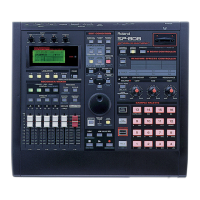
Track editing could not be any easier on the SP-808. Crucial editing functions such as erase, cut,
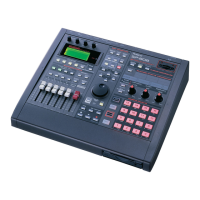
insert, and paste have dedicated buttons on the front panel for easy access. The SP-808 lets you
select a range of material to be edited by simply pressing the REGION IN/OUT button at the
appropriate locations. Then, just select the type of edit you wish to perform and your done. Use the
following procedure to edit the track we recorded in the previous section.
Cut
Cutting a track will delete the portion of the track you've marked and move everything after the edit
forward in time. This is ideal for removing entire sections of your song, such as a verse or chorus.
After recording, it is common to have some blank space before the start of your song. Use the
following procedure to cut out any blank space at the beginning of track A:
1. Hold SHIFT and press STATUS B, C, and D so they are dark. This indicates that any editing
will only be performed on track A.
2. Press METRONOME ( ) to return to the top of the song.
3. Press REGION IN/OUT.
4. Press NEXT (MEAS ) or use the VALUE/TIME dial to select the location right before you
want your song to start and press REGION IN/OUT again.
5. Hold SHIFT and press the RIGHT CURSOR (CUT) button. The edit happens immediately.
6. Press METRONOME ( ) to return to the top of the song and press PLAY ( ) to hear the
results.
7. If you do not like your edit, press UNDO/REDO once. Then repeat steps 2-6 until you are
satisfied with the results.
Erase
Erase is different from Cut in that when you erase a portion of a track, the track does not shift in
time. Blank space remains where the audio used to be. This is really cool for breaks or drop outs.
Use the following procedure to create a drop out on track A:
1. Hold SHIFT and press STATUS B, C, and D so they are dark. This indicates that any editing
will only be performed on track A.
2. Use the PREV/NEXT (MEAS ) buttons or the VALUE/TIME dial to select the location
where you want the drop out to start.
3. Press REGION IN/OUT once.
4. Press NEXT (MEAS ) or use the VALUE/TIME dial to select the location where you want the
drop out to end and press REGION IN/OUT again.
5. Hold SHIFT and press the LEFT CURSOR (ERASE) button. The edit happens immediately.
6. Press METRONOME ( ) to return to the top of the song and press PLAY ( ) to hear the
results.
7. If you do not like your edit, press UNDO/REDO once. Then, repeat steps 2-6 until you are
satisfied with the results.


 To Next Page
 Loading...