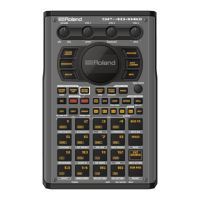
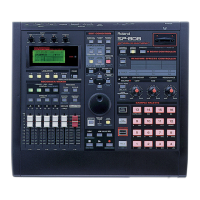
1. Hold SHIFT and press AUDIO REC ( ).
2. Press STATUS (TRACK SELECT) A, B, and C until they light orange (BOUNCE).
3. Press STATUS (TRACK SELECT) D so it flashes red.
4. Press PLAY ( ). There will be a two measure count in before the music starts.
5. Use the faders to adjust the levels of tracks A, B, and C as desired.
6. After the tracks have finished playing, press STOP ( ).
7. Press STATUS(TRACK SELECT) D so that it is green (PLAY).
8. Press STATUS (TRACK SELECT) A, B, and C until they are off (MUTE).
9. Press METRONOME ( ) to return to the beginning of the song and press PLAY (4) to hear
the results.
10. If you do not like what you have recorded, press UNDO/REDO once followed by
METRONOME ( )to return to the top of the song. Repeat steps 1-8 until you are satisfied
with the results.
Recording With Effects
The SP-808 allows you to record an effect and make it a permanent part of your track. This allows
you to use the effects processor for other tracks or samples. There are two different ways an effect
can be routed to record: as an insert effect or in a send/return loop. The method you should use
depends on the effect you are using. Insert should be used when you want to send your source
signal into the effects processor and record the output of the effects processor without recording
the dry signal. Some effects commonly used in an insert routing include distortion, slicer, and radio.
Use the send/return method when you want to record a mixture of the dry and effected signal.
Effects such as reverb, delay, and chorus are commonly used in a send/return fashion.
Use the following procedure to record samples to a track with an effect added to those samples.
First, let's create a new song:
1. Press SONG/TRACK.
2. CURSOR down to Create New Song and press ENTER/YES.
Now, let's name the song:
1. Use the CURSOR buttons to place the cursor and the VALUE/TIME dial to select the desired
character.
2. Press ENTER/YES twice.
Now let's add the Radio effect to some samples and record the output to a track:
1. Press REALTIME EFFECTS ON/OFF so it is lit.
2. Press FX INFO, rotate the VALUE/TIME dial to select "P97 18>Radio," and press ENTER/YES.
3. Hold SHIFT and press MUTE (MIX COMMON).
4. CURSOR down to FxLoc and use the VALUE/TIME dial to select "INS RECORD."
5. Hold SHIFT and press AUDIO REC ( ).
6. Press STATUS (TRACK SELECT) A so it flashes red.
7. Press PLAY ( ). There will be a two measure count off before the music starts.
8. Press the pads in time with the music and rotate the Realtime Control knobs to alter the
effect.
9. Press STOP ( ) when you are finished.
10. Press STATUS (TRACK SELECT) A so it is green (PLAY).


 To Next Page
 Loading...