21. Press F1 until “→PstF” is displayed. Press F1 once more to select
this setting.
22. Press F1-F4 ON/OFF.
23. Turn V1 to adjust the drum machine signal’s effect send level.
This determines how much reverb will be added to the drum
machine. Set it to 115 to add a healthy amount of reverb.
24. Repeat Steps 18-23 to apply some post-fader reverb to the bass
and vocalist. In Step 23:
• set the bass’s effect send level to 75 for just a touch of reverb.
• set the vocalist’s effect send level to 100.
25. Press LEVEL METER (BIG T.C.) to return to the main level screen.
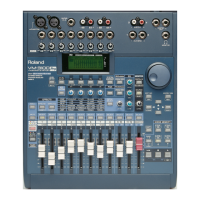
To illustrate how to use insert effects in the VM-3100, let’s add some
distortion to a guitar using one of Roland’s exclusive COSM™ effects—
COSM effects are typically applied as insert effects. Let’s connect the
guitar directly to Channel 4’s special high-impedance guitar input jack.
We’ll start by selecting the effect we want to use:
1. Press EFFECTS.
VM-3100Pro Only:
Let’s use Effect 2. Press EFFECTS2 to call up
the “FX2” select screen.
2. Turn the VALUE dial to select “P36 GT:RockLed.”
3. Press ENTER/YES (REDO) to confirm your choice.
Now we’ll insert the effect into Channel 4’s signal flow:
1. Press F1-F4 ON/OFF.
2. Press F1 until “→On” appears in the display. Press F1 once more to
turn on the effect.
3. Press F2 [LOC].
4. Use the DOWN page button to move to “Location.”
5. Use the VALUE dial to select “INS CH04.”
6. Use the DOWN page button to move to “In Level.”
7. Turn the VALUE dial to adjust the level of the guitar signal that’s
being diverted from Channel 4 into the effect—you can use a setting
of 100 for this example.
8. Use the DOWN page button to move to “Out Level.”
9. Turn the VALUE dial to adjust the volume of the effect as it’s
inserted back into Channel 4’s signal flow. A setting of 100 will do
for our purposes.
1999 Roland Corporation U.S. The Basics of the VM-3100/VM-3100Pro Faxback# 21099 Page 15
Setting Up a Send-and-Return Effect (continued)
®ÂØÒňΠSupplemental Notes The Basics of the VM-3100/VM-3100Pro
XV. Setting Up an Insert Effect
You can quickly view a channel’s effect send level by pressing the
channel’s SELECT button to show its “CH VIEW” screen. On this
screen, the effect send we’ve been using is shown as “FX1 (V2).” The
“(V2)” signifies that the effect send can be adjusted from this screen
using V2—however, you can set it with greater precision using the
numeric readout on the “FX/AUX SEND” screen.


 To Next Page
 Loading...