Need help?
Do you have a question about the Roland VR-4HD and is the answer not in the manual?
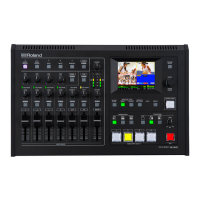
Explains basic operations for the VR-4HD.
Explains the meaning of warning and caution symbols used in the manual.
General safety warnings for fire, shock, injury, and environmental factors.
Warnings about phantom power usage with different microphone types.
Notes on power connection, placement, and potential interference.
Details of controls for audio mixing and input sensitivity adjustment.
Explains controls for video transitions, compositing, and effects.
Connections for RS-232, HDMI, RGB/COMPONENT, and Composite video inputs.
Connections for tally/GPIO, grounding, USB, HDMI OUT, and PVW OUT.
Connectors for audio signals and headphone monitoring.
Power input and phantom power settings for microphones.
Step-by-step procedure for powering the unit and connected devices.
Lists supported video input and output formats by connector type and frame rate.
Configures the overall input/output format for the VR-4HD.
Specifies input format for channel 4, independent of system format.
Configures output format for HDMI and RGB/COMPONENT connectors.
Assigns video input to channel 4 via HDMI, RGB/COMP, or Composite.
Adjusts main and preview output video settings like resolution and scaling.
Operations for adjusting image quality and EDID for channel 4 input.
Sets video output to main or four-way split screen for PVW/USB.
Enables input of HDCP-protected video content.
Changing video input by tapping the channel screen on the built-in monitor.
Switching video inputs using the dedicated VIDEO INPUT SELECT buttons.
Feature to eliminate echo in web conferencing calls.
Automatically controls faders for complex mixing situations.
Associates audio with video switches for automatic output.
Delays audio to match video timing for proper lip-sync.
Assigns functions to USER buttons for quick access.
Saves current settings as a memory preset.
Loads previously saved settings from memory.
Locks buttons and knobs to prevent accidental changes.
Resets all settings to their original factory defaults.
Solutions for common video input and display issues.
Solutions for common audio output and input problems.
Detailed technical specifications for video processing, inputs, and outputs.
Detailed technical specifications for audio processing, inputs, outputs, and effects.
 General
| Product color | Black |
|---|---|
| On/off switch | Yes |
| Rack mounting | No |
| Video processing | 8 bit |
| Video resolutions | 1280 x 768, 640 x 480, 800 x 600, 1024 x 768, 1280 x 1024, 1366 x 768, 1400 x 1050, 1600 x 1200, 1920 x 1200 pixels |
| Supported video modes | 480i, 480p, 576i, 576p, 720p, 1080i, 1080p |
| HDMI in | 4 |
| Number of HDMI outputs | 2 |
| VGA (D-Sub) input ports | 1 |
| Output current | 3 A |
| Power source type | AC |
| Operating temperature (T-T) | 0 - 40 °C |
| Display type | LCD |
| Display resolution | 320 x 240 pixels |
 Weight and Dimensions
| Depth | 217 mm |
|---|---|
| Width | 339 mm |
| Height | 87 mm |
| Weight | 2400 g |

 To Next Page