18
Video Operations
Switching the Video
Switching between the video inputs via channels 1 through 4.
Switching by Tapping the screen
You can change the video by tapping the channel screen on the built-
in monitor
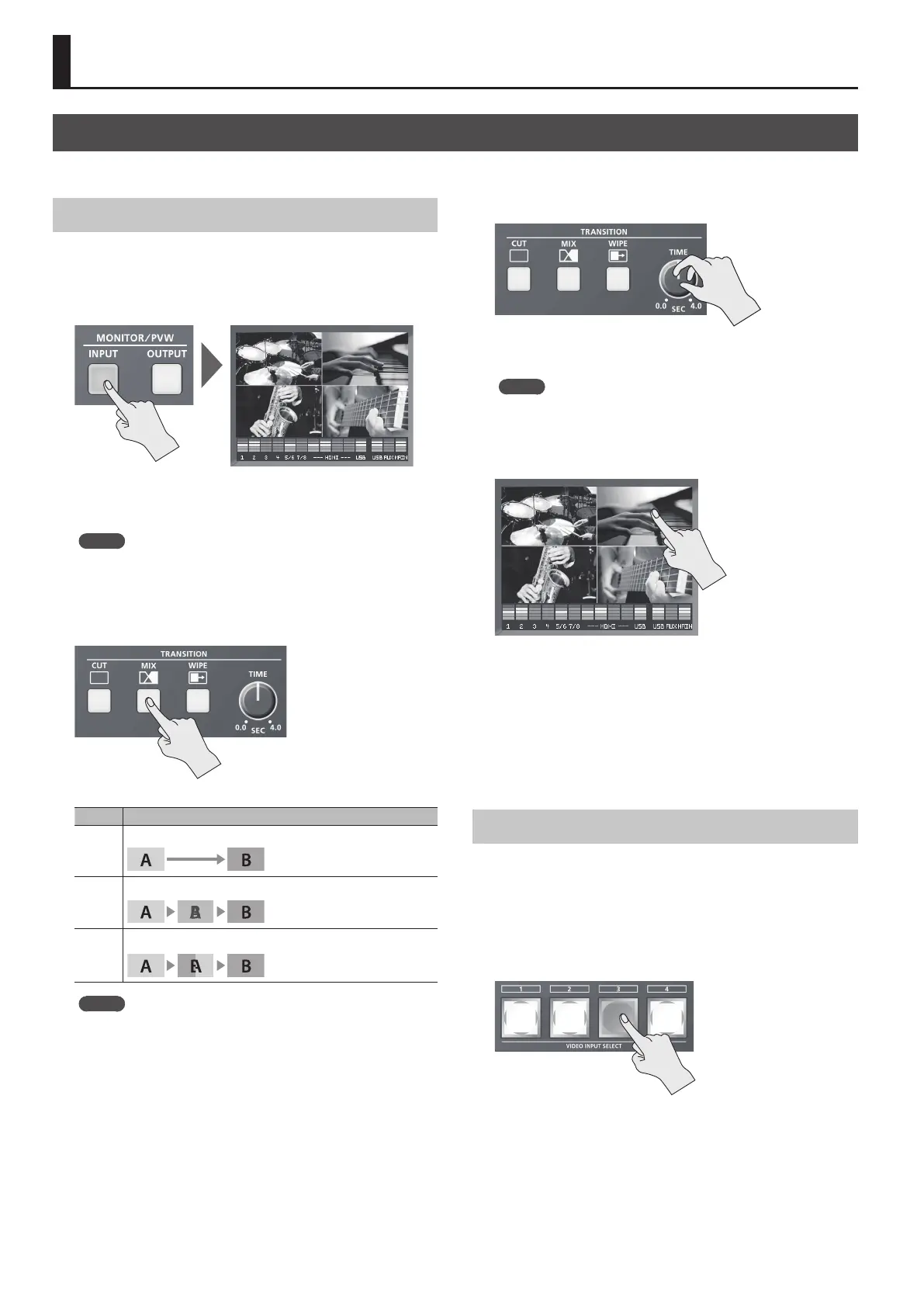
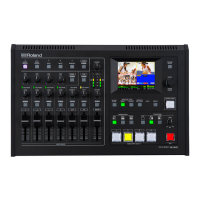
1. Press the [INPUT] button, making the button light up.
The incoming video on channels 1 through 4 are displayed on the
built-in monitor as a four-way split screen. A red border is displayed
around the channel screen being output.
MEMO
5 Pressing the [INPUT] button to switch the view mode of the built-
in monitor (p. 10) also changes the view mode of preview output
in the same way.
2. Press the [CUT], [MIX], or [WIPE] button to select a transition
eect.
The selected button lights up.
Button Explanation
[CUT]
The picture switches instantly.
[MIX]
The two pictures are blended together as the video is switched.
[WIPE]
In this transition, the original video is broken into by the next video.
MEMO
5 You can change the transition pattern used for a wipe or mix
transition. Use the [SYSTEM SETUP] button g <TRANSITION> g
<MIX PATTERN> or <WIPE PATTERN> to make the setting.
For a list of transition-pattern types, refer to “Transition Eects
List” (p. 48).
3. Use the [TIME] knob to set the transition time.
When a mix or wipe has been selected as the transition eect, you can
set a video transition time in a range of 0.0 to 4.0 seconds.
MEMO
5 You can also set the transition time for video from the TRANSITION
menu. Use the [SYSTEM SETUP] button g<TRANSITION> g
<TRANSITION TIME> to make the setting.
4. Tap the screen for the channel you want to output.
The video changes.
During the transition time while switching from one channel to
another channel, red borders are displayed around the screens for
both channels.
* Tapping a dierent new channel screen while the video transition
is in progress interrupts the transition and cuts to the new channel
selected.
Switching the Video Using Buttons
Press the VIDEO INPUT SELECT [1]–[4] buttons to switch the video.
1. Carry out steps 1 through 3 of “Switching by Tapping the
screen” earlier on this page.
2. Press one of the VIDEO INPUT SELECT [1]–[4] buttons to
select the channel you want to output.
The video changes.
While the transition eect is being applied, the VIDEO INPUT SELECT
button for the video after the transition ashes.
When the video has been switched completely, the button stops
ashing and stays lighted.
* Pressing a dierent new VIDEO INPUT SELECT button while the
video transition is in progress executes the transition with a cut.


 To Next Page