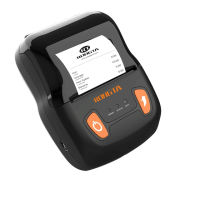
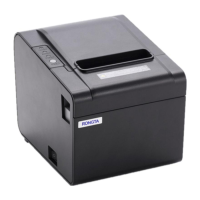
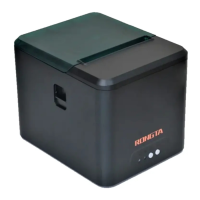
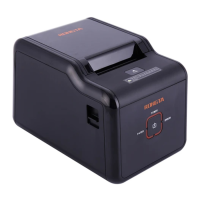
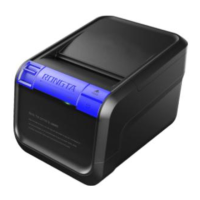
This document describes the RPP02N Mobile Thermal Printer, a compact and portable device designed for various printing applications.
Function Description
The RPP02N is a mobile thermal printer that uses direct thermal printing technology. It is designed to print receipts, labels, and other data on thermal paper. The printer supports various character sets, including Chinese (GB18030) and ASCII, as well as several barcode types (CODE39, EAN13, EAN8, CODABAR, CODE93, ITF) and graphics. It features a clamshell paper loading mechanism for easy paper roll installation. The printer can be connected to a primary device via serial interface (RS232), USB, or Bluetooth for printing. It also includes indicator lights and a buzzer to signal its status, such as power on/off, charging, low battery, and lack of paper. A self-test function allows users to check the printer's settings and status at any time.
Important Technical Specifications
Print Performance:
- Printing way: Direct thermal print
- Paper width: 56mm
- Printing width: 48mm
- Resolution: 8 dots/mm (203dpi)
- Dot/line: 384 dots
- Printing speed: 50-80mm/s
- Paper thickness: 60-80µm
- Printing Content: Chinese (Support all GB18030 Chinese character, character sets), ASCII character, some full width custom characters and some half width custom characters; barcode: CODE39, EAN13, EAN8, CODABAR, CODE93, ITF; graphics.
- Printing Command: ESC/POS compatible with commands set (see “RPP02N Command Set”).
Physics Parameter:
- Outer dimension: 103x75x46mm
- Gross weight: 240g (Includes the paper roll)
- Scroll Diameter: ≤40mm
- Interface: RS232, USB, Bluetooth (Interfaces vary with different models).
Environment Parameter:
- Working temperature: -10 ℃ to 50 ℃
- Working humidity: 20% to 85%
- Storing temperature: -20 ℃ to 70 ℃
- Storing humidity: 5% to 95%
Power:
- Battery: 1400 mAH rechargeable li-ion battery
- Adapter recharge time: Approximately 3 hours
- USB recharge time: Approximately 6 hours
- Battery life (approximate): 100 meters of printing or 3 hours of use (Note: actual capacity may decrease over time).
- Charging: The printer can work normally during the charging process.
Usage Features
Battery Installation:
- Pull up the buckle to open the battery cover.
- Insert the battery into the compartment, ensuring correct polarity.
- Close the battery cover.
Paper Roll Installation:
- Press the cover to open it.
- Place the paper roll into the compartment, ensuring the correct direction. Incorrect placement will prevent the printer from working.
- Pull out a portion of the paper from the paper roll compartment.
- Close the cover.
Basic Functions:
- Power On: Press and hold the "POWER" key for two seconds. The power indicator (red light) will illuminate. If the feed indicator (blue light) flashes, the battery is low and needs charging or replacement.
- Power Off: Press and hold the "POWER" key for two seconds. All indicator lights will turn off.
- Self-Test: With the printer off, press and hold the "FEED" key, then simultaneously press the "POWER" key. The printer will print a self-test page showing its status, settings, and a printing sample.
- Feed (Manually): While the printer is working, press the "FEED" key to feed paper for 250mm. If a black mark is detected and the feeding length is not set to "0", the printer will stop feeding at the black mark.
Connecting and Printing:
- Serial Interface: Connect using the optional DB-9 serial interface cable (MINI DIN plug to printer).
- USB Interface: Connect using the optional USB wire to a PC and install the USB driver.
- Bluetooth Matching and Printing:
- Power on the printer.
- Use the primary device to search for external Bluetooth devices.
- Select the printer corresponding to its BDA address (found on the self-test page).
- Enter the password "0000".
- Complete matching.
- Note: Only one printer should be powered on during matching to avoid confusion. The printer can be matched with up to eight PCs; if more are matched, the earliest matched PC will be deleted.
- Virtual Bluetooth Serial Port: For devices with a virtual Bluetooth serial port (e.g., smartphones, laptops), printing data can be sent directly after matching. For devices without this feature, consult the PC supplier.
Indicator Light and Buzzer Signal Description:
The printer uses a buzzer and two indicator lights (Feed Indicator - blue, Power Indicator - red) to communicate its status:
- Feed Indicator (blue) Quick flashing, Power Indicator (red) Off: Charging.
- Feed Indicator (blue) Slow flashing, Power Indicator (red) Off: Low battery level.
- Feed Indicator (blue) Long lighting, Power Indicator (red) Off: Charging finished.
- Feed Indicator (blue) No flash, Power Indicator (red) Long Lighting: Power on status.
- Feed Indicator (blue) Slow flashing, Power Indicator (red) Slow Flashing: Lack of paper (accompanied by a buzz).
- Feed Indicator (blue) No flash, Power Indicator (red) Sow Flashing: Sleep status.
Maintenance Features
Battery Safety Notice:
- Use only the battery and power adapter provided by the manufacturer to prevent damage, leakage, fire, or explosion.
- Do not expose the battery to fire, short-circuit it, break it apart, or heat it.
- If battery liquid leaks and contacts skin or clothes, wash immediately with clean water. If it enters the eyes, rinse with plenty of clean water and seek medical attention.
- Do not use or place the battery near burners or high-temperature environments.
- Use a dedicated charger.
- Ensure correct polarity when inserting the battery. Reverse insertion can cause overheating, burning, or explosion.
- Do not connect the battery to power sockets or car cigarette lighter sockets.
- Do not heat the battery or put it into fire.
- Avoid reverse charging.
- Do not allow battery poles to contact metal objects (e.g., necklaces, hairpins) to prevent short circuits.
- Do not throw or damage the battery.
Storage Notice:
- Store the printer in an environment with a temperature of -20 ℃ to 70 ℃ and relative humidity of 5% to 95%.
- For long-term storage, remove the battery and store it separately to prevent loss of efficacy or leakage.
- Thermal paper has a short storage time; use long-acting thermal paper for long-term preservation.
- Do not store thermal paper in high temperatures or direct sunlight. Store sealed paper in a dark place.
General Usage and Maintenance:
- Do not immerse the printer in water or expose it to rain.
- Do not open the paper cover while printing.
- When using the serial interface, do not disconnect the serial line during printing to avoid data incompletion.
- When using IR printing, align the IR windows of the main equipment and the printer within 50 centimeters and an angle not exceeding 30 degrees to prevent garbled or failed prints.
- High humidity (≥85%) or low humidity (≤20%) can degrade print quality.
- Using poor quality or old print paper can affect print quality and potentially damage the printer.
- When printing in black mark detection mode, ensure the black marks on the pre-print paper comply with the black mark printing standard to ensure accurate detection.
- It is recommended to fully discharge the battery before recharging to extend its lifespan.
- Avoid touching the printer mechanism with hands or any body part when printing or immediately after printing to prevent burns from high temperatures.
- If the printer malfunctions, turn it off, unplug it, and contact the dealer.
FCC Compliance:
This device complies with Part 15 of the FCC Rules. Operation is subject to two conditions: (1) this device may not cause harmful interference, and (2) this device must accept any interference received, including interference that may cause undesired operation. Changes or modifications not expressly approved by the party responsible for compliance could void the user's authority to operate the equipment.

 Need help?
 General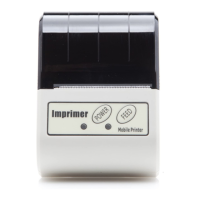

 To Next Page