Conguration Setting
07
08
09
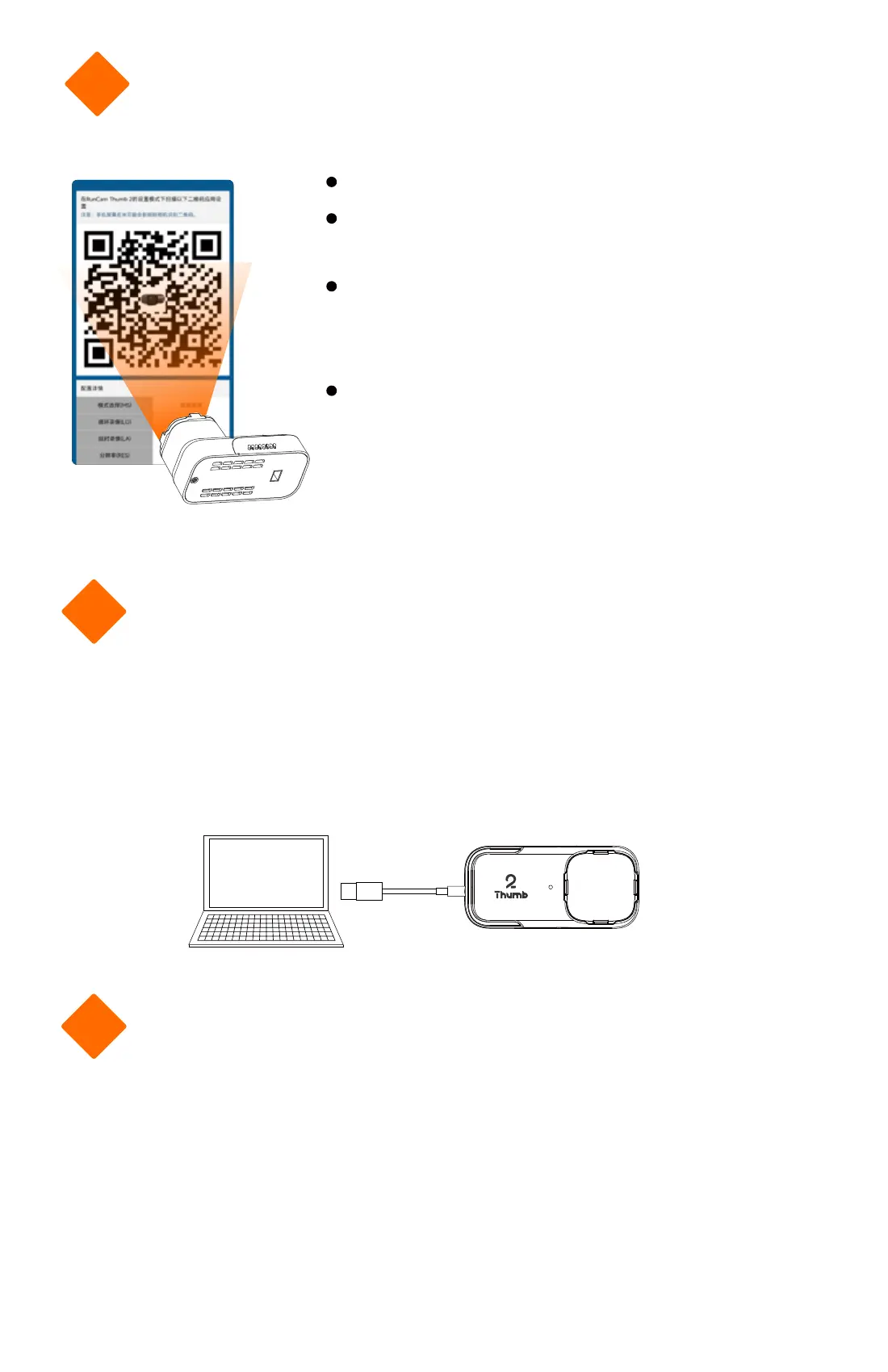
Go to RunCam App to select Thumb 2
Congure the setting and generate a
QR code
Power on the camera, double press
the button to switch to scanning mode,
light turns to solid green
Use camera to scan the QR code
generated on RunCam App, light turns
to solid red when camera scans
successfully
optimum distance: 25mm
PC Connection
When connected to a computer via Type-C, if the camera is
identied as a USB disk upon staup, press the button to switch
to UVC mode.
Notice: If PC cannot recognize successfully, please check if a Micro SD card is
inseed well; Please change USB cable or USB po to ret if accessing to les
inside Micro SD card fails.
Firmware Update
For camera’s best peormance, please use the latest
rmware.Updating method:
https://www.runcam.com/download/Thumb2
Camera rmware update status: red and green light ash
alternately, and camera shuts o automatically when the
update is nished.


 To Next Page