4 5
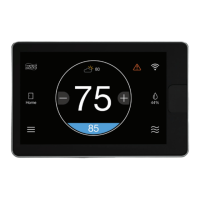
System Set Point
System Mode
Temperature Adjustment
Motion Sensor
WiFi Signal
Alert
Humidity
One-Touch Away
Indoor Temperature
Brand Logo
Weather
Messaging Bar
Menu Options
Introduction to your EcoNet Smart Thermostat
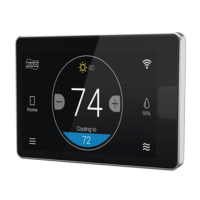
Home Screen Overview What This Means to Me
Weather
Displays the current outdoor
temperature; touch to see
weather forecast
Brand Logo
Touch to input your
contractor’s information
One-Touch Away
Activates your Away settings;
touch again to return to
previous settings
Indoor Temperature
Shows the current temperature
inside your home
Menu Options
Navigates to the Menu where
you can change basic settings,
customize your schedule, and more
Alerts
Indicates an important reminder,
minor alert, or critical alarm; touch
for additional details
WiFi
Shows current WiFi signal strength;
touch to get connected
Humidity
Displays the current relative humidity
in your home; touch to configure your
preference
System Mode
Navigates to Mode
selection screen


 To Next Page