T-Max® Manager/Plus and T-Max®3A/F/I User’s Guide Page 25
6.4.2
Setting up ADNET 2000™ to use the Recorded Messages
From the ADNET 2000™ window, click Setup with your left mouse button. Then click
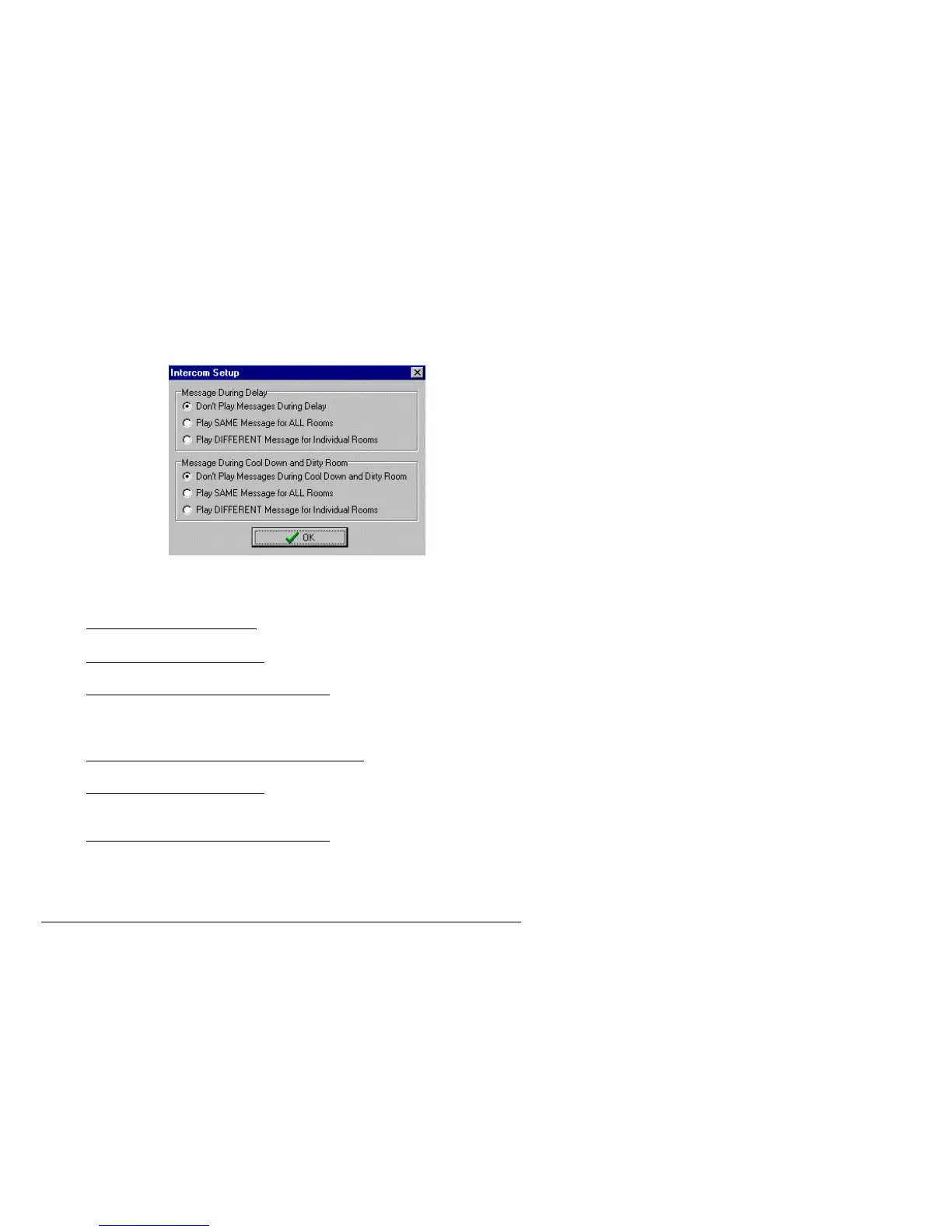
Intercom Setup with your left mouse button. The following screen will appear:
Click the circle to left of the message for what messages you want to play in the tanning room.
Message During Delay:
Don’t Play Messages During Delay
– No messages will be played in any room while any
timer is in delay.
Play SAME Message or ALL Rooms
– The message recorded under the Beforeall.wav
file name will be sounded in all rooms while that timer is in Delay.
Play DIFFERENT Message for Individual Rooms
– The files recorded under the file
names of Before1.wav, Before2.wav etc. will be sounded in Room1, Room2. etc.
respectively while the timer is in delay.
Message During Cool Down and Dirty Room:
Don’t Play Messages During Cool Down and Dirty Room
– No messages will be played
in any room while any timer is in Cool Down or Dirty Room after the session ends.
Play SAME Message or ALL Rooms
– The message recorded under the Afterall.wav file
name will be sounded in all rooms while that timer is in Cool Down Mode or Dirty Room
after a session ends.
Play DIFFERENT Message for Individual Rooms
– The files recorded under the file
names of After1.wav, After2.wav etc. will be sounded in Room1, Room2. etc.
respectively while the timer is in Cool Down Mode or Dirty Room after session ends.
Click OK to exit the Intercom Setup.



 To Next Page