Operating
the
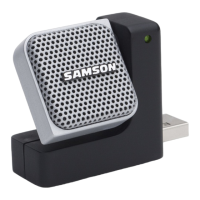
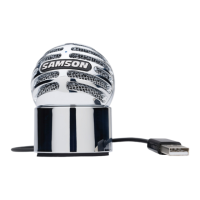
Go Mic
Go Mic Quick Start - continued
3.
Next, connect your headphones
to
the
PHONES
output located on the right side
of
the
Go
Mic.
4.
Plug
the mini-B
size
(small) end
of
the included
USB
cable into the
USB
socket on the
right side
of
the
Go
Mic.
5.
Now, plug the
other
end
of
the
USB
cable
into
an
available
USB
port
on your
computer.
Note:
Be
sure to check the installation guide for Windows
and
Mac
OS
to confirm
your
computer has recognized the Go Mic. Also, make sure
your
computer's
output
level
is
set
to
maximum
for full volume in the Go Mic headphone monitor.
6.
Next, launch your
DAW,
turn
down
the main
output
level and select the
Go
Mic for
the
input
and outputs.
7.
Set
up
a
mono
record track in
your
DAW
for the vocal track.
8.
At this
point
you
want
to
set the level
of
the
Go
Mic and there are few ways
to
do
this depending on your exact
computer
set up.
You
can set the microphone's
input
level in the Sound playback in Windows
or
in the Sound dialog box in the System
Preferences
if
you are using the
MAC
OS.
9.
Set
level
of
the microphone by raising the
Input
level control in your
DAW
or
system
to
about half way up.
If
you
see
the
Power/Peak
LED
light
red, your sgnal will be
distorted. Turn the
MIC
level control
down
until
it
does
not
flash red.
1 O.Next,
put
on your headphones, speak or sing
into
the mic and then raise the
DAW's
output
level control until you reach a comfortable listening level.
Now,
follow
the instructions
of
your
DAW software to enable the track for recording
and
you're ready to record.
14



 To Next Page