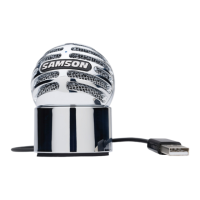
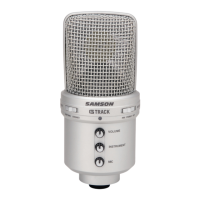
Meteor
Mic
·USB Studio
Condenser Microphone
~~~~~~
d~-!Wt&$JnW!ilil!ffi
'®Th[;'<f~'"JJ'j;
"@@i\''"''""""
Installing
the
Meteor Mic
clicking
on the number box.
If
you find that the microphone red
clip
LED
is
lighting frequently,
turn
this control
down
until the
LED
no longer flashes
red.
5.
Select
the
Playback
tab, then select the
Level
tab and set the computer's Master Volume
to
1
00°!0.
Use
the Meteor Mic's front panel Volume knob
to
control the overall
output
from the
headphones
or
speaker.
6.
Adjust the direct monitoring level in the
Playback
tab by moving the fader labeled Micro-
phone. A good place
to
start
is
to
set the monitoring level equal
to
the microphone gain.
Remember
that
the monitoring
level
is
not
the
same
as
the microphone gain.
If
the
input
signal
is
clipping,
lower the microphone gain.
WindowsXP
1.
The first
time
you plug the Meteor Mic into a
USB
port, Windows
will install the universal
drivers for
that
port. A balloon will
pop
up,
telling
you the computer
has
"Found new Hard-
ware:'
2.
When
it
is
finished
installing
the
drivers, a
balloon
pop
up
will
say
"Your new hardware
is
installed
and ready
to
use:'
Note: This
balloon
will
only
pop
up
when
you
first
plug
the device
into
a
particular
USB
port.
7



 To Next Page