Installing
the
Meteor
Mic
3.
To
set
the
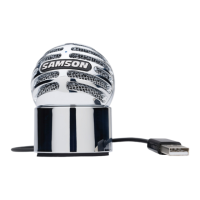
Meteor Micas your default device for sound playback and recording,
or
to
change
its settings,
click
the
Start
button,
click
Control Panel
and then click
Sounds
and
Audio
De-
vices.
In the
Audio
tab, select
the
Samson Meteor Mic from
the
drop-down menu.
4.
To
set the gain
of
the
microphone, click
the
Volume
button
in the Sound recording section
to
make
the
Microphone slider
appear.
It will
say
"Samson
Meteor Mic"
in the status bar at
the bottom. Moving this slider
will
adjust
the
analog
amplifier circuitry in
the
microphone.
5.
To
set
the
.headphone level,
click the
Volume
button
in
the
Sound
playback
section, and set
the Speaker slider
to
the
maximum position.
Use
the Meteor Mic's
front
panel Volume
knob
to
control
the
overall
output
from
the
headphones or speakers.
6.
To
set the direct monitoring
level
in the headphones, click the
Volume
button
in
the
Sound
playback
section. Adjusting
the
Microphone
slider
changes
the
microphone monitoring
level,
and
will
not
affect the microphone level
sent
to
your software.
8
Note:
If
the Microphone section does
not
appear
at
first, click Options
and
then Properties,
and
click the checkbox
next
to
Microphone.



 To Next Page