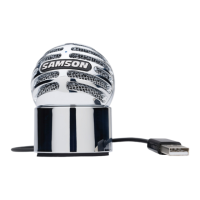
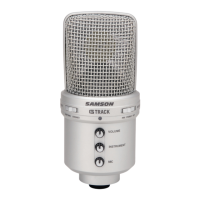
Meteor
Mic
·USB Studio Condenser Microphone
,~~"jj!$;
....
,._"'"'1"''!
'"'"'"m""@@\J!M\
!
,,
d,.,,,,,,,.,
,,
.,, .
..
...
..
.. .
Installing the
Meteor
Mic
Apple
MAC OSX
1.
To
start using
the
Samson Meteor Mic, simply plug
it
in. The
LED
will illuminate
to
indicate
it
is
receiving
USB
power. The
MAC
will recognize
the
USB
audio device and automatically
install a universal driver.
2.
To
select
the
Meteor
Micas
the
computer's audio input, open System Preferences from
the
dock
or
the
main Apple Menu.
3.
Next, open
the
Sound preferences, choose
the
Input
tab
and select Meteor Mic.
To
set
the
gain
of
the
microphone, adjust
the
Input
volume slider at
the
bottom
of
the
Sound dialog
box. The
Input
Level meter will show
the
recording level.
4.
To
set the playback volume, click in
the
Output
tab and select Meteor Mic, adjust
the
Output
volume slider at
the
bottom
of
the Sound dialog box
to
the maximum setting and use
the
Meteor Mic's
front
panel Volume knob
to
control
the
overall
output
from
the
headphones
or
speakers.
5.
To
turn
direct
monitoring
on
or
off, open
the
Audio/MIDI Setup
utility
located in the Utility
folder inside
the
Applications folder. Then click
the
checkbox in
the
Thru column in
Audio/
MIDI Setup.
9



 To Next Page